57
◎ Top toolbar Buttons
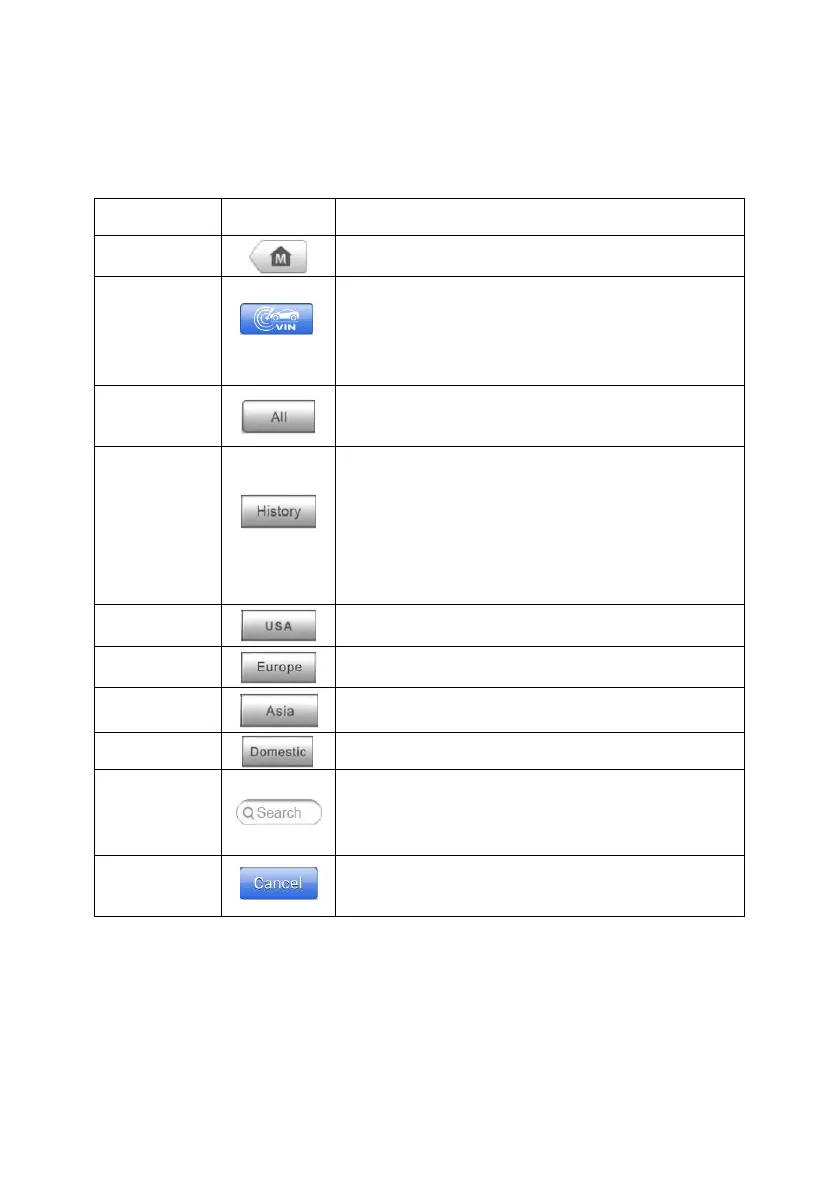
The operations of the Toolbar buttons at the top of the screen are listed and
described in the table below:
Table 4-3 Top Toolbar Buttons
Returns to the MaxiSys Job Menu.
Touching this button opens a dropdown
list; tap Auto Detect for auto VIN
detection; tap Manual Input to enter VIN
manually.
Displays all the vehicle makes in the
vehicle menu.
Displays the stored test vehicle history
records. This option provides you direct
access to the previously tested vehicle
recorded during previous test sessions.
See Vehicle History on page 96 Vehicle
History.
Displays the USA vehicle menu.
Displays the European vehicle menu.
Displays the Asian vehicle menu.
Displays the Domestic vehicle menu.
Touching this button opens the virtual
keyboard, allowing you to manually enter
the specific vehicle make required.
Touching this button exits the search
screen, or cancels an operation.
◎ Manufacturer Buttons
The Manufacturer buttons display the various vehicle logos and the brand
names. Select the required manufacturer button after the MaxiFlash Elite is
properly connected to the test vehicle to start a diagnostic session.







 To Next Page