VENUE System Restore 18
Installing and Activating VENUE Software on the E6L Engine
After creating System Restore USB drives, install and activate the software on your E6L engine. The following items are required
to install and activate the software on your E6L engine:
• A VGA compatible monitor
• A USB keyboard and mouse
• A physical Internet connection via an Ethernet cable (Wi-Fi is not supported)
• The E6L Engine System Restore USB Drive
Installing VENUE Software on E6L
To install VENUE software on the E6L engine:
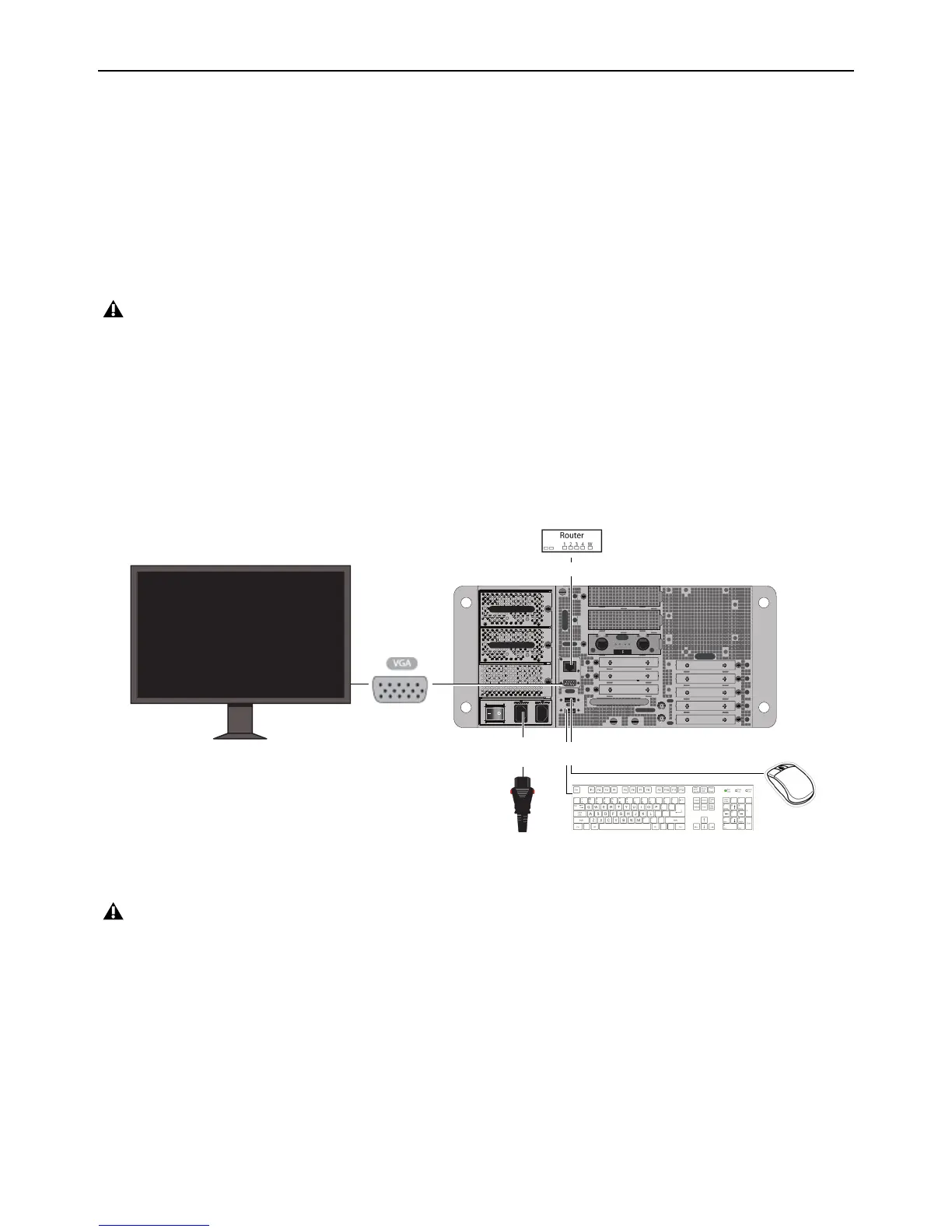
1 Connect the following to your E6L engine:
• An included IEC power cable from AC power inlet
A on the back panel of the E6L to your power source.
• A USB keyboard and mouse to any USB ports on the E6L. E6L provides two USB ports on the front panel, and two on the
back panel.
• An Ethernet cable from your Internet source (router or modem) to the Ethernet (RJ-45) port on the back of the E6L.
• A VGA-compatible monitor to the VGA port on the back of the E6L, and power on the monitor.
2 Insert the E6L Engine System Restore USB drive into an available USB port on the E6L.
Make sure your S6L system components are not connected while installing System Restore software, and that your E6L is powered
OFF before starting this procedure.
Required connections for installing and activating VENUE System Restore software on the E6L Engine
Make sure to use the E6L Engine System Restore USB Drive, not the S6L Control Surface System Restore USB Drive
IN
OUT
NETWORK
MASTER 1
WORD CLOCK
UTIL
EXPANSION
2
3
6
7
8
1
2
3
4
5
OKOK
A
B
AVB-192
ACT SIG ACT SIG
ACT SIG ACT SIG
A
B



 To Next Page