Powering Up and Configuring the System 54
Setting the System Clock
After pairing, make sure the system clock time, date and time zone are set appropriately. System Clock is set on the Options page
of the external VENUE software screen.
To set the System Clock:
1 On the external screen, select Options, then select the Misc tab.
2 In the System Clock section, select the Format pop-up menu to set the time for-
mat (
12 Hour AM/PM or 24 Hour).
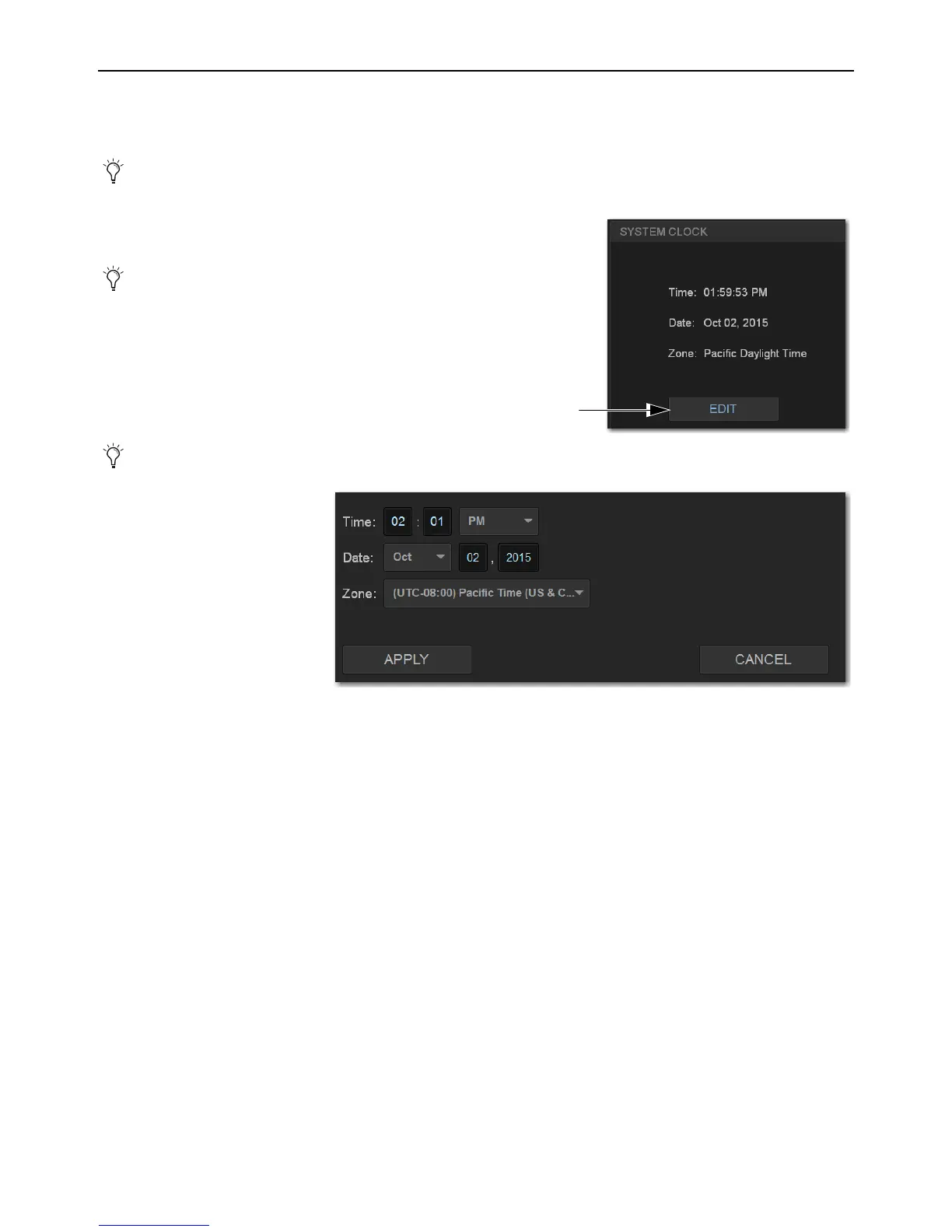
3 Select the Edit button in the System Clock section.
4 Select the Zone pop-up to choose the appropriate time zone. .
5 Select each available field and enter
the appropriate data to set the time
and date.
6 Select Apply.
The new System Clock settings are
applied.
How to Proceed
• If prompted to activate Windows, be sure to follow the previous instructions for Activating Windows on S6L.
• If not, proceed to
Optional Connections for Pro Tools and ECx Ethernet Control.
The system clock time can be shown in the Status bar for constant time-of-day display. For more information, see the
VENUE |S6L System Guide.
If necessary, minimize (but do not Cancel) the Windows
Activation alert by touching the down arrow at the
top-right of the dialog.
On touch screens, touch in a field and slide your finger up or down on the screen to increase or decrease the value in the field.



 To Next Page