Powering Up and Configuring the System 47
3 Select CONNECT.
The MTS (or external screen with S6L-16C) indicates that the S6L control surface is waiting for the E6L engine to start. When
the devices connect, the Universe view appears on the MTS, and the Inputs page appears on the external screen.
Firmware and software updates begin on various devices in the system, as follows:
• Surface modules (the Channel Fader Modules and the Channel Knob Modules), and status is indicated on the MTS.
• S6L control surface and E6L engine Network cards, and status is indicated on the Options > Devices page of the external
screen.
• Any Channel Touch Modules (CTMs), and status is indicated on the CTMs.
4 On the external VENUE software screen, in the Console Network Card alert dialog, click Review to monitor the progress of
firmware updates.
5 Proceed to Activating Windows on S6L.
Activating Windows on S6L
After powering up your system for the first time after performing a System Restore, an alert is displayed telling you that you must
activate Windows on your S6L control surface. Windows is part of the VENUE software installation on your S6L control surface,
and must be activated separately from VENUE software, and separately from the Windows activation on the E6L engine.
To activate Windows on your S6L control surface:
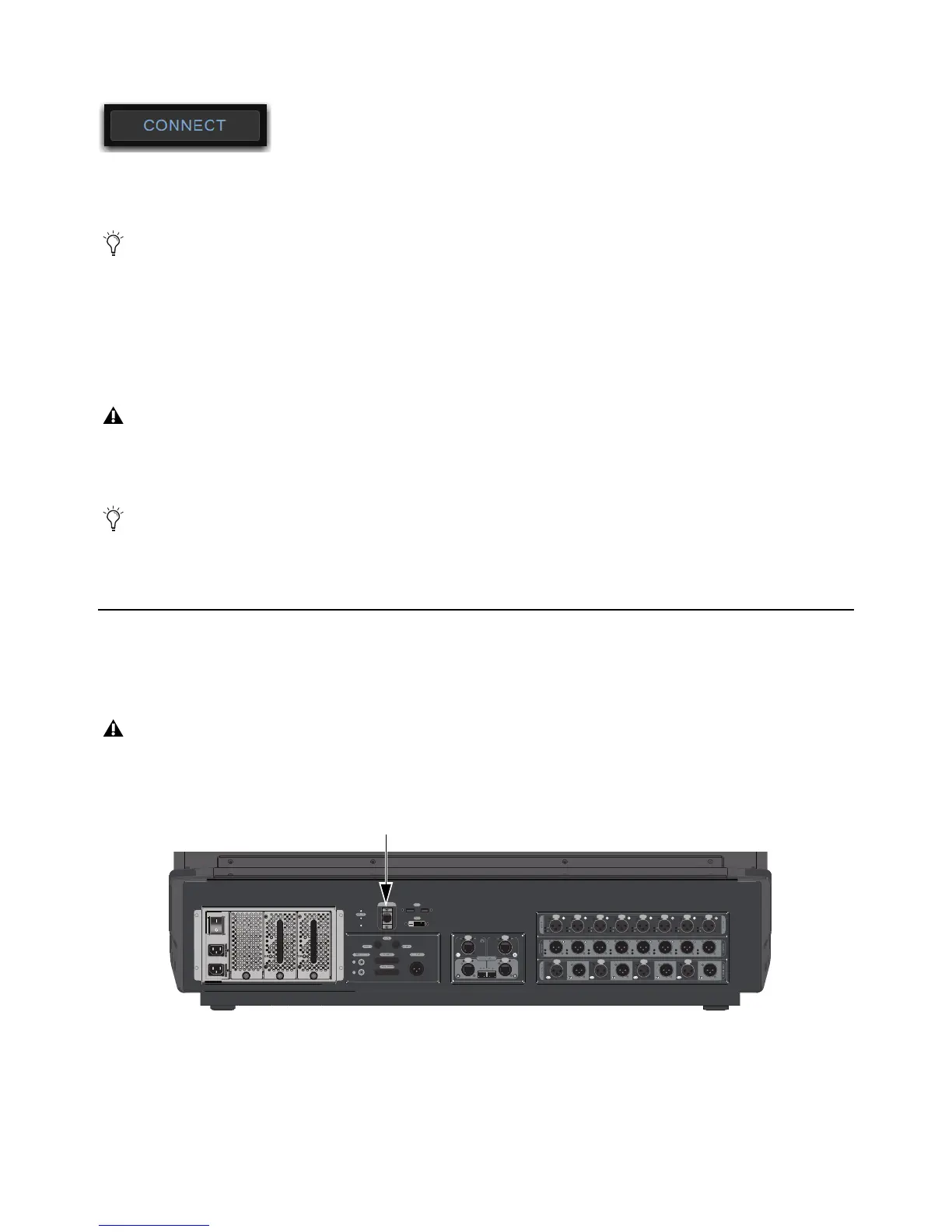
1 Connect an Ethernet cable from your Internet source (router or modem) to the ECx port on the back of your S6L control surface.
Connect button
If you have incorrectly assigned E6Ls, they must first be unassigned from the S6Ls to which they are currently assigned. See
Appendix D, “Managing Stage I/O Unit Connections.”
On some systems the CTMs (if any) might indicate that you must power-cycle your system to complete software installation.
Do not power-cycle your system at this time. Wait until the instructions in this guide tell you to power-cycle the system.
During the E6L engine update, alerts are shown indicating that connection between the S6L control surface and the E6L en-
gine has been lost, and plug-in racks need reset. These alerts can be ignored, as they are a normal part of the update process.
Activate Windows after you have connected and powered on your system. You have 30 days from the date of installation to ac-
tivate Windows on your S6L control surface.
ECx port on the back of the S6L control surface



 To Next Page