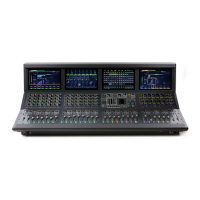
VENUE Software Update 28
Manually Updating VENUE Software
Windows XP or Higher, USB Drive, VGA Monitor and USB Keyboard and Mouse Required
Updating VENUE software on the E6L and S6L requires a single USB drive, formatted to FAT32.
To create a VENUE software updater USB drive:
1 Make sure you have already followed the instructions in Backing Up System Settings.
2 Make sure you have extracted the VENUE Software Update you downloaded earlier.
3 Drag and drop the VENUE_Update folder (containing content.dat and VENUE Installer.bat files) to the root level of a USB
drive.
Updating the E6L Engine
To update VENUE software on the E6L Engine:
1 Power down the S6L system (E6L engine, S6L control surface, and all attached Stage 64s).
2 Connect a VGA monitor, keyboard and mouse directly to the E6L Engine. Be sure to connect the keyboard and mouse to USB
ports on the front panel of the E6L Engine.
3 Power on your E6L, then press and hold F5 on the keyboard until the BIOS splash screen appears on the VGA monitor.
Once the E6L Engine fully boots, an all-black screen with one command prompt window appears.
4 To update the E6L Engine, do the following:
• Insert the USB drive containing the
VENUE_Update folder into any available USB port on the back of the E6L Engine.
• On the computer keyboard, press Ctrl+Shift+U.
• When the Update dialog appears, choose to
Update to 6.x.x.
• When finished, a Restart dialog appears.
5 Do either of the following, as appropriate:
• If your system does not include any MADI-192 MADI Option Cards, choose
restart and immediately disconnect the mouse,
keyboard, and VGA monitor, then proceed to
Updating the S6L Control Surface.
6 Proceed to Updating the S6L Control Surface.
Updating the S6L Control Surface
To update VENUE software on the S6L Control Surface:
1 Connect a DVI monitor, keyboard and mouse directly to the S6L control surface.
2 Disconnect all speakers and headphones.
3 Power on the S6L control surface and wait for the Waiting for Engine dialog to appear.
4 On the computer keyboard, press Ctrl+Shift+U, then do the following:
• When the Update dialog appears, choose to
Update to 6.x.x.
• When finished, a Restart dialog appears. Choose
Restart.
5 Proceed to S6L Network Connections.
Do not use the System Restore drives included with your system. After performing the system update you will want to update the
images on those drives with the latest VENUE System Restore images that you have downloaded.



 To Next Page