Appendix D: Managing Stage I/O Unit Connections 67
Configuring Stage Slots for Stage 16s, Stage 32s, or Stage 64s
As described in Assigning Stage I/O Units, when adding Stage 16s or Stage 32s for the first time, or when reconfiguring a system
to use Stage 64s instead of Stage 32s or Stage 16s, you must first configure Stage slots in the
Options > Devices tab before you
can assign Stage I/O units. Each
Stage slot corresponds to a Stage hardware tab 1–6 in the VENUE Patchbay.
To configure Stage slots and assign Stage I/O racks:
1 Make sure your system is in Config mode.
2 On the external screen, go to the Options > Devices page and locate the Connected Devices column.
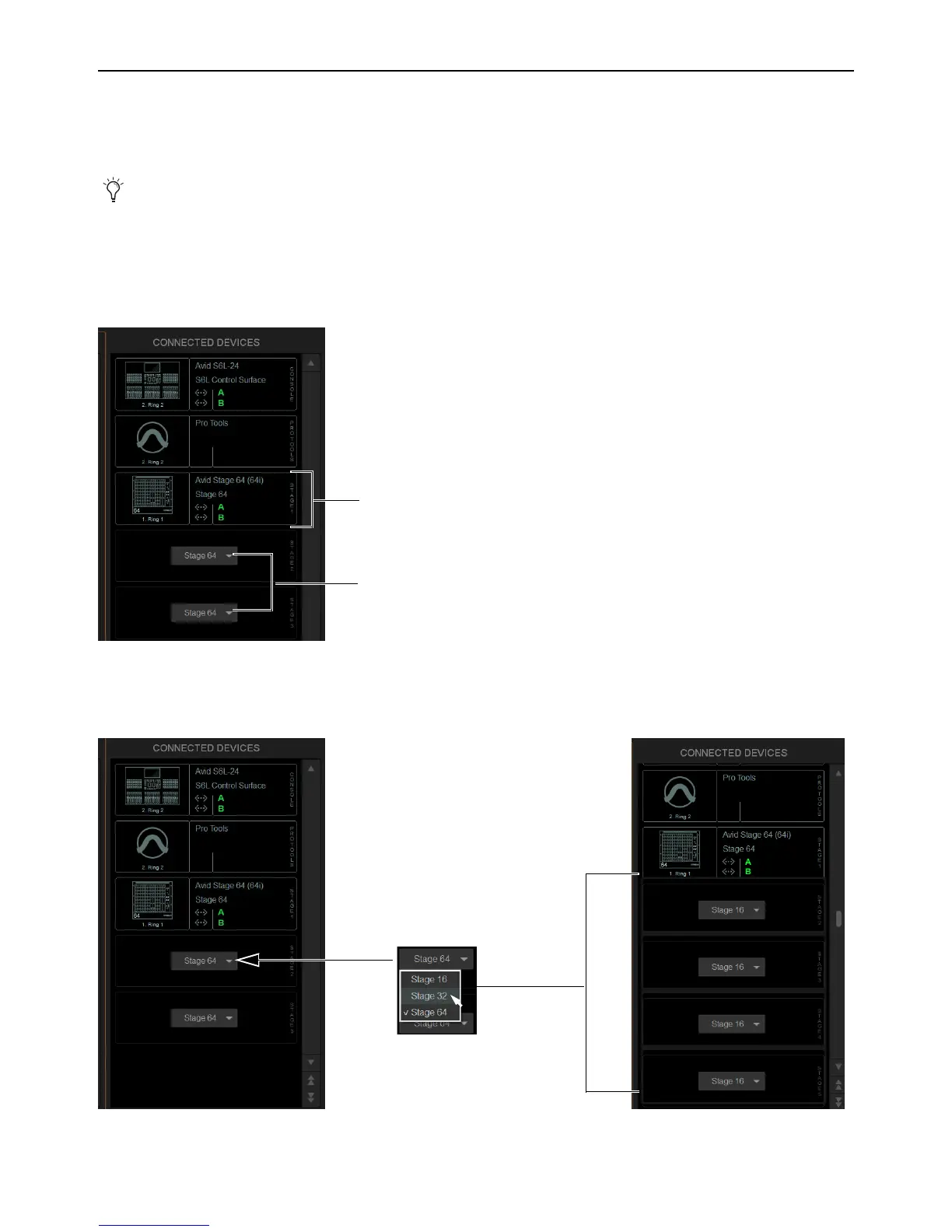
By default, three Stage 64 slots are displayed in the Connected Devices column.
3 Select any available slot Type selector and choose Stage 32 or Stage 16 from its pop-up menu.
Up to four Stage 16 slots, or up to two Stage 32 slots, appear in the Connected Devices column.
You can configure Stage slots and assign devices in VENUE Standalone Software (requires version 5.5 or higher).
Connected Devices showing one connected Stage 64 (above), and two Stage slot Type selectors (below)
Stage 32 and Stage 16 slots available in Options > Devices



 To Next Page