S6L Network Connections 30
S6L Network Connections
Follow the instructions in this section to make S6L network connections. Before you begin, power down all components (S6L con-
trol surface, E6L engine, and all Stage I/O units).
S6L Network Connections Overview
The S6L system has two discrete networks, the AVB audio network and the ECx Ethernet Control network.
• The AVB audio network connects all S6L system components and Pro Tools.
• The ECx network connects a client computer or other device (directly or via network equipment) to S6L to enable remote con-
trol of your system.
AVB Audio Network Connections
Direct connections are required for all AVB audio network connections between S6L system components and between the S6L
control surface and Pro Tools.
S6L System Components
Connect S6L system components together using either supported copper or fiber-optic network cables.
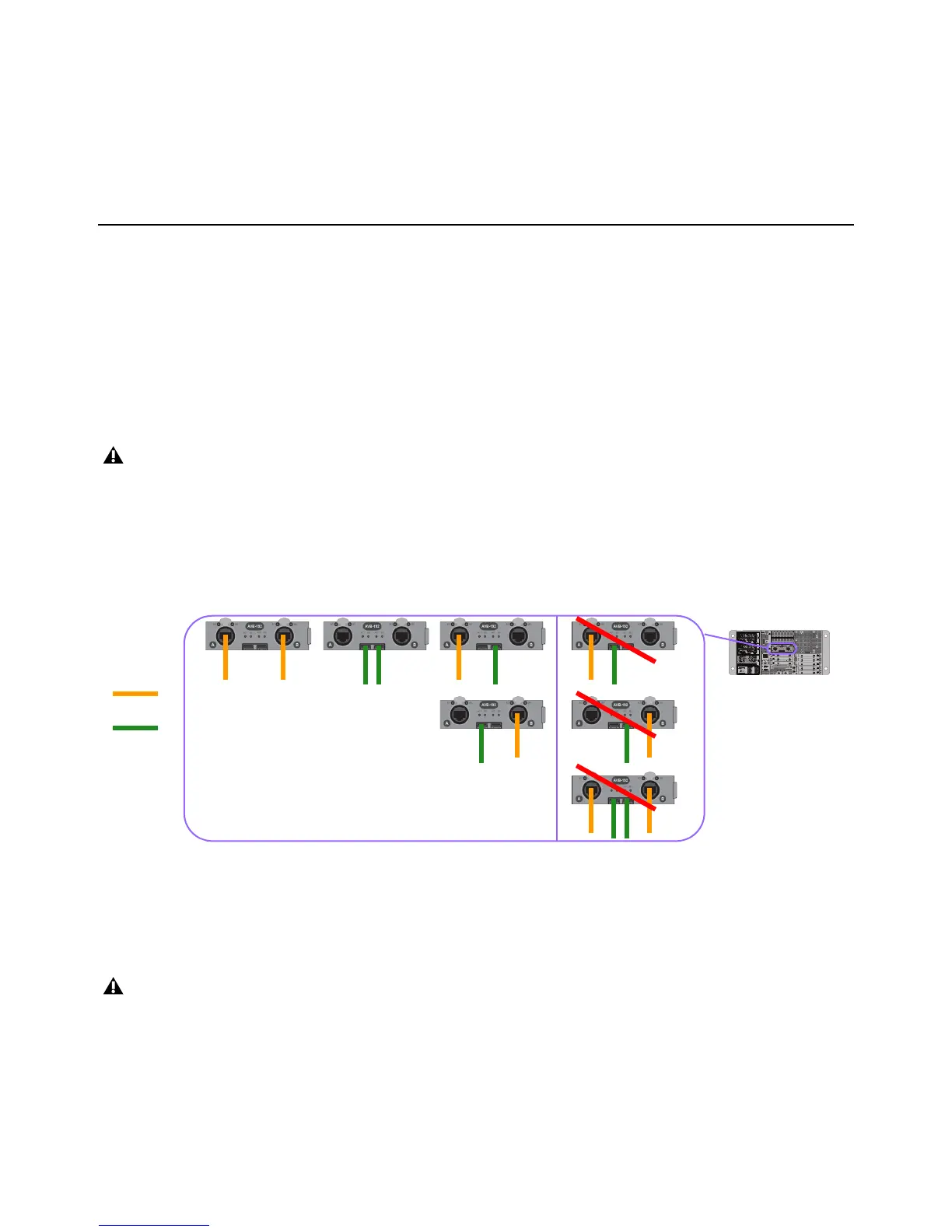
You can mix cable types within a system. For example, you can connect the S6L control surface to the local E6L engine using
supported copper cables, then connect to a Stage 64, Stage 32, or Stage 16 I/O rack using fiber. However, only one cable type
(copper or fiber-optic) can be used per audio network port. Each network port (
A or B) has two connectors (one copper, and one
fiber). Never have both copper and fiber connected to the same network port simultaneously.
The instructions and diagrams in this guide show copper Ethernet connections only between RJ-45 ports on components. For in-
formation on connecting via fiber, see
Making Fiber Connections.
Pro Tools Recording/Playback Connections
You can connect to a Pro Tools computer (or other DAW) from Network port C on
the S6L control surface using supported copper audio network cables. Do this after configuring your S6L system.
ECx Ethernet Control Connections
You can connect a network router, hub, switch, or a client computer directly to the ECx port on the S6L control surface to be able
to control your S6L system remotely using a computer or tablet. ECx host and client software must be installed to enable ECx. For
more information on installing and using ECx, see the ECx Ethernet Control Guide.pdf.
To learn how to install and use VENUE
On-Stage for iPad and iPhone, see the VENUE On-Stage.pdf.
Do not connect network equipment such as routers, hubs or switches to any S6L system AVB Network ports.
Supported and unsupported cable type connections between S6L system components (example E6L engine shown)
Make sure to use the supported cables to make audio network connections between S6L system components and to Pro Tools.
See
Cabling Requirements for more information.
IN
OUT
NETWORK
MASTER 1
WORD CLOCK
UTIL
EXPANSION
2
3
6
7
8
1
2
3
4
5
OKOK
A
B
AVB-192
ACT SIG ACT SIG
ACT SIG ACT SIG
A
B



 To Next Page