VENUE System Restore 20
4 To activate Windows, do the following:
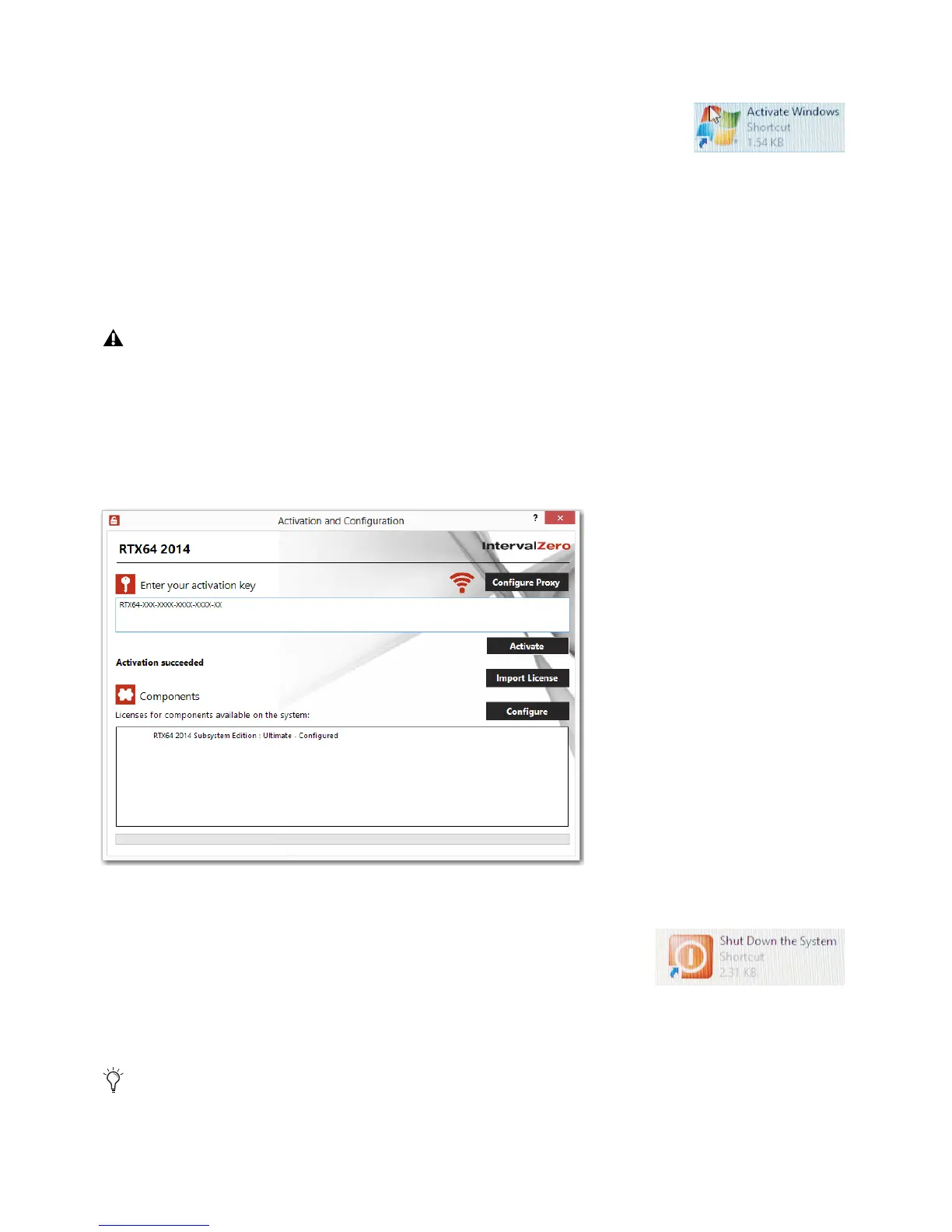
• On the Desktop, double-click
Activate Windows.
• Follow the on-screen instructions to activate your copy of Windows.
Windows Activation is complete when “Product activated successfully. Press any key to
continue
...” appears in the activation window on-screen.
5 Proceed to Activating RTX64 on E6L.
Activating RTX64 on E6L
To activate RTX64:
1 On the front-panel of the E6L engine, locate the RTX Activation sticker and write down the alphanumeric code that appears on
the label. Keep this information close by, as you are required to enter this code when activating RTX.
2 On the Desktop, double-click Activate RTX.
3 In the RTX64 Activation and Configuration window, enter the alphanumeric code exactly as it appears on the RTX Activation
Key label.
4 Click Activate.
RTX64 Activation is complete when “RTX64...Ultimate - Configured” appears in the window.
5 Close the RTX64 Activation and Configuration window.
6 Double-click the Shut Down the System shortcut on-screen.
7 Wait until the front panel Status LED is unlit and the System LED is lit amber, then press
the back panel power switch to the off (
0) position. Wait for the engine to completely
power-down.
8 Unplug the E6L Engine System Restore USB drive, VGA monitor, the USB keyboard and mouse, and the Ethernet cable from
the E6L Engine, then proceed to
Installing VENUE Software on the S6L Control Surface.
If you installed the E6L bezel on the front of the E6L engine, you must remove it to access the RTX Activation Key. For instructions,
see the E6L Engine Rack Supports Installation Guide.
The RTX activation window showing a successful activation
If your system includes one or more MADI-192 MADI Option Cards you might need to update firmware. Later, when you power
up the complete system, if you see a message that you need to update MADI-192 firmware follow the instructions in
Updating
MADI Card Firmware
.



 To Next Page