User’s Manual
d. Choose “PDF” as your file format. (This is the only supported
file format to be uploaded to Google Docs as a regular
account. If you have a business account, any file formats are
available.)
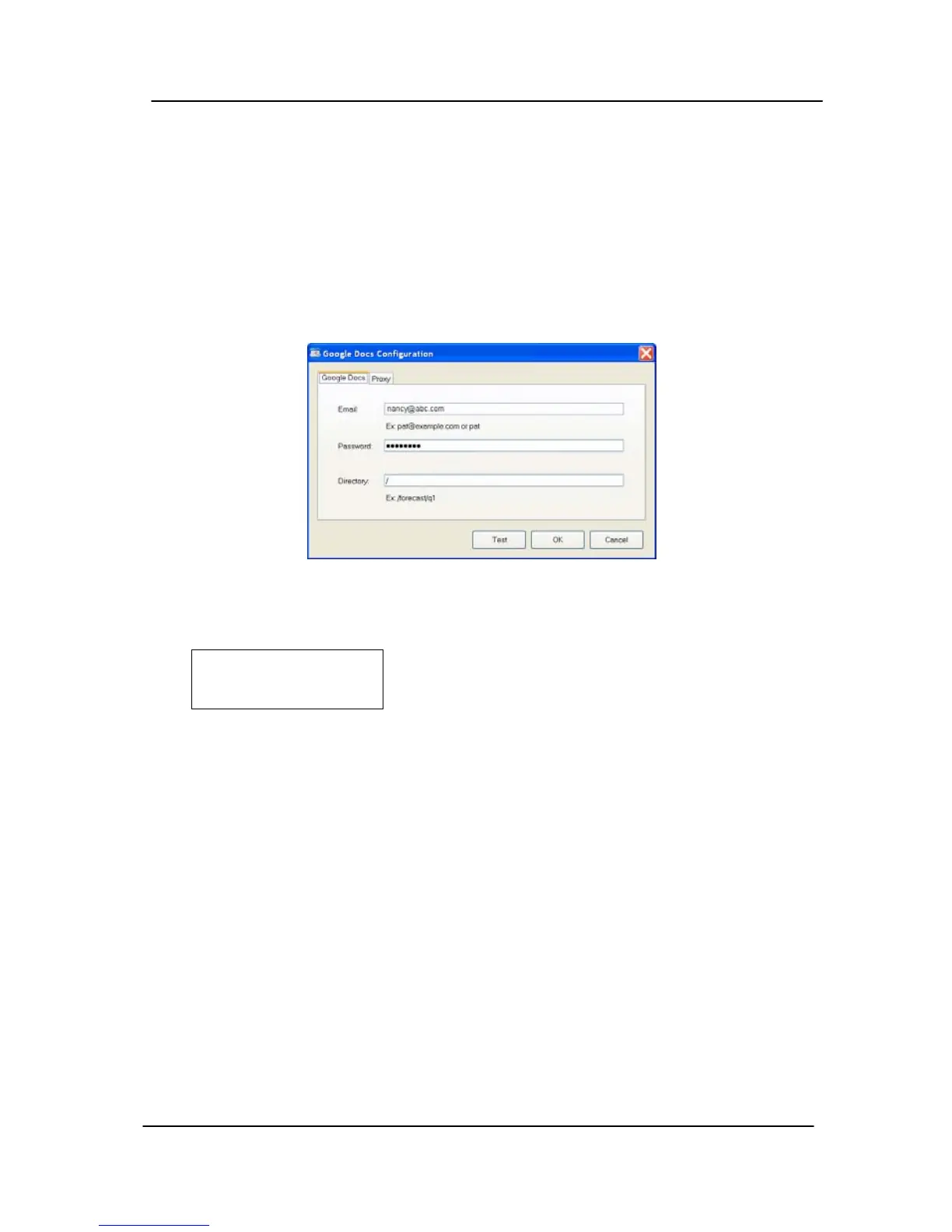
e. Click “Setup” on the “Scan to Settings” option. The “Google
Docs Configuration” dialog box appears.
f. Type your account and folder information in the field and then
click “OK” to complete. You may click “Test” to try if the
account works.
2. Make sure the profile “Google docs” is shown in the LCD-
display.
Select profile
fGoogle Docs
3. Press the Enter key to confirm your selection. The LCD-
display shows “Ready to scan”.
4. Press the Scan button on the control panel. In a second,
your scanned image is saved into the Google docs.
7-11


 To Next Page