53
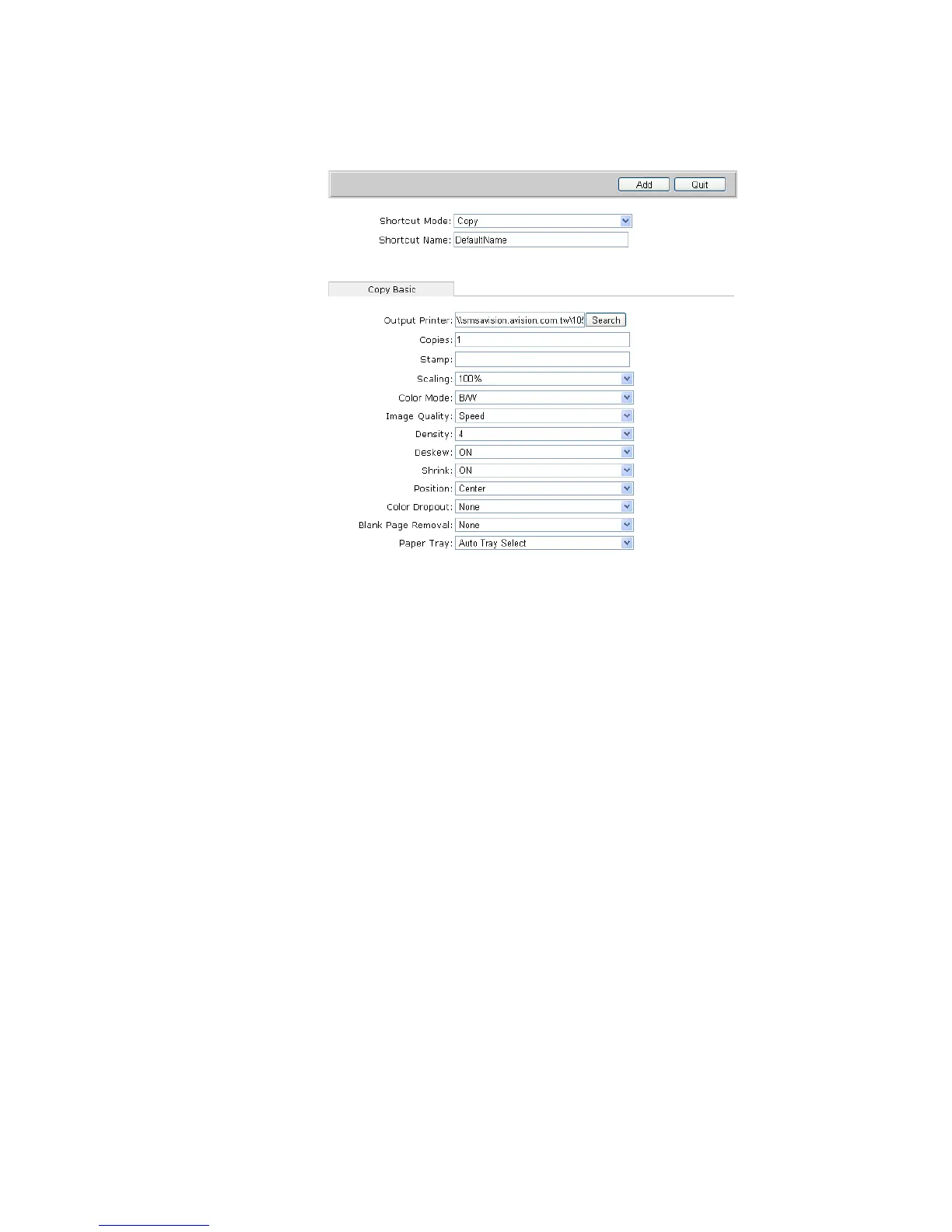
5. Click New to open the following shortcut-setting screen, as an example:
6. Choose your desired shortcut mode from the Shortcut Mode drop-down list box.
The shortcut-setting screen will change to reflect a number of choices you can
use when working with Copy, E-mail, Filing, Public Folder, USB Flash Drive,
Google Drive, or Microsoft SharePoint.
7. Type in your desired shortcut name (For example, My Copy) in the Shortcut
Name box.
8. Enter or modify specific settings under all these Tabs to meet your custom need.
Refer to Chapter 4 Operation or Section Summary of the Web Pages for these
settings.


 To Next Page