62
Specifying More Administrator Settings by The Touch Panel
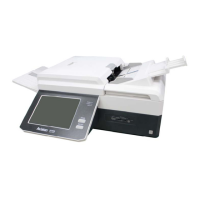
After the product is turned on, an administrator has privilege to bring up the [Menu]
button on the touch panel. Tapping the [Menu] button opens the [Menu] screen,
which displays 10 buttons for an administrator to view or modify various settings.
To view or modify various settings from the 10 buttons on the Menu screen,
1. Tap the [Login] button (
) on the touch panel to bring up the
administrator Login screen.
2. Enter your login name and password respectively in the Login Name and Password
field via the soft keyboard, and then tap OK. The [Menu] button pops up on the
touch panel.
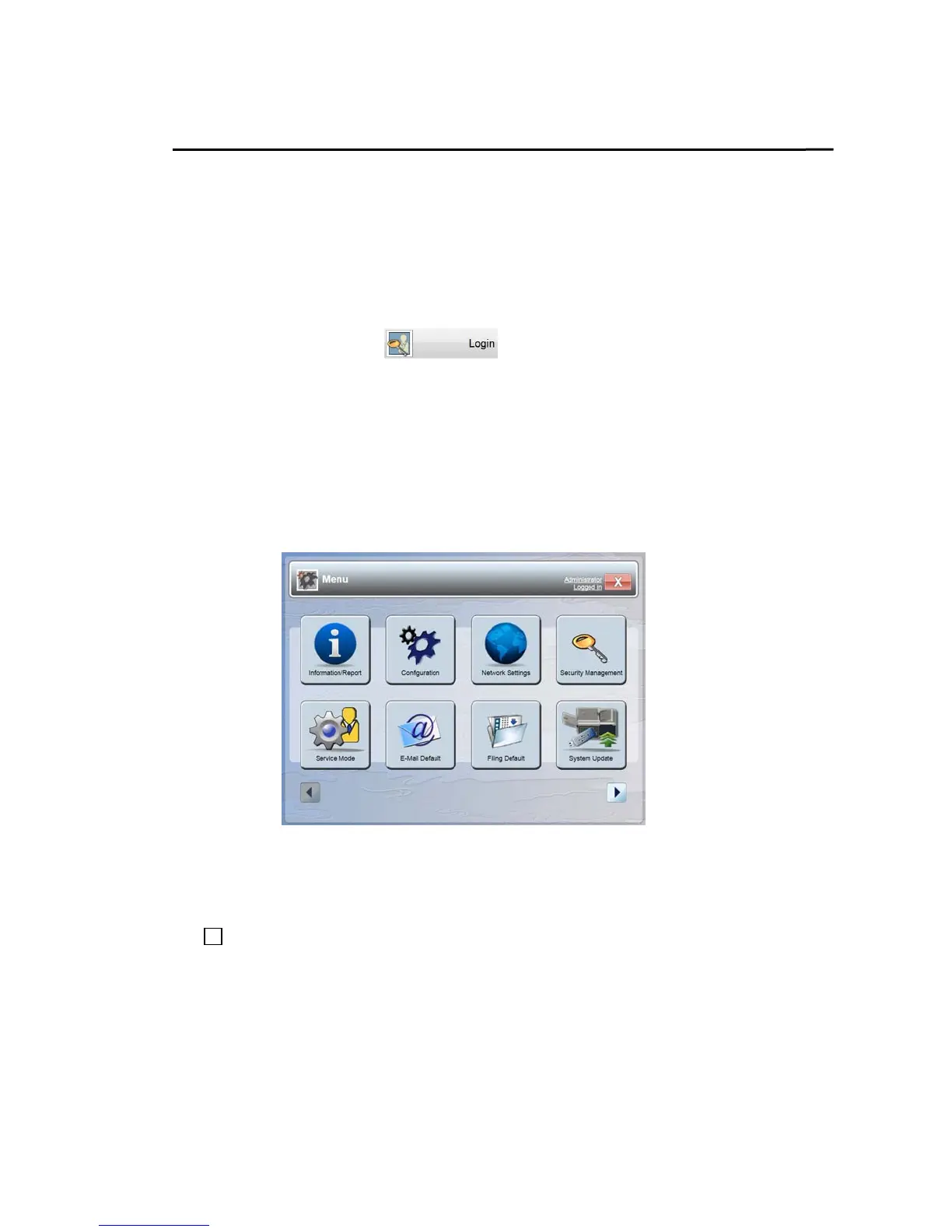
3. Tap the [Menu] button to open the following Menu screen.
These 10 buttons displaying in Menu screen are: Information Report, Configuration,
Network Settings, Security Management, Service Mode, E-Mail Default, Filing
Default, System Update, Bug Report, and Activity Log Report. (Tap the right arrow
key to show the Bug Report and the Activity Log Report button.) For each
respective option of the 10 buttons, refer to the descriptions of the next few pages.


 To Next Page