28
AvMap G7 Farmnavigator – User Manual
starting or pausing jobs, enabling or disabling Auto-Steering system, placing a mark on the map (on
obstacles, on specic points, etc.).
To connect the remote control, make sure that it is within a range of a few metres from G7 Farmnavigator
and insert batteries into the slot. Then:
1. Select “SETUP” > Remote control;
2. Select “REMOTE CONTROL RECEIVER” and Press “ON” to turn it on;
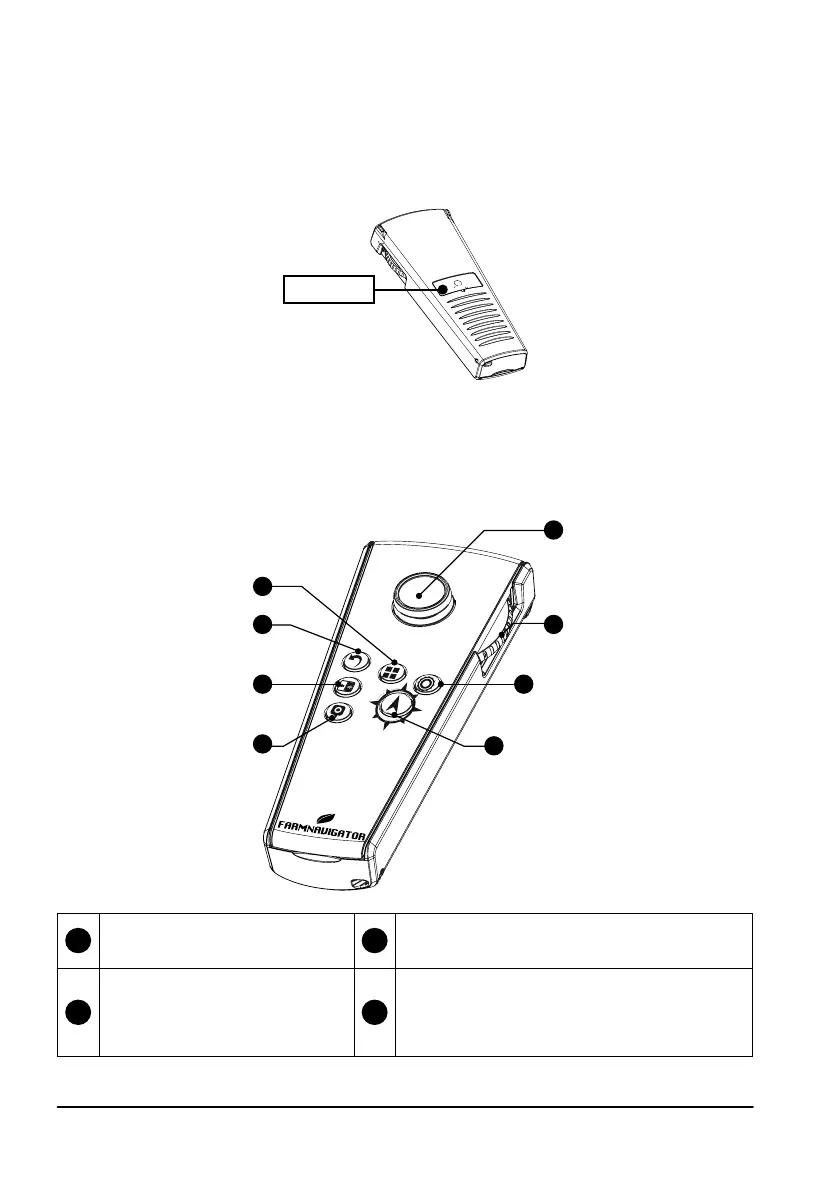
3. Select “PIN” and enter the PIN code given on the back of your remote control;
Figure 2.4.h Remote control
4.Press the middle button (navigation arrow) of your remote control, to connect the display to the remote
control. Once connected, select “REMOTE CONTROL INFO” to check connection status, battery status
and rmware version.
The functions of the remote control buttons can only be used in job page. On details:
1
Menu
Press it to open the main Menu.
2
Back
Press it to go back to the previous page.
3
Cycle
If the camera is connected, select
it to open the camera visualization.
4
Mark
Press it to mark an obstacle on the map.
PIN
1
2
3
4
5
6
7
8


 To Next Page