48
AvMap G7 Farmnavigator – User Manual
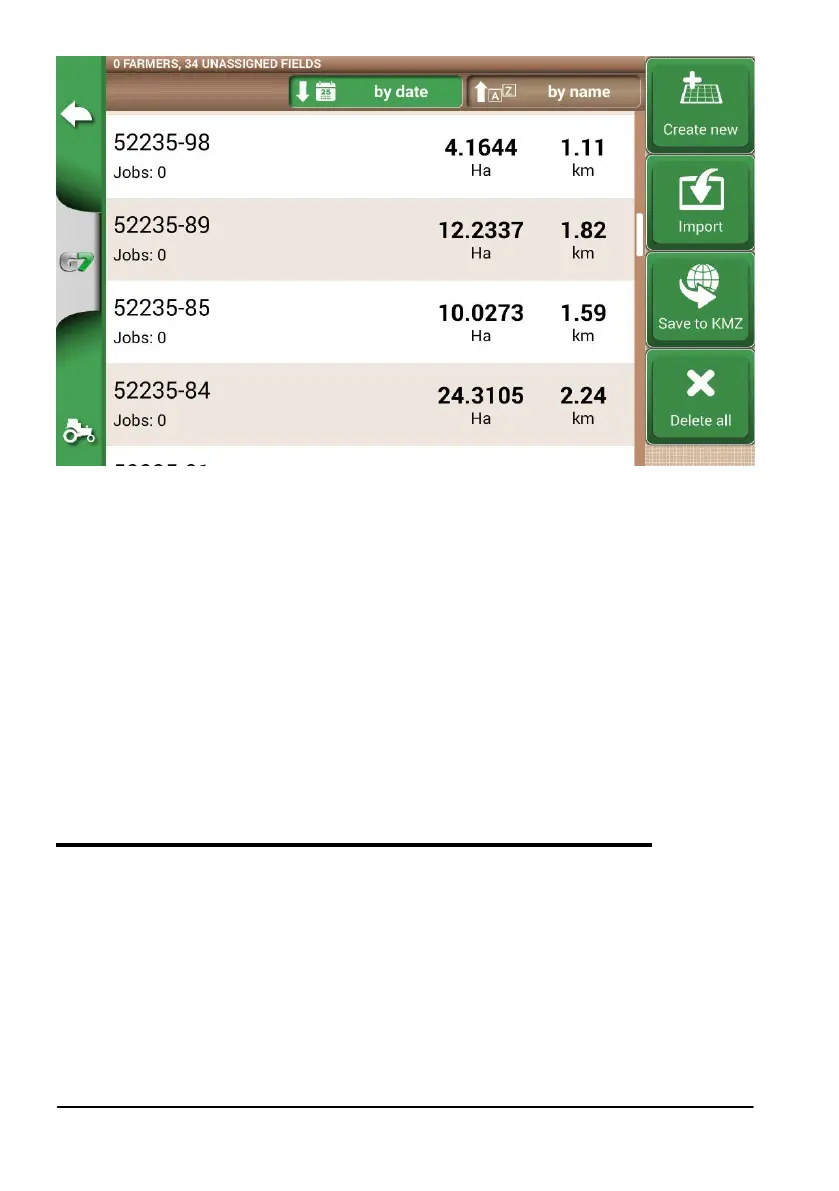
Figure 4.4.a Field selection page
4. Select the “IMPLEMENT” (it must be dierent from the implement used in the previous job);
5. Select the “DRIVER”;
6. Select the “PRODUCT”;
7. Tap “OK” to conrm the creation of a new job.
The last job will be reloaded and A-B lines width will be calculated according to the new implement
width.
It is necessary to put the tractor in the same position as for the previous job, by following this
procedure:
1. Tap on “A-B”;
2. Tap on “Magnet” icon. The rst line will be move to the real implement position;
3. In case of error in the positioning, repeat the operation;
4. Select “START”;
5. Proceed with the activity.
4.5 Create more than one A-B line during the same job session
NOTE: this function can be used only if the eld is set.
G7 Farmnavigator allows you to save more than one A-B lines and recall them for further activities.
To save more than one A-B lines within the eld, proceed as follows:
1. Create a new job, select a eld from the list or create a new eld;
2. Start the job and dene an A-B line (e.g. A-B Parallel guidelines);
3. Tap again on “A-B” if you need to create another A-B line (e.g. adaptative guidelines);
4. Tap the “A-B” icon, marked with a red X, to cancel the lines from the display;
5. Tap “YES”. The line will be deleted only from the display, but it is stored in memory;
6. Move the tractor to the new job direction, inside the same eld and the same job;


 To Next Page