70
AvMap G7 Farmnavigator – User Manual
6. Other functions
6.1 G7 Farmnavigator software updates
The updates for G7 Farmnavigator are available every year. Follow the above procedure to update
the software of your device.
6.1.1 Software Update via WiFi (G7 Plus only)
G7 Farmnavigator is provided with an automatic search for available updates when the device is
connected to a WiFi network. To search for software update:
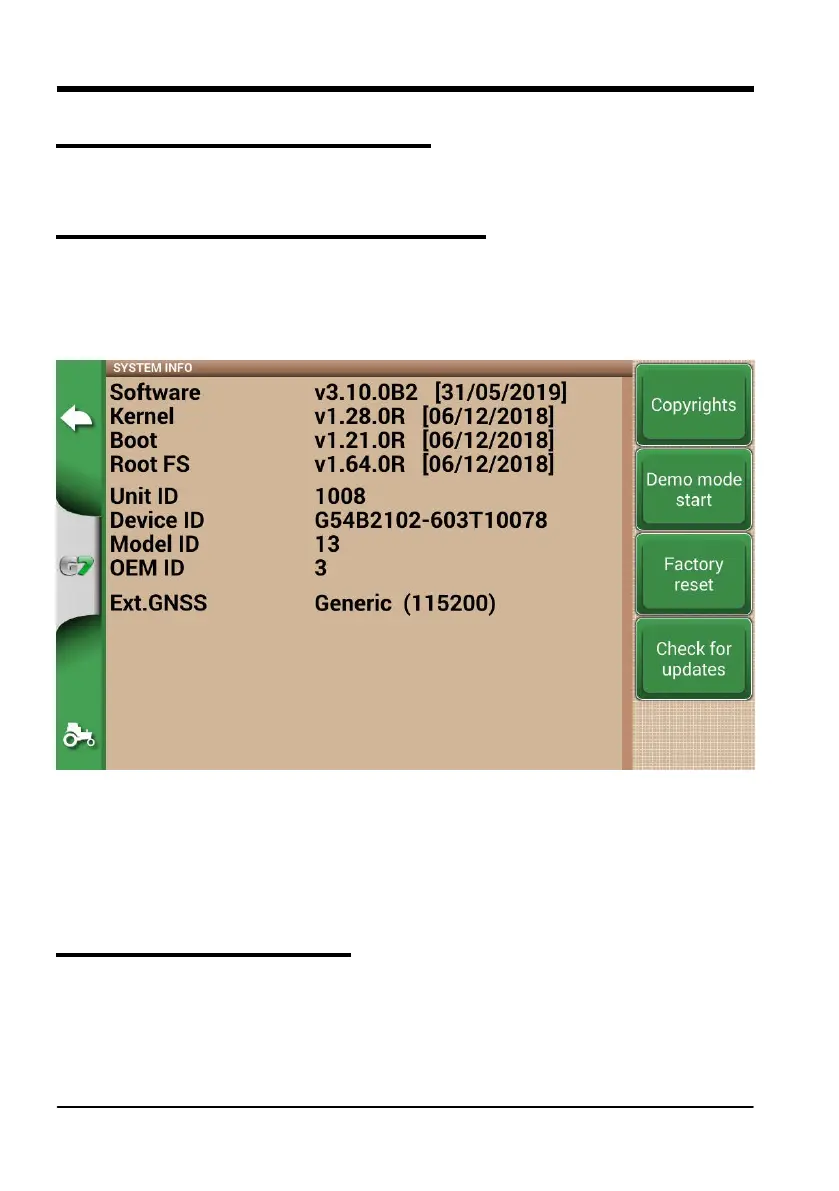
1. Tap “SET UP”> System info > “Check for updates” and wait for the connection;
Figure 6.1.a Software update via WiFi
1. Tap “YES” to download the update;
2. The device restarts in update mode;
3. Tap “UPDATE NOW” to proceed with the installation;
4. Tap “CONTINUE” and wait for the restart;
5. The update is completed and the WiFi network can be turned o.
6.1.2 Software Update via USB
If it is not possible to update the software via WiFi due to the lack of connection or since you have a
G7 Ezy, you have to update the software via USB.
To proceed with the update, you need:
- USB stick (at least 2GB);
- Update le (it is strongly suggested to contact the customer service);


 To Next Page