38 ImagePRO-II • User’s Guide
4. Menu Orientation
Configuring Inputs
• V Size is also center-based. Decreasing V Size “stretches” the image across the
active area, along the vertical plane. This setting adjusts both the top and bottom
edges simultaneously, while the center point of the image remains stable. Values
are in lines. The default value is the number of the input’s vertical active lines.
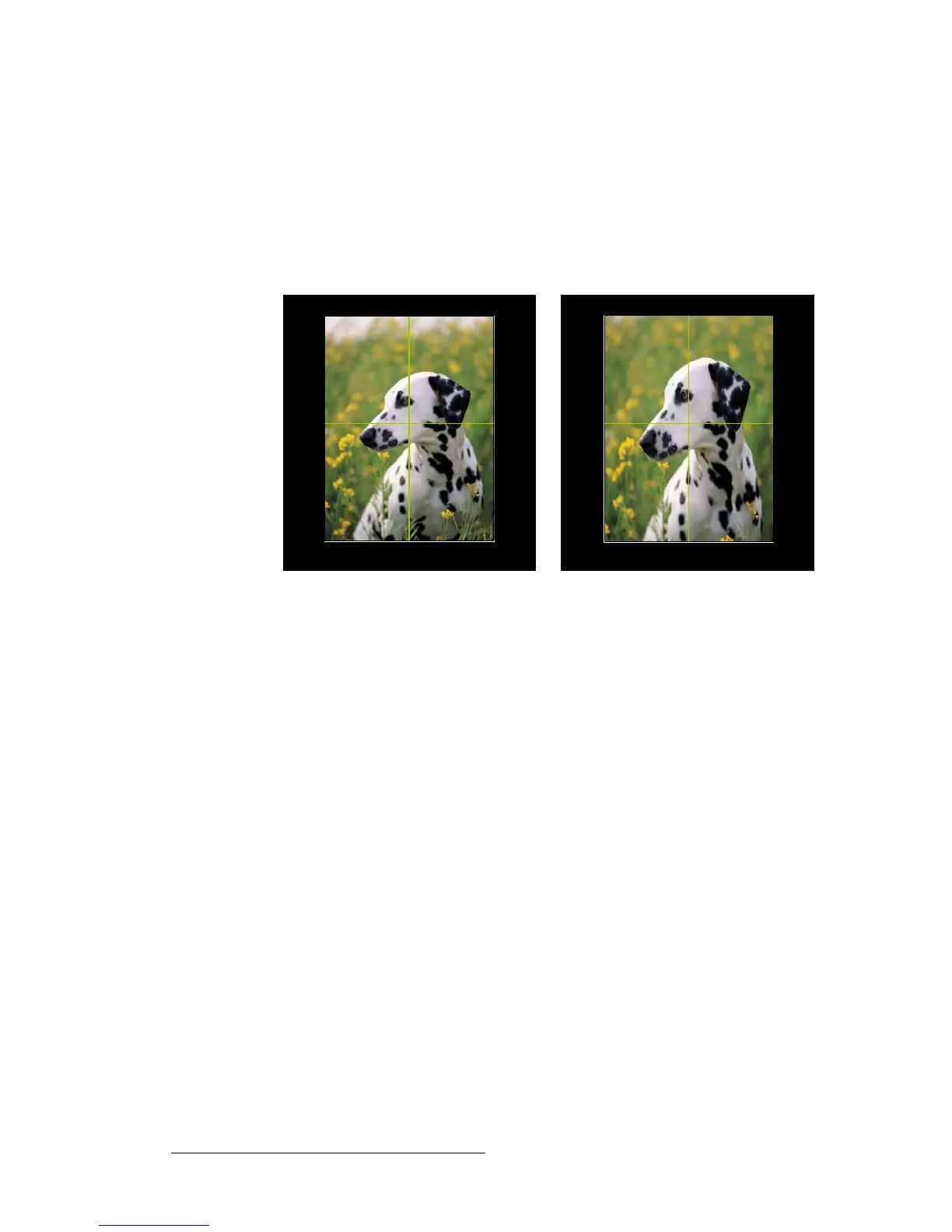
The following images show a result of vertical sizing only. The intersection of the
green lines represents the center of the image, which remains stable as the image
“stretches” vertically. The output “window” is maintained in both size and aspect
ratio.
Figure 4-6. Vertical Resizing
• Select H Pos to pan left or right across the image, to the portion you want to
display. Values are in pixels. The H Pos value of 0 represents the horizontal
center of the active area.
• Select V Pos to pan up or down across the image, to the portion you want to
display. Values are in lines. The V Pos value of 0 represents the vertical center of
the active area.
• Select Reset Size to undo your changes and restore the image to its previous
size.
Original image size
Image resized vertically



 To Next Page