ImagePRO-II • User’s Guide 39
4. Menu Orientation
Configuring Inputs
j~ëâáåÖ=~å=fã~ÖÉ
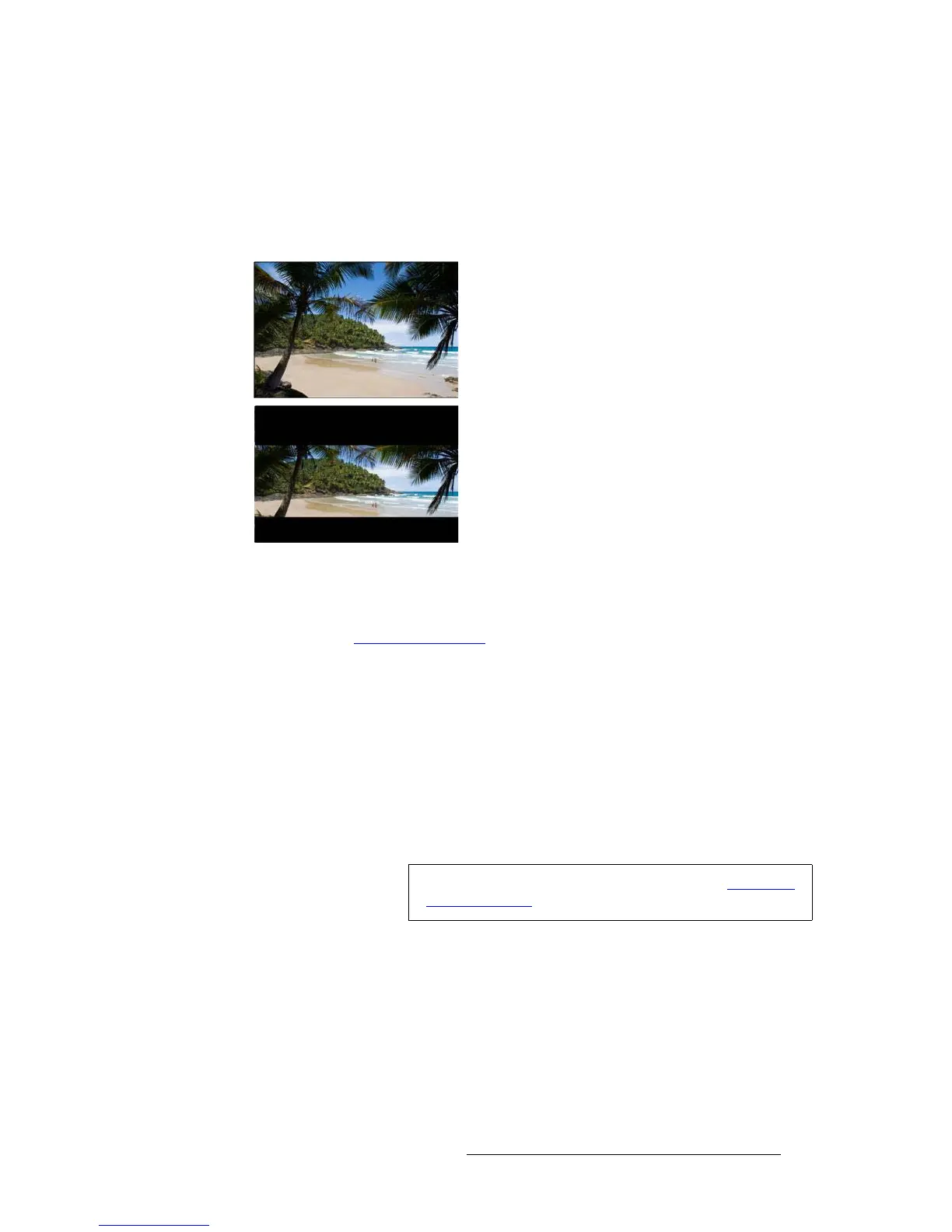
Masking an image is cropping a portion of it, typically to remove noise at one or more
edges. When a mask is applied on a selected edge, black is displayed in place of the video
that is masked. The following illustrations show an image before and after masking the top
and bottom edges.
Figure 4-7. Image Before and After Masking
You can mask any of the input’s edges individually, or you can use mask presets. The mask
presets crop the image to a specific aspect ratio, such as 16:9, 5:4, and so on. To use
presets, refer to Using Mask Presets on page 39.
To mask an edge of an image, use the following procedure:
1. Select the input that displays the image you want to adjust.
2. From the Input Menu, select Sizing Adjust.
3. Scroll down to the edge you want to adjust: Top, Bottom, Left, or Right. Press
SEL.
4. Mask values are given in percentages. Scroll through the values to choose the
percent you want to mask from the edge. As you scroll, the output display
previews the masking effect.
5. Press SEL to confirm your choice.
rëáåÖ=j~ëâ=mêÉëÉíë
The Mask Presets feature on the input Sizing Adjust Submenu provides a convenient
way to mask all the edges of an image at once, to a preset aspect ratio. The following figure
shows the available aspect ratios.
Note
To restore the original unmasked image, refer to Resetting
Masking Effects on page 41.



 To Next Page