15 Display installation guide
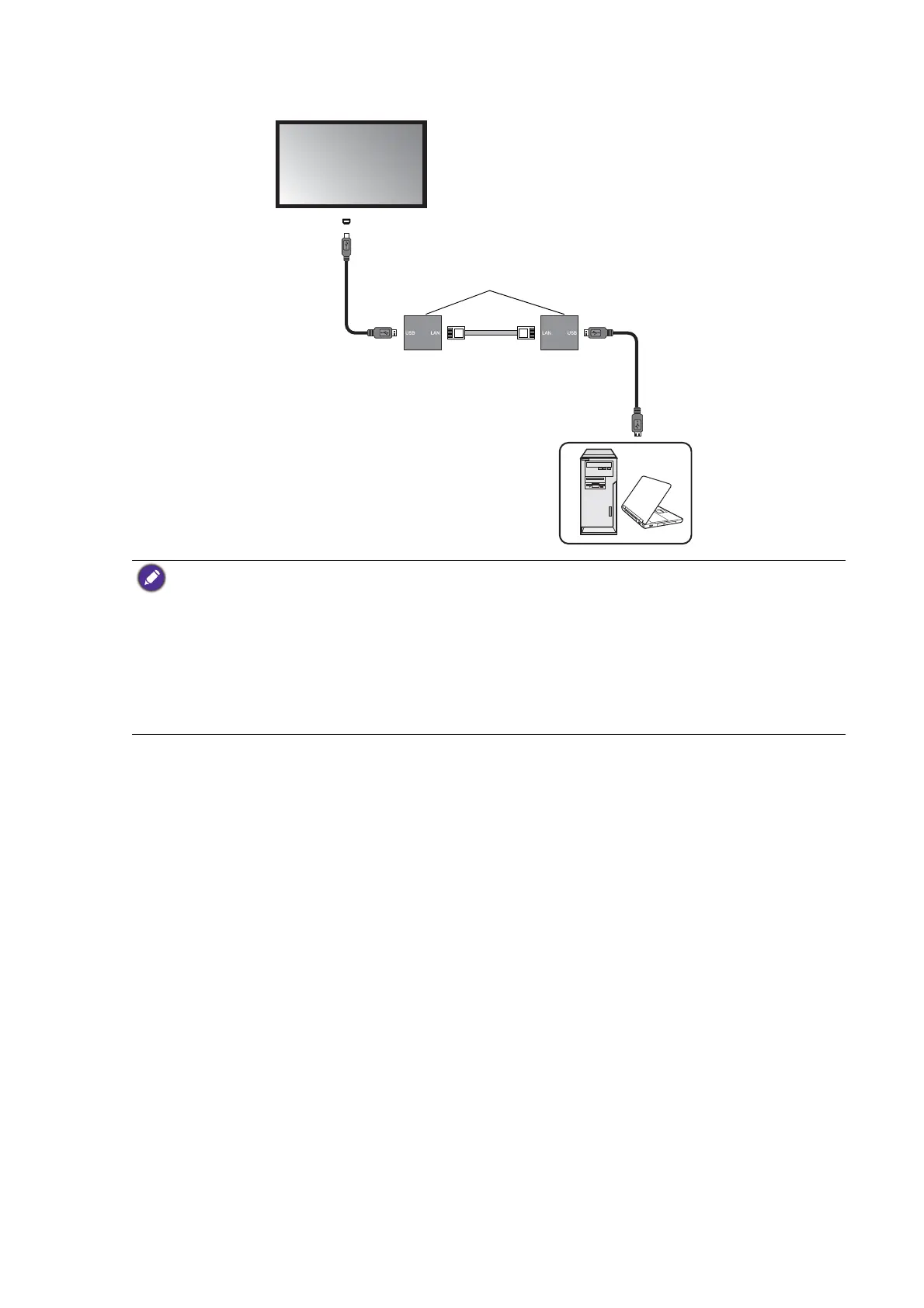
3. Connect the converter to a computer using a suitable USB cable.
Extending USB connection using an active (powered) USB extension cable and a
faceplate
Depending on the environment where you install the display, you can use an active (powered)
USB extension cable to extend USB connection from a faceplate.
1. Connect the mini-B plug of the supplied USB cable to the USB Mini-B port on the display,
and the type-A plug of the cable to the USB type-A port on the active USB extension cable.
2. Connect the type-A plug of the active USB extension cable to the USB port on the
faceplate.
• Refer to the User Manual of your display for the location of USB port.
• Refer to the documentation of the active USB-CAT5 converter for the maximum length of the Category
5/5e/6 network cable.
• The type of USB port and plug on the active USB-CAT converter may be different from the description
above. Use a USB cable that matches the USB jack on the display and the USB port on the active USB-
CAT converter.
• Keep the Category 5/5e/6 network cable away from power lines and cables to avoid electronic
interference.
USB cable
Category 5/5e/6
network cable
USB cable
USB-CAT converter
Computer
Display
USB port



 To Next Page