English
38
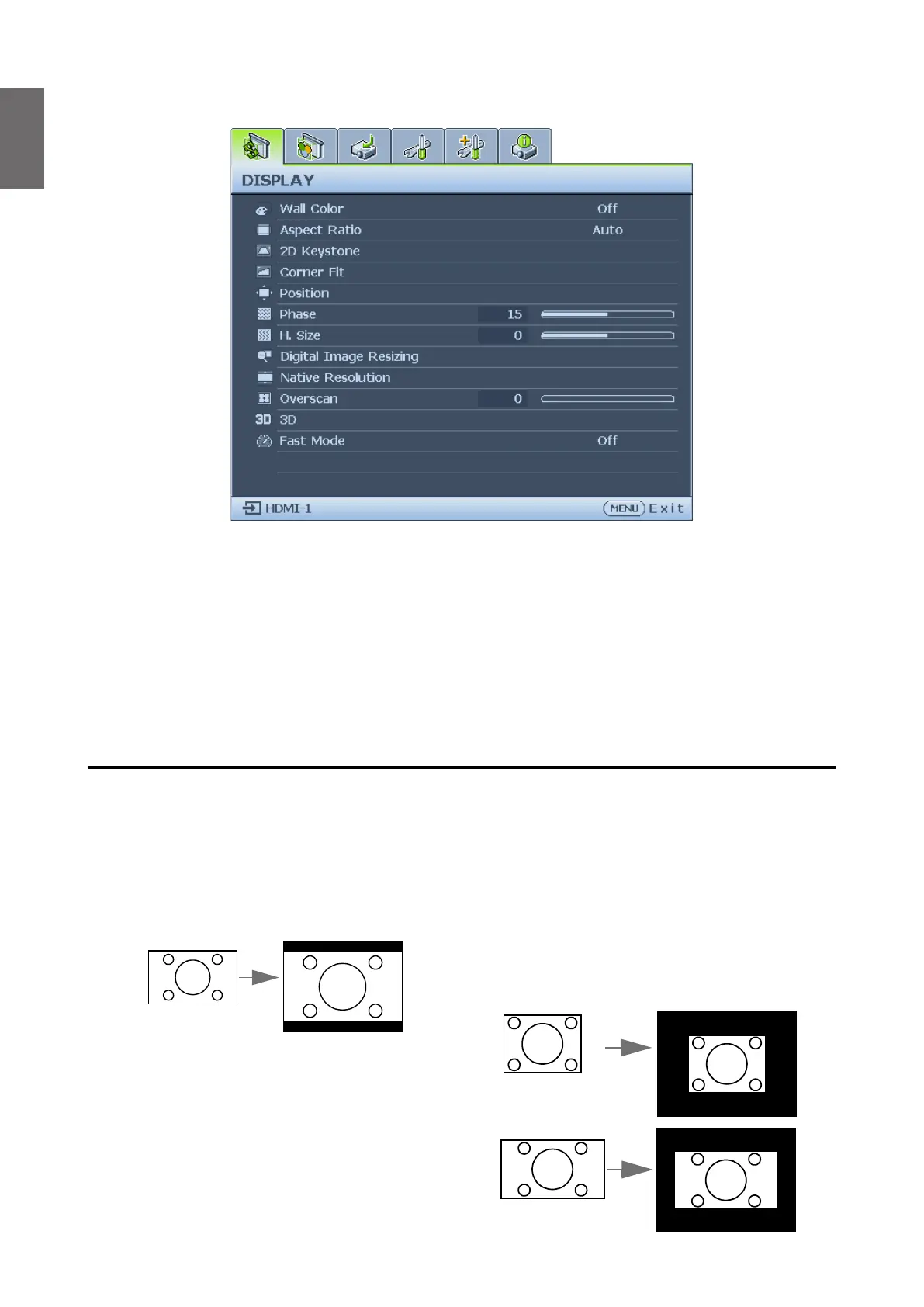
Display menu
• Wall Color
Press
◄
/
►
to correct the image color bias reected by the wall. The options are Off, Light
Yellow, Pink, Light Green, Blue and Blackboard.
• Aspect Ratio
Press
◄
/
►
to adjust the aspect of the projected image. The options are Auto, Real, 4:3, 16:9,
16:10 and 2.4:1.
• Using the remote control
1. Press ASPECT to show the current setting.
2. Press ASPECT repeatedly to select an aspect ratio to suit the format of the video signal
and your display requirements.
1. Auto: Scales an image proportionally to
t the projector's native resolution in its
horizontal width. This is suitable for the
incoming image which is neither in 4:3 nor
16:9 and you want to make most use of the
screen without altering the image's aspect
ratio.
15:9 picture
2. Real: The image is projected as its original
resolution, and resized to t within the
display area. For input signals with lower
resolutions, the projected image will display
smaller than if resized to full screen. You
could adjust the zoom setting or move the
projector away from the screen to increase
the image size if necessary. You may also
need to refocus the projector after making
these adjustments.
4:3 picture
16:9 picture


 To Next Page