143
Motifs
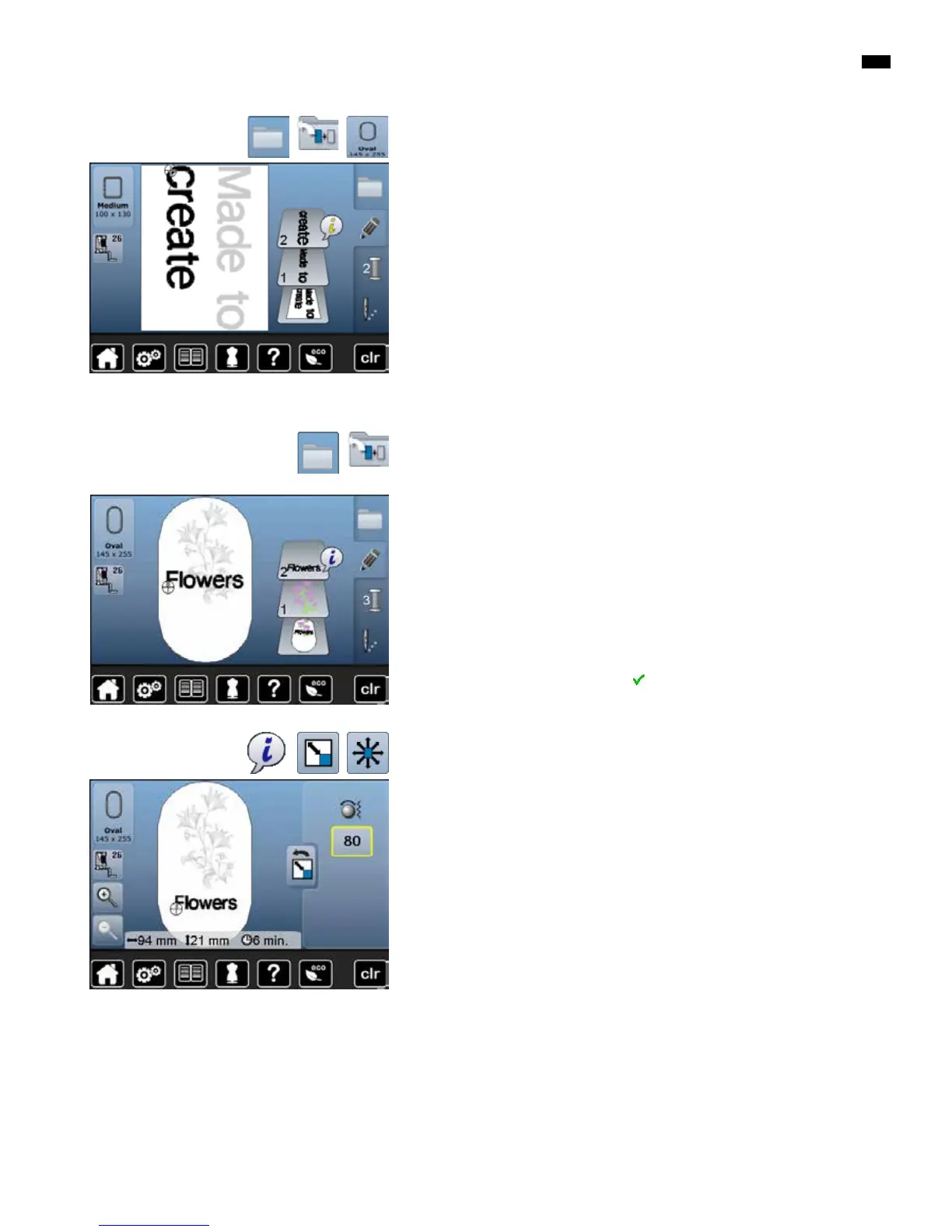
Further text lines
█
press «Selection»-button
█
touch «Add motif»-icon
Combine and position individually the rest of the text.
█
touch «Select hoop»-icon
█
activate the grid, see page 138
►
use the grid lines to easily and accurately position lines of text
Motifs and lettering
Combining
█
select desired motif
►
the motif appears in the «Edit»-display
█
press «Selection»-button
█
touch «Add motif»-icon
█
touch yellow-framed «Embroidery computer»-icon
►
selection menu appears
█
select desired alphabet
►
display with the keyboard is opened
█
enter text, e.g. Flowers
Select characters using the «Lower/Upper Case»-icon.
█
confirm the combined lettering with
►
the text appears above the motif in the «Edit»-display
Depending on the application, the characters are added after an embroidery
motif is selected or the characters are combined first and then added to the
motif (e.g. embellished lettering).
Adjusting text to motif
█
touch «i»-icon
█
touch «Rescale motif»-icon
█
adjust text to motif
█
touch «Back»-icon
█
touch «Move motif»-icon
█
position the text as desired


 To Next Page