TG 1000 – Digital Diversity Receiver
19
2.8.2 Chameleon Software
Each TG 1000 receiver is provided with an integrated web server with
an own web page. In order to configure and monitor your TG 1000
receivers you need not install any software. You only need a
network connection and an network-compatible device (client) with
web browser. Therefore, you can control your TG 1000 system with
a PC, Mac, tablet PC or smartphone.
If you use the Internet Explorer from Microsoft, make sure that it is
version 8 or higher.
For a smooth operation of the Chameleon software your TG 1000
receivers must correctly be connected to a network. Then they can be
operated in the manual or DHCP mode (default). With the manual
mode you must manually assign each connected receiver a different IP
address in the sub menu “Functions -> Network”. With the DHCP
mode the IP address is assigned by the so-called DHCP server, which
is integrated in each standard router. If the DHCP mode is not used,
a usual Ethernet switch will do for networking. In this case the
receivers must be operated in the manual mode. In this network,
without a DHCP server the client device also must receive a static IP
address.
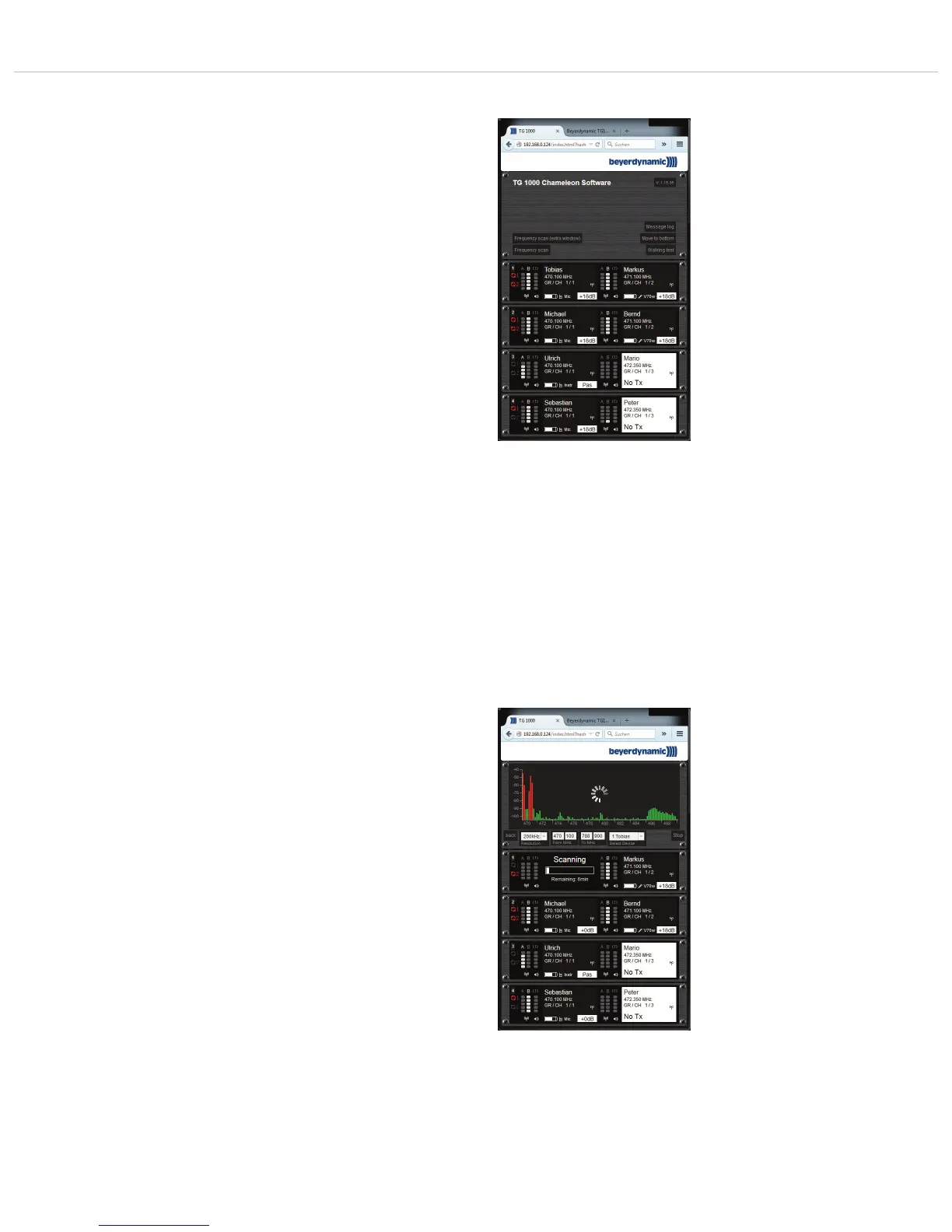
In order to use the Chameleon software with the client device, it
can be linked to any TG 1000 receiver. For this you have to enter the
IP address of the receiver in your web browser (e.g.
“192.168.1.101”). The IP address of the receiver can be found in
the sub menu “Functions -> Network”. You can connect to any
receiver. After a successful transmission of the web page the basic
screen of the Chameleon software is displayed in the browser
window. An overall view of all receivers in a virtual rack is displayed.
The sequence of the displayed receivers is determined by the device
ID, which can be selected in the sub menu “Functions -> Network”
of the receiver. In order to ensure a clear assignment, you must
assign each receiver a different device ID. The Chameleon Software
displays an error message when there are two of the same Device
IDs in the network. The receivers are displayed in an ascending order.
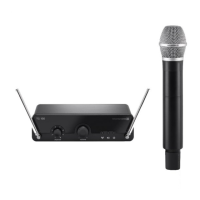
Frequency Scan
• The frequency selection in a particular frequency range can be
made via the frequency scan. In this way you can also find out if
there are interferences or not with individual frequencies.
• Select the “Frequency Scan” button.
• Select the resolution of the scan by selecting the measurement
distances of 100 kHz, 200 kHz or 500 kHz.
• Enter the start frequency and stop frequency of the range within
which it is to be scanned.
• Select the channel for which the scan is to be made. Due to the
scanning process the selected channel is occupied while the other
channel can still receive audio signals. Before the channel
designation CH 1 or CH 2 you will find the appropriate Device ID.
Note: If there is a TG 1000 transmitter active on one channel,
this one cannot be used for a scan.
• Select the “Start” button.
• A scanning message will be displayed.
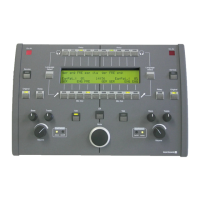
Chameleon-Software - Start screen
Chameleon-Software - “Frequency Scan”


 To Next Page