Quick Setup
19
1-2.
Basic Operation
1) Enter and Exit Setup Mode
You can enter the setup mode by pressing the
SET-UP
button on the
remote control. To return to the previous operation mode (e.g.
STB/PVR or File Playback), press the
EXIT
button.
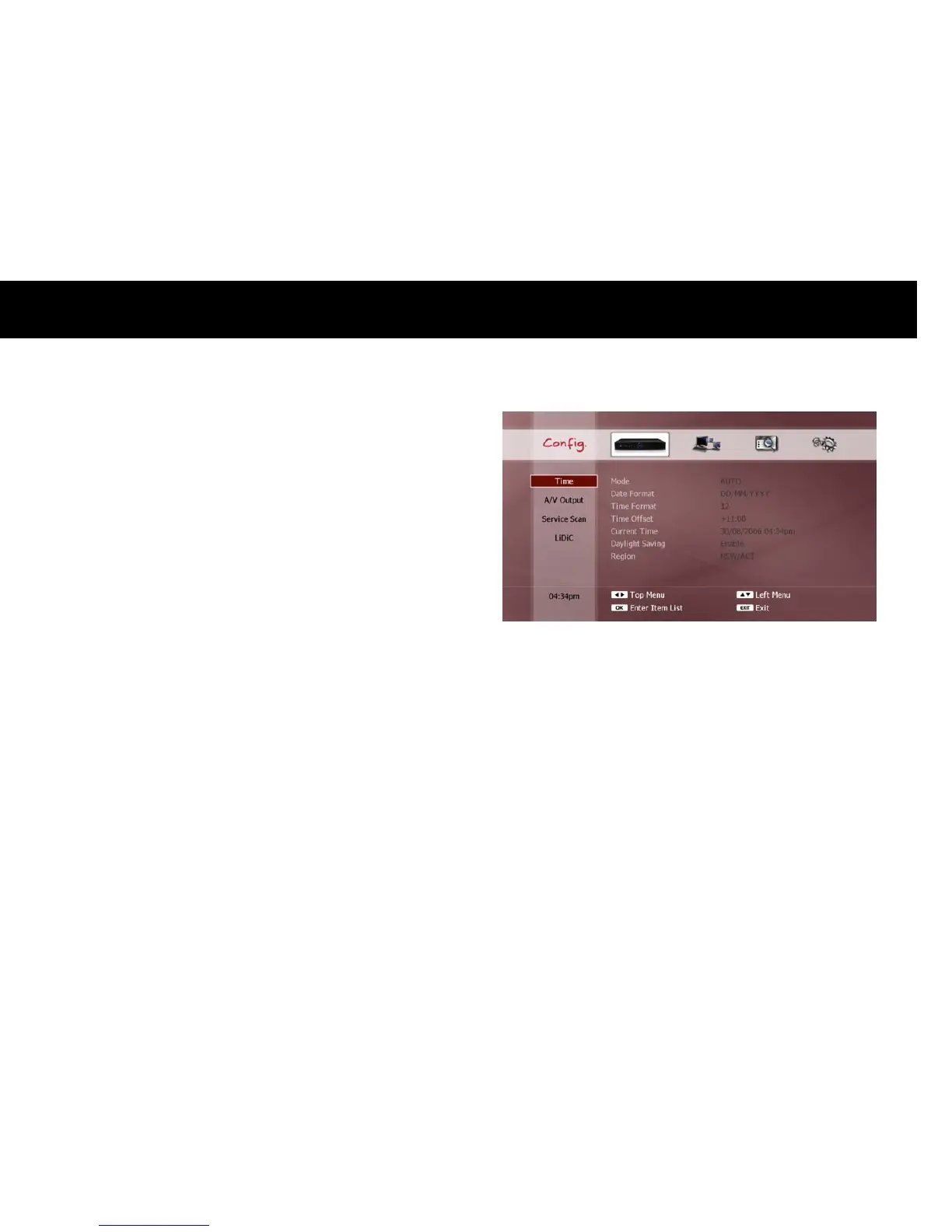
2) Setup Menu Structure
The setup menu is grouped into four main categories (represented by
icons across the top of the screen): Configuration (“Config.”), Network,
Miscellaneous (“Misc.”) and System. Firstly, choose one of these main
categories using the
LEFT/RIGHT
buttons. As you select a main
category, a list of sub-categories will be displayed on the left side of the
screen. When you choose a sub-category with the
UP/DOWN
buttons,
the items belonging to the sub-category will be listed in the item list.
Press the
OK
button to enter the item list, and use the
UP/DOWN
buttons to select an item in the item list. To access the configuration
options for an item, press the
OK
button. To exit from the item list
press the
EXIT
button.
LEFT/RIGHT
buttons: Select a main category
UP/DOWN
buttons: Select a sub-category
OK
button: Enter the item list (
UP/DOWN
to select an item,
OK
to
access the item’s configuration options).
EXIT
button: Exit from the item list.
NOTE
While in the item list, the
LEFT/RIGHT
buttons can still be used to
navigate through the top menu.
This chapter explains only the Configuration and Network categories
of the setup menu. The remaining categories Miscellaneous and
System will be explained in Chapter 9 “Advanced Setup”.



 To Next Page