File Management
77
2. Delete
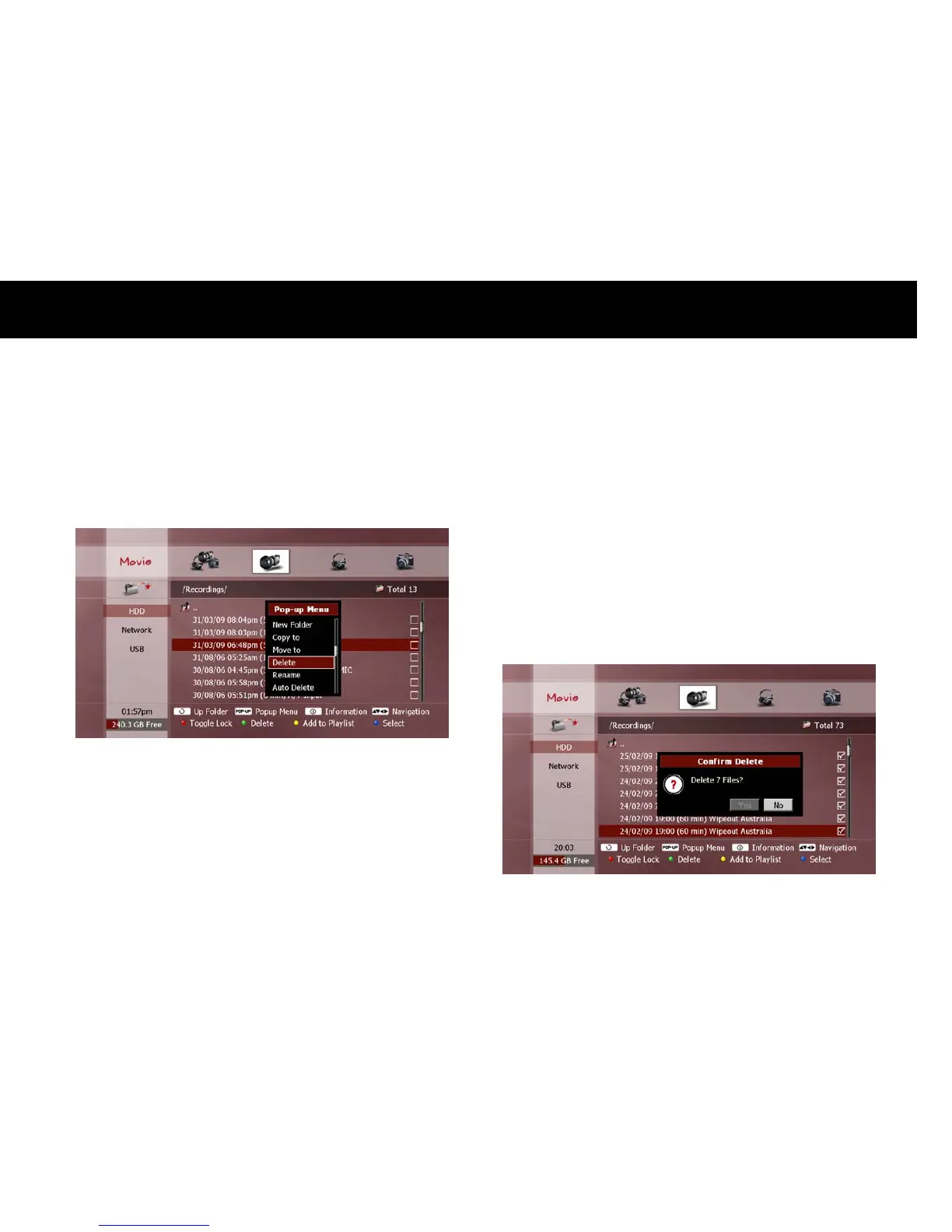
To delete files or folders in a storage device, select the unwanted file(s)
or folder(s) in the File list (see “Exploring Contents” section in Chapter
6). Press the
POPUP
button to display the “Pop-up Menu” window.
Press the OK button to select “Delete” and press the
OK
button.
A pop-up dialog will be displayed to confirm the deletion. Use the
LEFT/RIGHT
buttons to select “Yes” and press
OK
. If you decide to
keep the file, select “No” and press
OK
to cancel the delete function, or
press
EXIT
.
NOTE
You can press the
GREEN
button a second time to confirm the delete
function, instead of selecting “Yes”.
You can only delete folders which are empty. If you wish to delete a
folder with contents, you must delete all the files from the folder first.
You cannot delete a file which is currently being recorded (shown with
an “R” icon). You must stop the recording first (see “Recording
Control” section in Chapter 5).
To delete a file or folder in a networked PC, ensure that your PC user
account has write permissions for their location.
You cannot delete the pre-set “recording” and “contents” folders in
the internal HDD.



 To Next Page