File Playback
63
1) Step 1: Select Content Type
Use the
UP/DOWN
buttons to select the type of storage device you
wish to access, as follows:
HDD: This is the internal hard disk drive. It contains two pre-set
folders, as follows;
recording: Stores your recorded TV and Radio programs.
contents: Stores other media files you have transferred onto the
internal HDD from external sources.
You can create additional folders on the internal HDD to organise your
media files (see “Add Folders” section in Chapter 7).
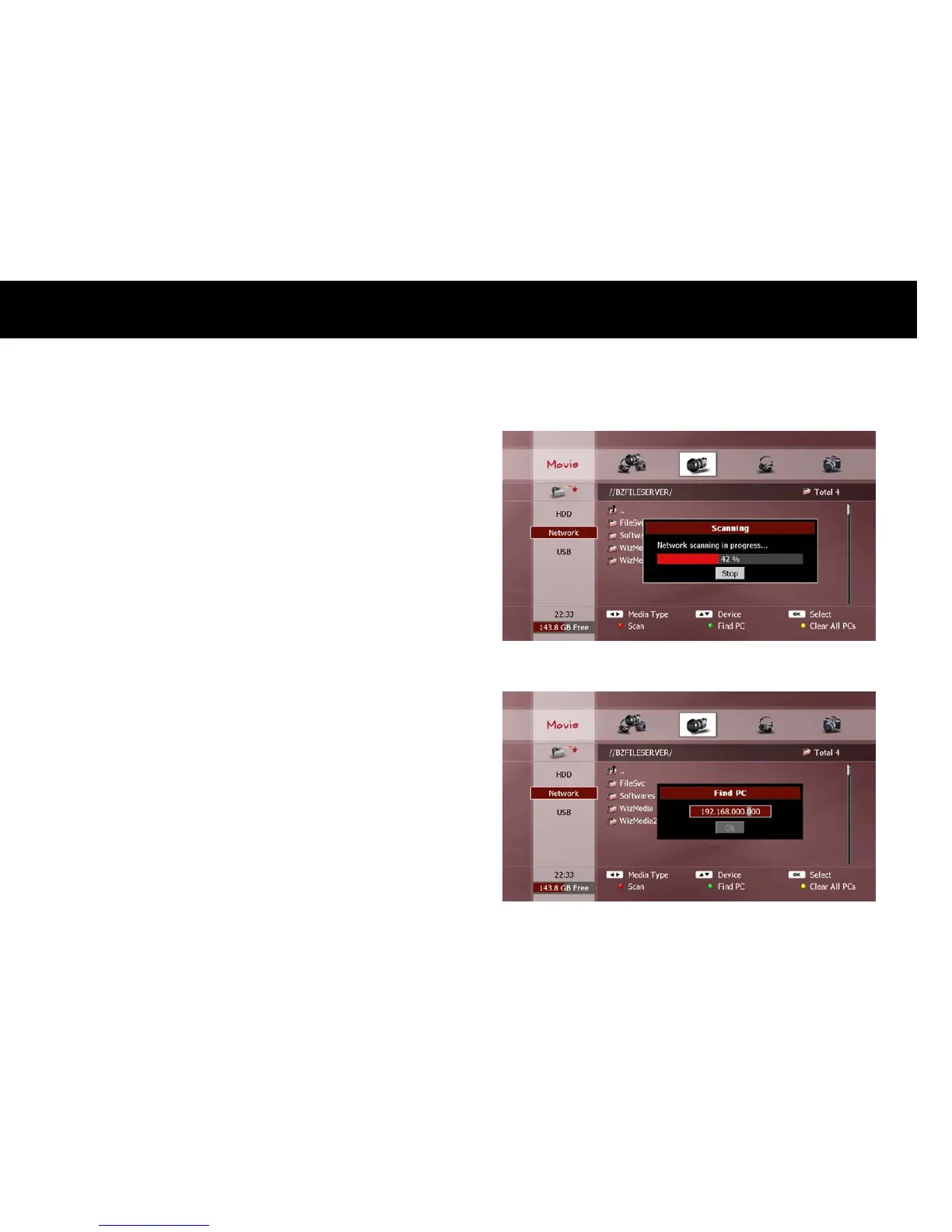
Network: This will show the following networked devices;
PCs connected to your home network.
Networked storage devices e.g. NAS.
WizPNP servers.
NOTE
Ensure that the PC you wish to access has at least one shared
folder set up to allow access and to share contents.
For WizPNP servers to be visible, you must enable the WizPNP
Client function (see “WizPNP” section in Chapter 4).
To scan and update the list of PCs connected to your home network,
press the
RED
button.
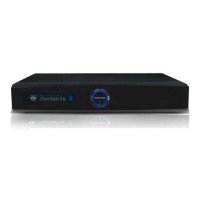
You can also scan for a specific network device. Press the
GREEN
button, enter the IP address of the device and select “OK”.



 To Next Page