File Management
80
Use the
UP/DOWN
buttons to select a device and press the
OK
button
(only for “Network” and “USB” device types).
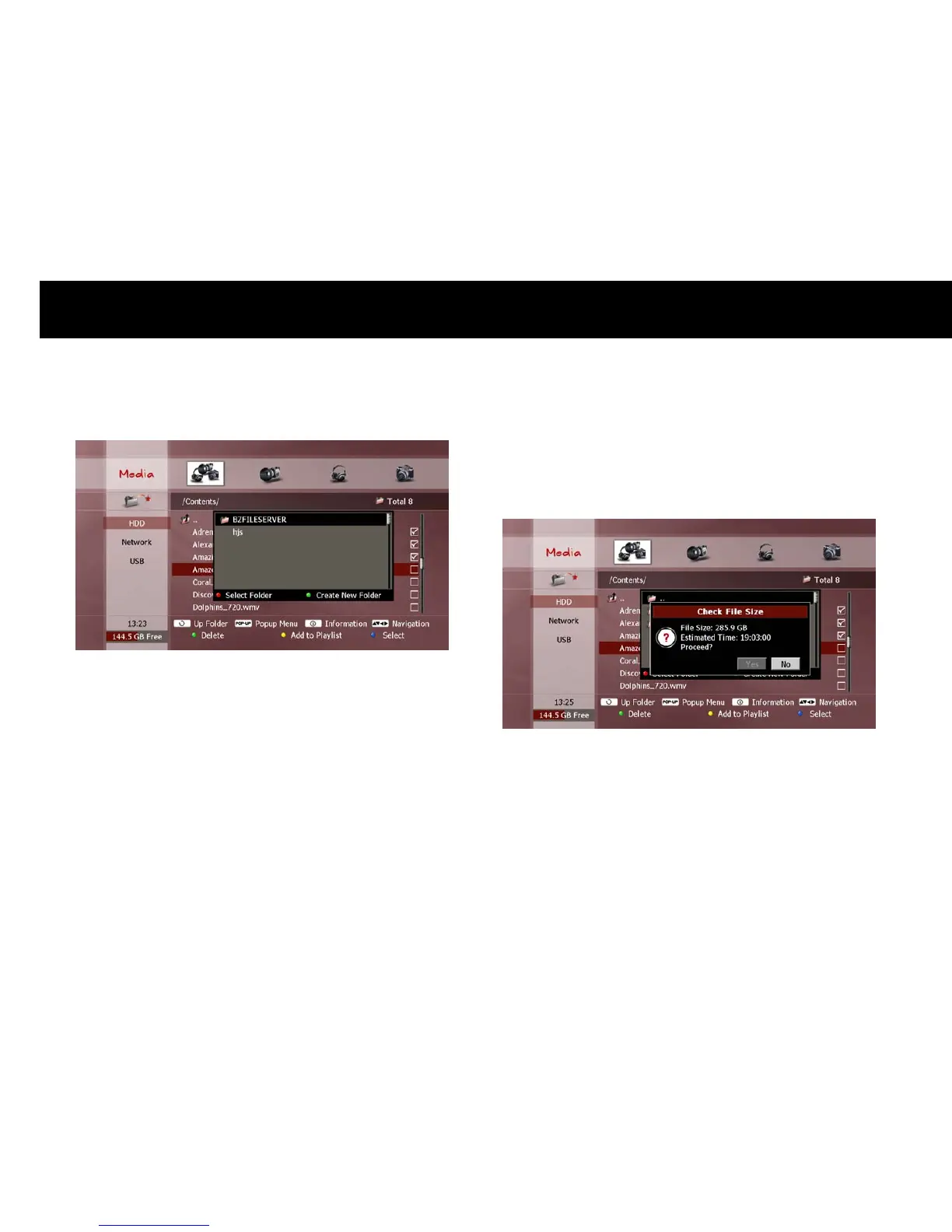
Now use the following functions to set your destination folder;
UP/DOWN
buttons: Select the previous or next folder in the list.
OK
button: Show the folders inside the selected folder.
RED
button: Set the selected folder as the destination folder.
GREEN
button: Create a new folder alongside the currently shown
folders. Use the “Keyboard Input” pop-up window to enter your
desired name (see “On-screen Keyboard” section in Chapter 4).
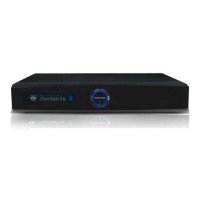
Once you have set your destination folder with the
RED
button, a
“Check File Size” pop-up dialog will be displayed to confirm the copy or
move function. The file size and estimated time information is
displayed, as follows;
Use the
LEFT/RIGHT
buttons to select “Yes” and press
OK
. If you
decide to cancel the copy or move function, select “No” and press
OK
,
or press
EXIT
.



 To Next Page