VD (E2.1) 10/2011 page 30/83
7.2.3 Proceeding in detail
1. Settings in the user level
• Activating the week program timer
• Checking and, if necessary, setting the real time clock
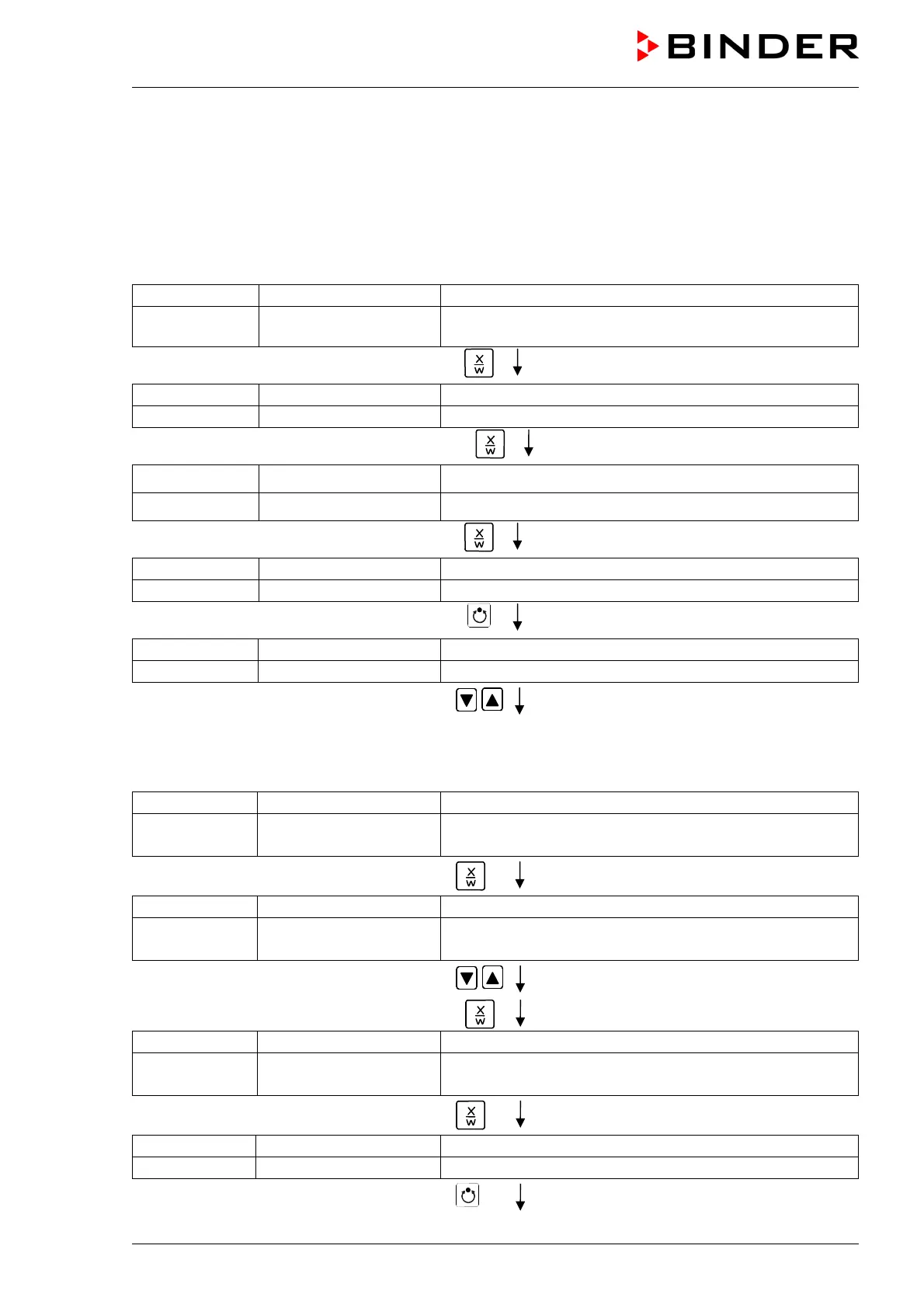
Normal Display
Display 1 shows e.g. 39.8
C
(actual temperature value)
Display 2 shows
e.g. 15.05.06 13:52 - -
(actual date and time, actual switching state of week
program timer channel 1: Off, channel 2: Off)
Press down key
for 5 sec
Display 1 shows e.g. 0000
Display 2 shows PROGRAM EDITOR (you are in the program editor)
Press down key
for 5 sec
Display 1 shows 0000 Menu visible only if week program timer is activated.
Display 2 shows WEEK PROG. EDITOR (you are in the week program editor)
Press down key
for 5 sec
Display 1 shows 0000
Display 2 shows USER – LEVEL (you are in the user level)
Press program key
Display 1 shows 0000
Display 2 shows UserCod? 0000 (enter user code, display flashes)
Enter the user code using arrow keys
e.g. 0001 (basic setting, or the valid code in
case it has been previously changed in this
menu).
Value is shown in both displays.
Automatically forward after 2 sec
Display 1 shows 1 (actual address)
Display 2 shows
Adress 1
(entry of unit address)
(actual address: 1)
Press several times key
until Prog.Clk appears:
Display 1 shows 0000
Display 2 shows
Prog.Clk Active
(Week program timer active or inactive?
(actual setting: Active)
Select “Active” using arrow keys
Setting is shown in display 2.
Press key
Display 1 shows 0000
Display 2 shows
12h/24h 24h
(Display mode 12 hours or 24 hours?
(actual setting: 24h)
Press key
Display 1 shows 0000
Display 2 shows Date (Main menu: Setting the date of the real time clock)
Press program key



 To Next Page