KBF / KBF-UL + KMF (E6) 09/2021 page 99/160
•
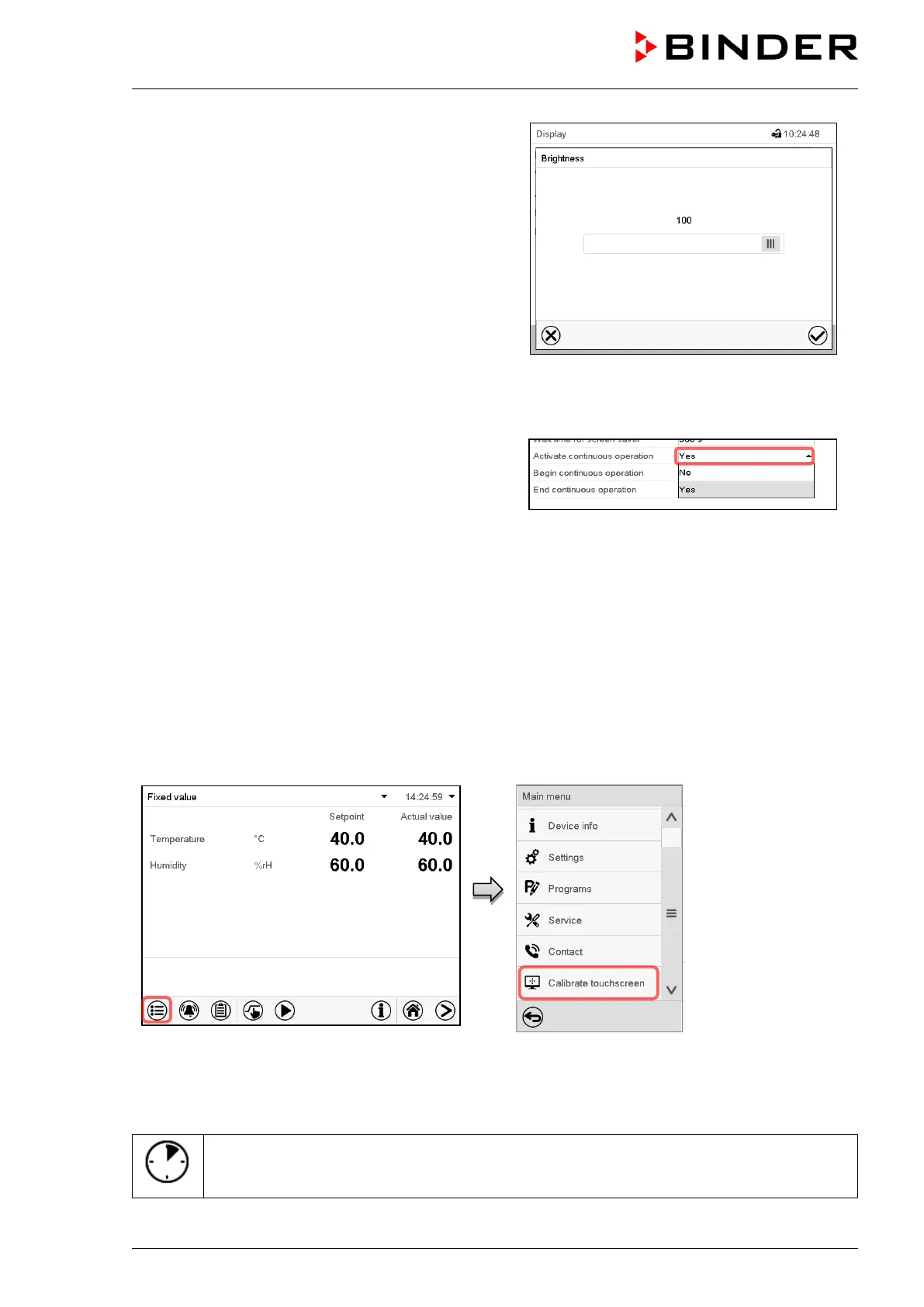
Select the field “Brightness”.
Move the grey slide to the left or right to define the
brightness of the display
• left = darker (minimum value: 0)
• right = brighter (maximum value: 100)
Press the Confirm icon.
• Select the field “Wait time for screen saver” and enter the desired waiting time for the screen saver in
seconds. Setting range: 10 sec up to 32767 sec. During the waiting time the display is off. Confirm entry
with Confirm icon.
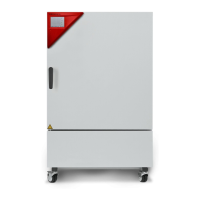
• In the field “Activate continuous operation” select
the desired setting “Yes” or “No”.
• Select the field “Begin continuous operation” (possible only if continuous operation is activated) and
enter the time with the arrow keys. Confirm entry with Confirm icon.
• Select the field “End continuous operation” (only possible if continuous operation is activated) and enter
the time with the arrow keys. Confirm entry with Confirm icon.
After completing the settings, press the Confirm icon to take over the entries and exit the menu, or press
the Close icon to exit the menu without taking over the entries.
14.4.2 Touchscreen calibration
This function serves to optimize the display for the user’s individual angular perspective.
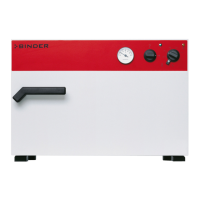
Path: Main menu > Calibrate touchscreen
Normal display.
Select “Calibrate touchscreen” and follow the instructions on the display.
You need to touch all four corners of the touchscreen to calibrate it. Appropriate boxes appear successively
in each corner.
The waiting icon shows how much time there is left to touch the currently activated box. If
the box is not touched withing this period, calibration is aborted and the display changes to
Normal display.
After completing the calibration, i.e., touching all four boxes, the display changes to Normal display.



 To Next Page