36
p. You should see a list of
available networks, including
your home network.
q. If your network is hidden, click
the "Specify Network" button and
enter the required details manually
and then skip to Part 3 below.
r. Click on your Network in the list
s. Enter your Password (or
Passphrase) in the pop
up box and click the "OK"
button or press "Enter".
t. You should see the "Network
Connection in Progress" page.
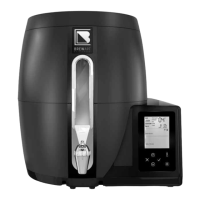
Part 3 – On your BeerDroid
u. The
icon should turn
o for a few seconds, and
then start flashing.
v. Wait for the
icon to stop
flashing, which indicates that
configuration is complete – this
can take up to 1 minute.
If the configuration is successful, your
BeerDroid display screen will return
to the main menu and the
and
w
icons will initially appear o. Aer a
few seconds the
and
w
icons will
turn on again aer it has successfully
connected to the Wi-Fi network and
contacted the BrewArt Server.If the
configuration failed, your BeerDroid
will display an error code and flash
.
An additional error code
d may
appear. Refer to the error code section
for a list of errors.
Note
To use, monitor and control
your BeerDroid with the
BrewArt App you must link
your BeerDroid to your BrewArt
Account – see Appendix B –
Linking your BeerDroid.


 To Next Page