EasyManua.ls Logo

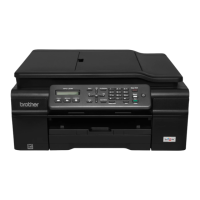
Brother MFC-3360C - User Manual

Brother MFC-3360C
155 pages
Print Icon
To Next Page IconTo Next Page
Loading...
SOFTWARE
USER’S GUIDE
For DCP users; This documentation is for
both MFC and DCP models. Where it says
‘MFC’ in this user’s guide, please read ‘MFC’
as ‘DCP’.
Version A

Table of Contents

Other manuals for Brother MFC-3360C

Questions and Answers

  • S
    Samantha HensleySep 12, 2025
    Why can't I make copies on my Brother All in One Printer?
    • A
      Adam BellSep 13, 2025
      If you cannot make a copy with your Brother All in One Printer, make sure that the Copy key is illuminated. Also, make sure the panel cover is completely closed.
  • J
    Justin KlineAug 25, 2025
    How to stop double-feeding and paper jams on Brother MFC-3360C?
    • A
      Andrea EverettAug 25, 2025
      If printed pages double-feed and cause a paper jam in your Brother All in One Printer, close the output paper tray cover and slide it forward, then push the paper tray firmly back into the machine. While holding the paper tray in place, pull out the paper support until it clicks and unfold the paper support flap.
  • W
    wgeorgeAug 25, 2025
    Why is the print quality poor on my Brother All in One Printer?
    • S
      shaneporterAug 26, 2025
      If you're experiencing poor print quality with your Brother All in One Printer, start by checking the print quality settings. Ensure that the Printer Driver or Paper Type setting in the menu matches the paper you are using. Make sure your ink cartridges are fresh, as expired or improperly stored cartridges can cause clogs. Try using the recommended types of paper and ensure the printer's environment is between 20° C to 33° C (68° F to 91° F).
  • N
    Nicole CharlesSep 23, 2025
    What to do if Brother MFC-3360C displays 'High Temperature'?
    • J
      Judith HallSep 23, 2025
      If your Brother All in One Printer displays 'High Temperature', allow the machine to cool down.
  • K
    Karina MartinSep 13, 2025
    What to do if Brother MFC-3360C does not print from Paint Brush?
    • C
      Charles ScottSep 13, 2025
      To resolve printing issues from Paint Brush with your Brother All in One Printer, try setting the Display setting to ‘256 colours.’
  • R
    Ronald RivasSep 22, 2025
    What to do if I cannot install software or print on my Brother MFC-3360C?
    • W
      Wendy RamirezSep 22, 2025
      If you cannot install software or print with your Brother All in One Printer, run the Repair MFL-Pro Suite program on the CD-ROM. This program will repair and reinstall the software.
  • T
    taylorstephanieSep 6, 2025
    How to resolve dense lines on pages printed by Brother All in One Printer?
    • H
      Haley TateSep 6, 2025
      If your Brother All in One Printer prints dense lines on the page, check Reverse Order in the Basic tab of the printer driver.
  • L
    lopezrebeccaSep 7, 2025
    How to fix wrinkled printouts from Brother All in One Printer?
    • M
      Mary JenkinsSep 7, 2025
      If the printouts from your Brother All in One Printer are wrinkled, in the printer driver Basic tab, click the Settings, and uncheck the Bi-Directional Printing.
  • J
    Jordan McguireSep 23, 2025
    What does 'Device Busy' mean on Brother MFC-3360C All in One Printer?
    • S
      Scott SantosSep 23, 2025
      If your Brother All in One Printer displays ‘Device Busy’, make sure the machine is not showing an error message on the LCD.
  • T
    Thomas WoodsAug 30, 2025
    Why is my Brother All in One Printer printing blank pages?
    • T
      Tina HendersonAug 31, 2025
      If your Brother All in One Printer is printing blank pages, clean the print head.

Brother MFC-3360C Specifications

General IconGeneral
Print ResolutionUp to 6000 x 1200 dpi
Copy Speed (Color)16 cpm
DisplayLCD
ConnectivityUSB 2.0
Scanner TypeFlatbed
FunctionsPrint, Scan, Copy, Fax
Media TypePlain paper, Transparencies
Ink CartridgesBlack, Cyan, Magenta, Yellow

Related product manuals