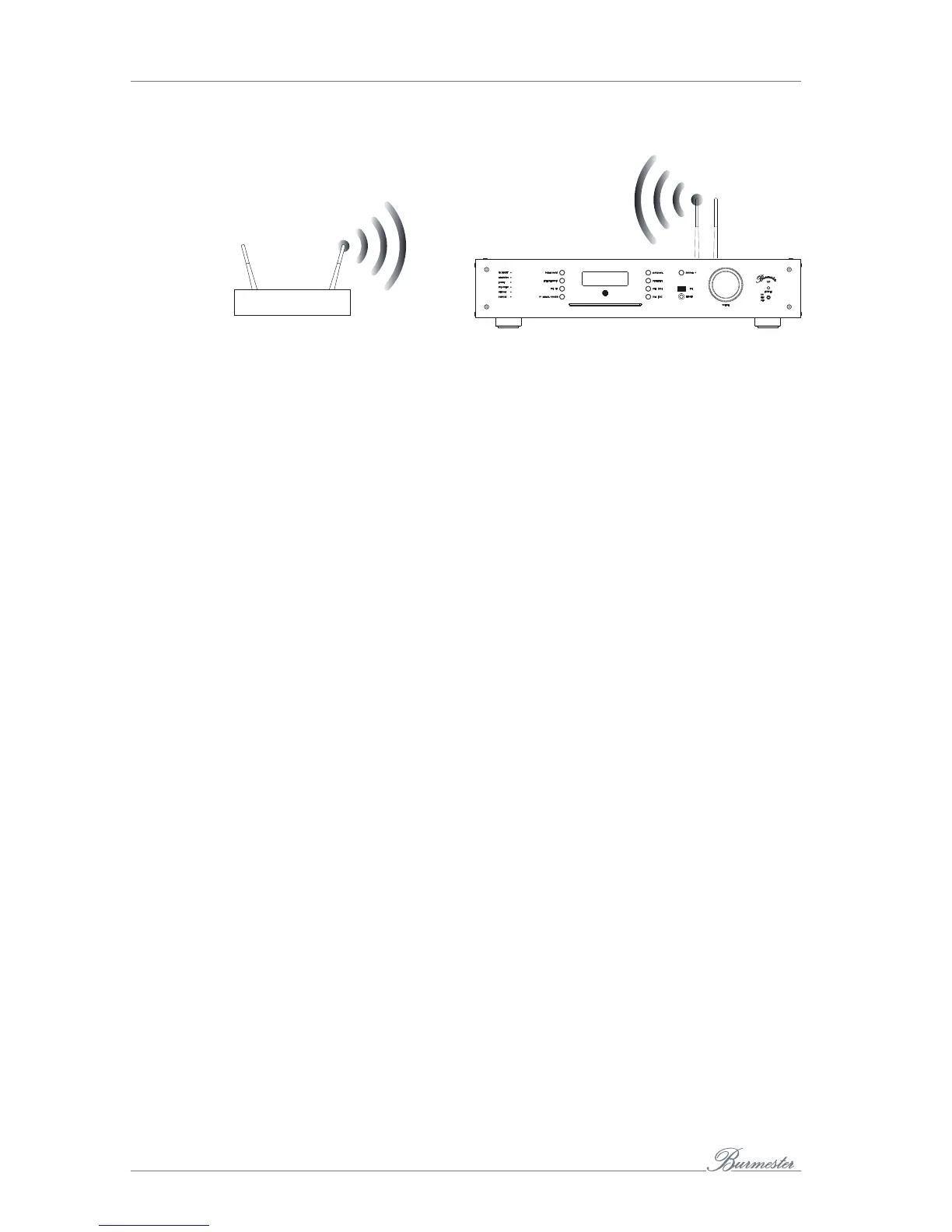
HOW TO CONNECT THE 161 TO A NETWORK?
22
Establishing a network connection using Wi-Fi
Router
Standard procedure:
1. On the remote control, press the OSD key and then the buttons 7 – 8 – 9.
ª All LEDs on the left side of the device light up in orange.
2. On the remote control, press number button 2 and then the OK key.
ª During the switching process, the NETWORK LED on the device flashes red.
ª After finishing the network scan the NETWORK LED blinks alternately green
and orange.
3. Connect your computer via Wi-Fi with your 161 (see „"Eine WLAN-Verbindung
zwischen 161 und iPad® herstellen" on page26 or "Eine WLAN-Verbindung
zwischen 161 und Tablet/PC/Mac herstellen" on page26.
4. Open a Web browser on your computer and type in the IP address of the device
(192.168.111.1) or http://allinone161.local into the address bar.
ª The browser displays a list of all available Wi-Fi networks.
5. Click on the name of the desired Wi-Fi network.
6. Encoded networks will display a lock symbol. Type in the password of your Wi-Fi
router and hit accept.
ª Initially, the network LED will light orange. It will change to green when the
device is connected to the Internet.
ª When the 161 is connected to a Wi-Fi network all network settings will be saved.
Note: f you are using an iPad® you can also open the App BurmesterMC after connecting
iPad® and the 161. Select Configure, the browser starts automatically and the list of
available Wi-Fi networks appears.
Note: In case of a hidden Wi-Fi network select Not in List (hidden ssid) and type in the Name
of the Wi-Fi network in the SSID box. After that enter the Wi-Fi password of your router
and click accept.
Note: If a wrong password has been entered the 161 will not connect and the network LED
lights up red (after no more than one and a half minutes). Return to step 1 of the
process to establish a Wi-Fi connection.
Note: When the device has been connected to a Wi-Fi network it is no longer possible to
establish a direct Wi-Fi connection between computer (iPad®, Tablet, PC, Mac) and the
161. In that case the Wi-Fi connection needs a router.


 To Next Page