HOW TO COPY (RIP) A CD TO THE INTERNAL MEMORY?
30
H (R) CD I M
Copying music or videos from a data source to a computer’s hard disk is referred to as
ripping. After the CD is analyzed, the data is imported, supplemented with information
on the album and artist, and saved in the device’s database in the audio format FLAC.
Ripping a CD requires you to operate the 161 via the iPad® app or web interface. The
two variants are virtually identical and are therefore described together below.
Differences are indicated in the text. The screenshots show the iPad® App
Please see the separate documents “Instructions for Operation via the iPad App” and
“Instructions for Operation via a Web Browser” for detailed information on operation
using the iPad® app and web browser.
Ripping a CD:
►
Start the iPad® app or call up the device’s web interface.
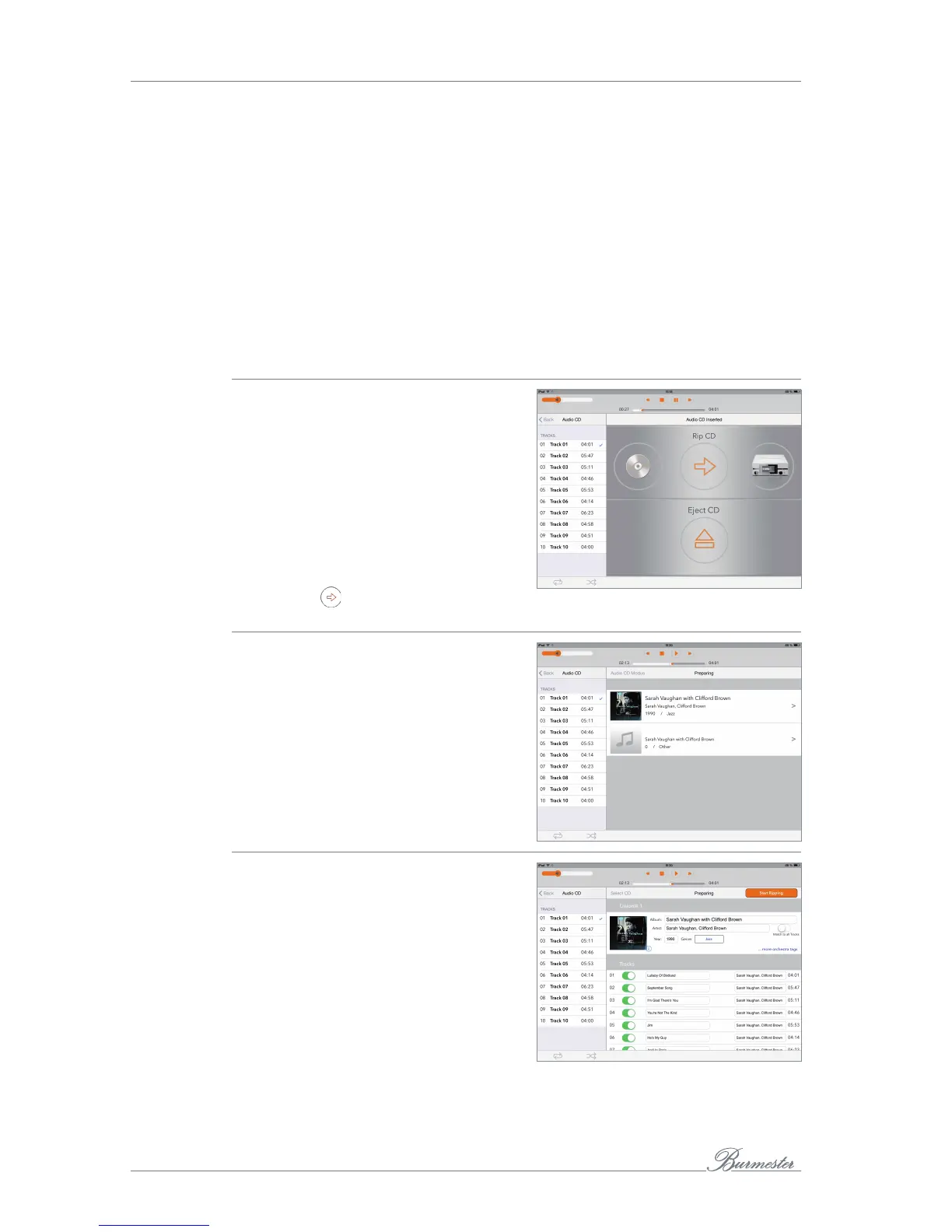
1. Insert a CD into the CD drive.
ª After you have inserted the CD up to
the noticeable resistance, it is
automatically pulled in. The CD is read
and then played back immediately.
2. iPad® app: In the Inputs menu, select
Audio CD by tapping on it.
Web interface: Click the arrow next to the
drop-down menu and select Audio CD.
ª The tracks are displayed (but not the
album and track names)
3. Select the icon.
ª Analysis begins..
ª If the proper album information is
found, a prompt asks you to confirm
the associated album. In some
circumstances, multiple albums are
offered for selection.
Note: Album information can only be downloaded
if an Internet connection exists. If there is no
connection, the album information (without
cover) is obtained from the local database
4. After selecting an album, the album and
all tracks are displayed. You now have the
following editing options:
a. Album cover: Click the i icon to the
right below the cover and make a
selection in the menu window
Via Extended Search, you can search
for additional hits on the Internet,
including changed artists or albums.


 To Next Page