102
External Connection s
Connecting to a TV and VCR
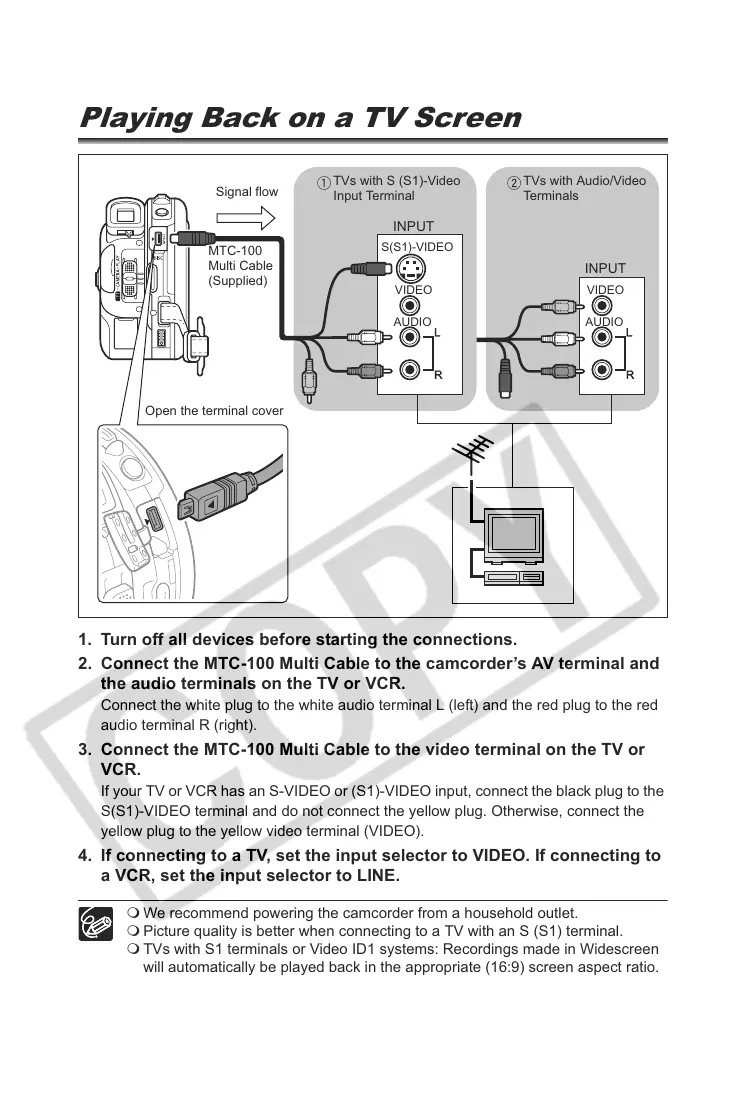
Playing Back on a TV Screen
1. Turn off all devices before starting the connections.
2. Connect the MTC-100 Multi Cable to the camcorder’s AV terminal and
the audio terminals on the TV or VCR.
Connect the white plug to the white audio terminal L (left) and the red plug to the red
audio terminal R (right).
3. Connect the MTC-100 Multi Cable to the video terminal on the TV or
VCR.
If your TV or VCR has an S-VIDEO or (S1)-VIDEO input, connect the black plug to the
S(S1)-VIDEO terminal and do not connect the yellow plug. Otherwise, connect the
yellow plug to the yellow video terminal (VIDEO).
4. If connecting to a TV, set the input selector to VIDEO. If connecting to
a VCR, set the input selector to LINE.
We recommend powering the camcorder from a household outlet.
Picture quality is better when connecting to a TV with an S (S1) terminal.
TVs with S1 terminals or Video ID1 systems: Recordings made in Widescreen
will automatically be played back in the appropriate (16:9) screen aspect ratio.
Signal flow
STV-250N Stereo Video Cable
(supplied)
VIDEO
S(S1)-VIDEO
INPUT
AUDIO
VIDEO
INPUT
AUDIO
MTC-100
Multi Cable
(Supplied)
Signal flow
TVs with S (S1)-Video
Input Terminal
TVs with Audio/Video
Terminals
Open the terminal cover



 To Next Page