27
Preparations
E
Step 5: Changing the Display
Language
The language used in the camcorder displays and menu items can be changed to
German, Spanish, French, Italian, Russian, Simplified Chinese, Traditional Chinese,
Korean or Japanese.
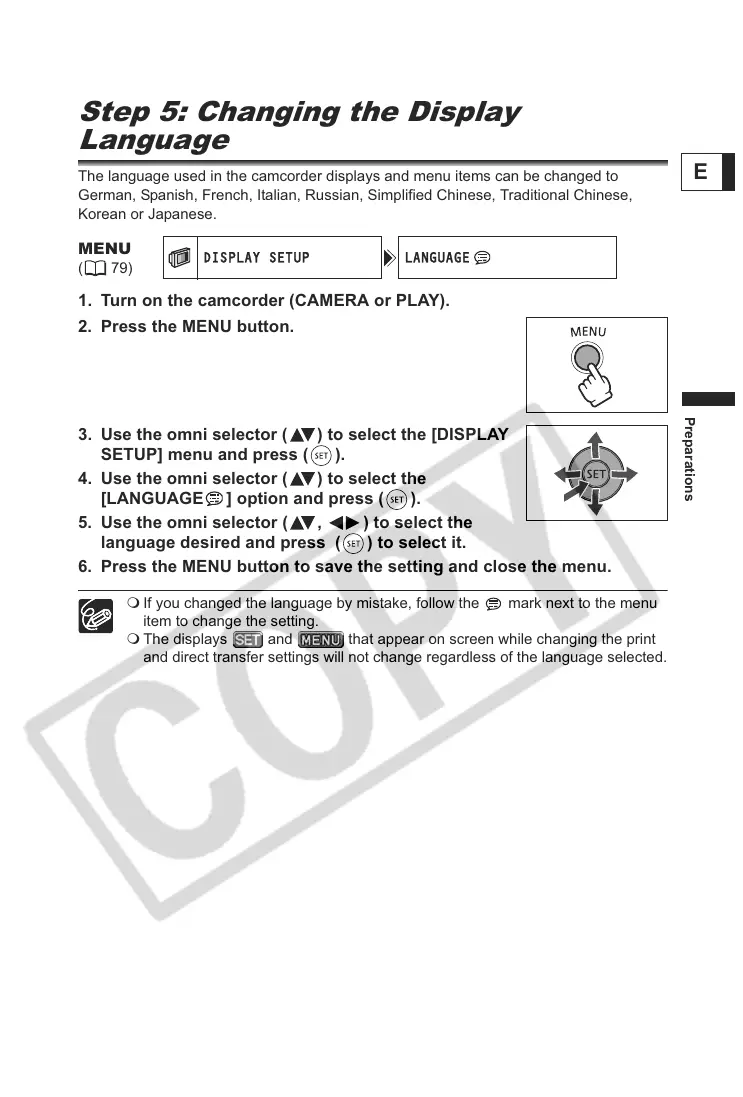
1. Turn on the camcorder (CAMERA or PLAY).
2. Press the MENU button.
3. Use the omni selector ( ) to select the [DISPLAY
SETUP] menu and press ( ).
4. Use the omni selector ( ) to select the
[LANGUAGE ] option and press ( ).
5. Use the omni selector ( , ) to select the
language desired and press ( ) to select it.
6. Press the MENU button to save the setting and close the menu.
If you changed the language by mistake, follow the mark next to the menu
item to change the setting.
The displays and that appear on screen while changing the print
and direct transfer settings will not change regardless of the language selected.
MENU
(79)



 To Next Page