118
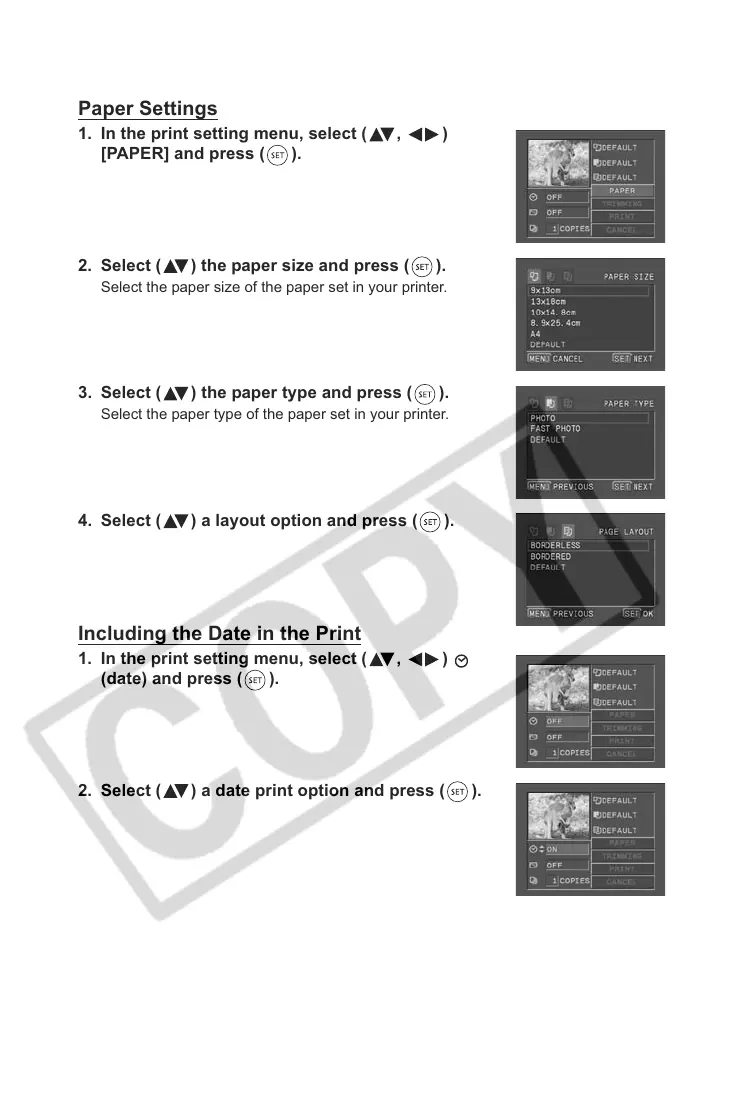
Paper Settings
1. In the print setting menu, select ( , )
[PAPER] and press ( ).
2. Select ( ) the paper size and press ( ).
Select the paper size of the paper set in your printer.
3. Select ( ) the paper type and press ( ).
Select the paper type of the paper set in your printer.
4. Select ( ) a layout option and press ( ).
Including the Date in the Print
1. In the print setting menu, select ( , )
(date) and press ( ).
2. Select ( ) a date print option and press ( ).


 To Next Page