Cannot Print Properly through Infrared Transmission
The required driver is not installed.
The installation place of the printer is not proper.
During infrared transmission, infrared rays were interrupted or another infrared transmission unit is
operating nearby.
Your computer is not a PC/AT compatible machine or the infrared port used does not conform to IrDA
1.1.
The infrared transmission driver is inactive.
The printer port status is wrong. (Windows Me/Windows 98/Windows 95)
The printer port setting is wrong.
The required driver is not installed.
Check whether the driver meeting the following requirements is installed.
In Windows Me or Windows 98
Windows 98 or later must be preinstalled and Microsoft Infrared Communication Driver must be installed in
the computer.
In Windows 95
Microsoft Infrared Communication Driver Version 2.0 must be installed in the computer.
For details, refer to Quick Start Guide .
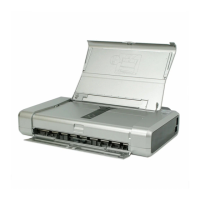
The installation place of the printer is not proper.
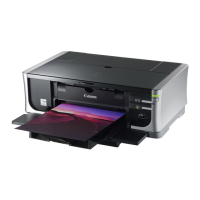
Check whether the printer is installed in an appropriate place.
Place the printer at a proper distance from the computer or PDA (Personal Digital Assistants), oppose their
infrared ports at a proper angle, remove obstacles between them if they exist, and retry printing. The
allowable distance and angle for infrared transmission depends on the functions of the computer or PDA and
the environmental conditions. Place the printer at a distance of 80 cm or shorter from the computer or PDA
and adjust the infrared port angle properly.
For how to print through infrared transmission, refer to Quick Start Guide .
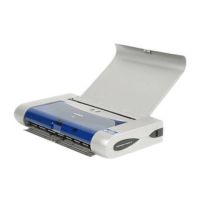
Check whether i70 is detected by the computer.
In Windows XP, Windows 2000, or Windows Me
1 Check whether the Wireless Link icon is displayed on the task bar.
If not displayed, i70 is not detected by the computer.
Ensure that the printer is on. Bring the printer and computer closer to each other in such a manner that their
infrared ports are opposed properly.
2 Place the mouse cursor on the Wireless Link icon.
Ensure that "i70 is in range" is displayed.
If the name of another unit is displayed, change the orientation of this unit or turn it off.


 To Next Page