If [Color Matching] is enabled, the [Fading Correction] ( Adjusting Image Quality(P. 247) ) setting and the
buttons for brightness and color settings ( Adjusting Brightness and Color(P. 248) ) are disabled.
[Always Execute the Auto Tone]
Color tone is automatically adjusted. The setting is available if you select [Color] or [Grayscale] for [Color
Mode].
[Monitor Gamma]
You can display the document at the proper brightness level by specifying the gamma value of the
computer display that displays the scanned image. The setting is applied if you select [Color] or [Grayscale]
for [Color Mode].
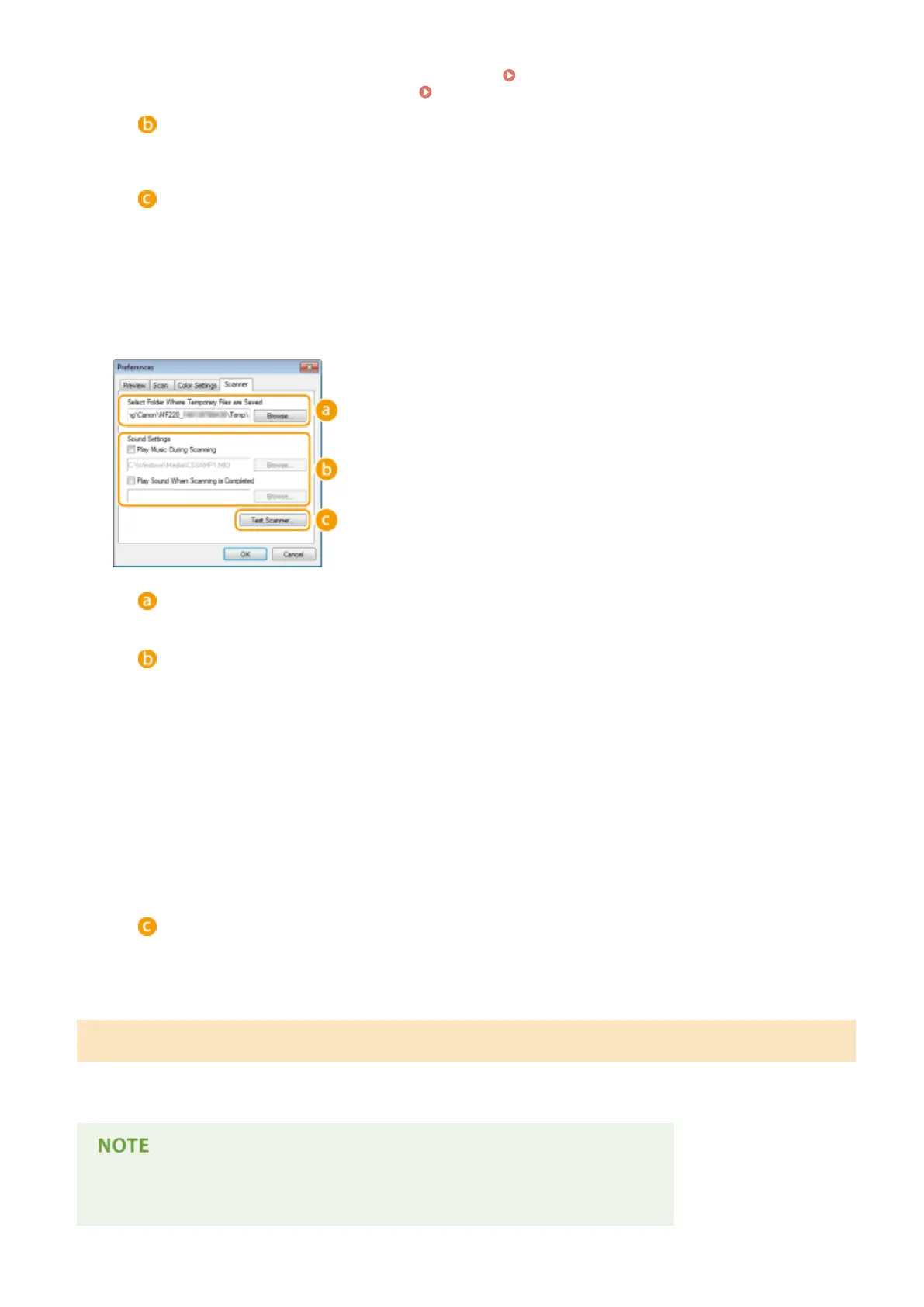
◼ [Scanner] Tab
Congure the temporary save destination of les, the playing of audio
les, and other settings.
[Select Folder Where Temporary Files are Saved]
Click [Browse] to change the folder to which an image is temporarily saved.
[Sound Settings]
You can specify the music or sounds that are played while the machine is scanning or when scanning is
complete. Click [Browse] to specify a le to be played. The following le formats (extensions) are
supported:
● MIDI les (.mid/.rmi/.midi)
● Audio les (.wav/.aif/.aiff)
● MP3 les (.mp3)
[Play Music During Scanning]
The specied sound le is played while scanning is being performed.
[Play Sound When Scanning is Completed]
The specied sound le is played when scanning is complete.
[Test Scanner]
You can check whether the scan function of the machine is working properly. When the [Scanner
Diagnostics] screen opens, click [Start].
Registering Frequently Used Settings
It is troublesome to congure the color mode, image quality, or other settings each time you scan. If you register
frequently used settings as Favorite Settings, you can scan simply call the registered settings when scanning.
The following settings cannot be registered in [Favorite Settings].
● Widths and heights in [Input Settings] and [Output Settings]
Using the Machine as a Scanner
253




 To Next Page