6-20
Adjusting the Print Density
Routine Maintenance
6
Adjusting the Print Density
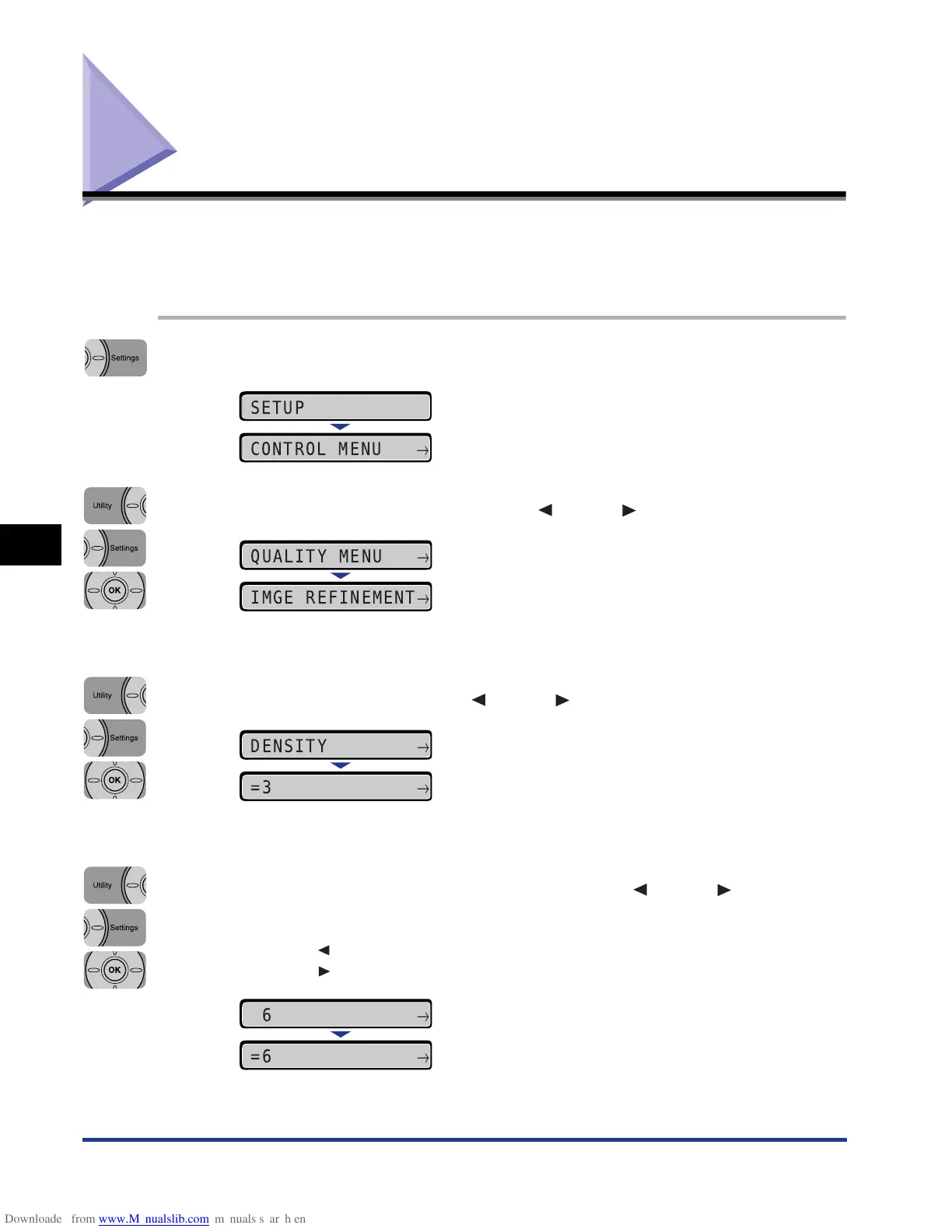
Adjust the print density using the following procedure when the printout result is too
dense or too light in color. The toner density is set to the standard density (3) before
shipment. You can adjust the toner density between 1 and 16.
1
Press [Settings].
2
Select QUALITY MENU using [ ] and [ ], then press [OK].
The options for QUALITY MENU are displayed.
3
Select DENSITY using [ ] and [ ], then press [OK].
The settings for DENSITY are displayed.
4
Specify the target numeric value using [ ] and [ ], then
press [OK].
Pressing [ ] decreases the value, and the print density becomes lighter.
Pressing [ ] increases the value, and the print density becomes denser.
"=" is displayed on the left of the value, and the density is specified.
SETUP
CONTROL MENU
→
QUALITY MENU
→
IMGE REFINEMENT
→
DENSITY
→
=3
→
6
→
=6
→



 To Next Page