Scanning Business Cards
CardScan User’s Guide 3-3
This dialog allows you to:
• Process the saved image(s) to transform them into contacts.
•Use Batch Options to assign the same notes and categories to all
cards scanned continually. When processed, all the contacts in the
batch contain identical notes and belong in the same category.
Keyword: “Batch.”
• Click Close to save the scanned images without transforming them
into contacts.
3. Scan a few more cards, and click Process.
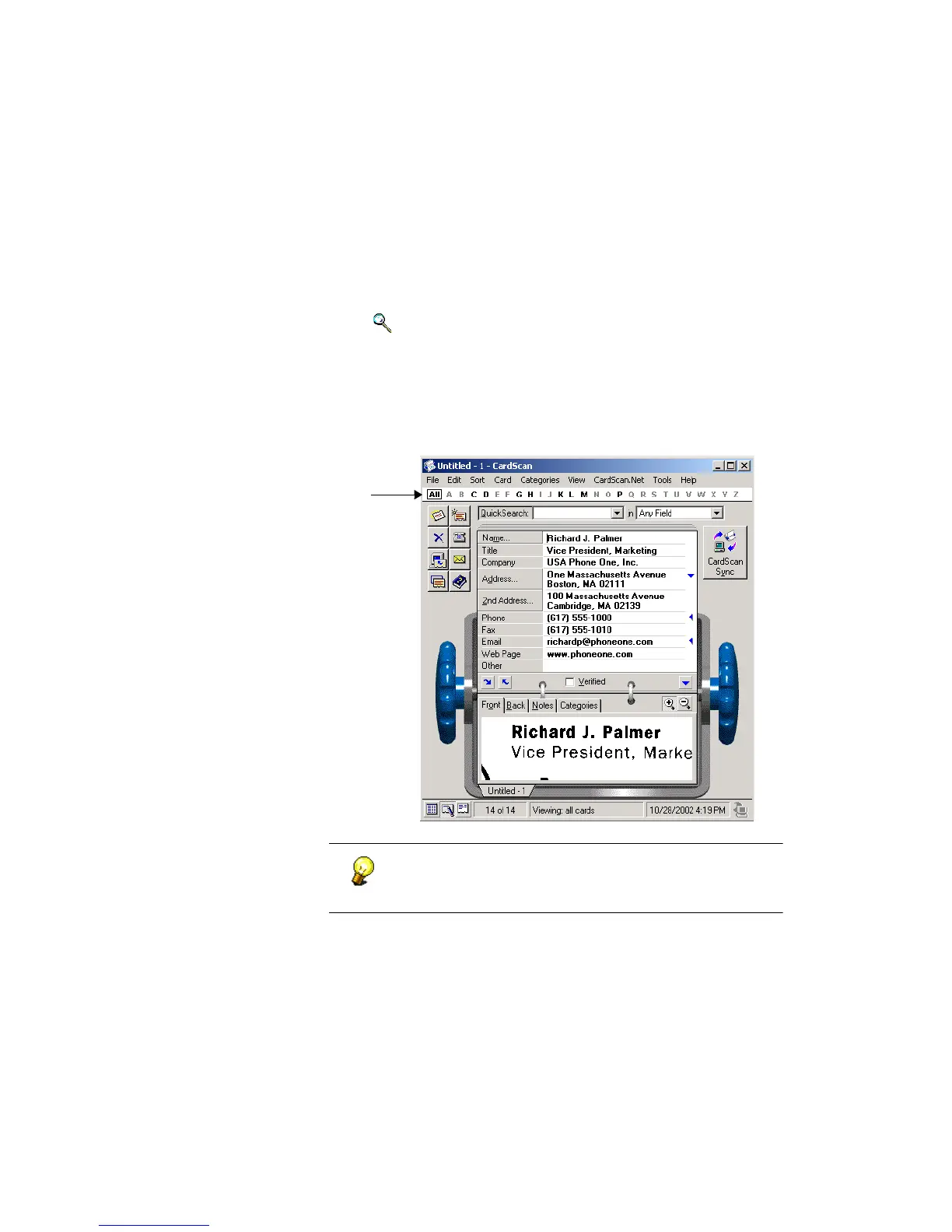
CardScan processes the image(s), closes the Scanning Options dialog,
and displays the contact scanned last in Edit view—so you can verify and
edit your new contacts.
To learn about the features of CardScan’s graphical interface,
point at any feature in CardScan’s window. A brief description of
the feature appears in the balloon help.
Alphabet Bar



 To Next Page