Starting the Imaging Software
4–2 GETTING STARTED
2. Select the following series of parameter settings:
70 kV - 6.3 mA
80 kV - 10 mA
85 kV - 10 mA
3. Leave the X-ray room and close the door. For each parameter setting, from the X-ray
remote control, press and hold the button to launch the X-ray.
The unit is now ready to be used for acquisition.
Starting the Imaging Software
Depending on your particular configuration you may have either Kodak Dental Imaging
Software or CS Imaging Software installed.
For KODAK Dental Imaging Software see “Starting the KODAK Dental Imaging
Software”.
For CS Imaging Software see “Starting the CS Imaging Software”.
Starting the KODAK Dental Imaging Software
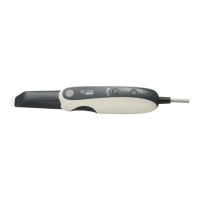
To start the imaging software, follow these steps:
1. On your desktop, double-click .
OR
From your computer, click Start > All Programs > Kodak > Kodak Dental Imaging
Software.
A blank Patient window is displayed.
2. Create or open an existing patient record.
Creating a Patient Record
To create a patient record, follow these steps:






 To Next Page