page 35www.CentSys.com
SETTING UP ADDITIONAL FEATURES SECTION 23
23. Setting up Additional Features
The Controller Menu Structure on page 36 provides the full suite of features that can be
set up on the system.
An explanation of each feature is provided in Section 25 ‘Controller Features’ on page 40.
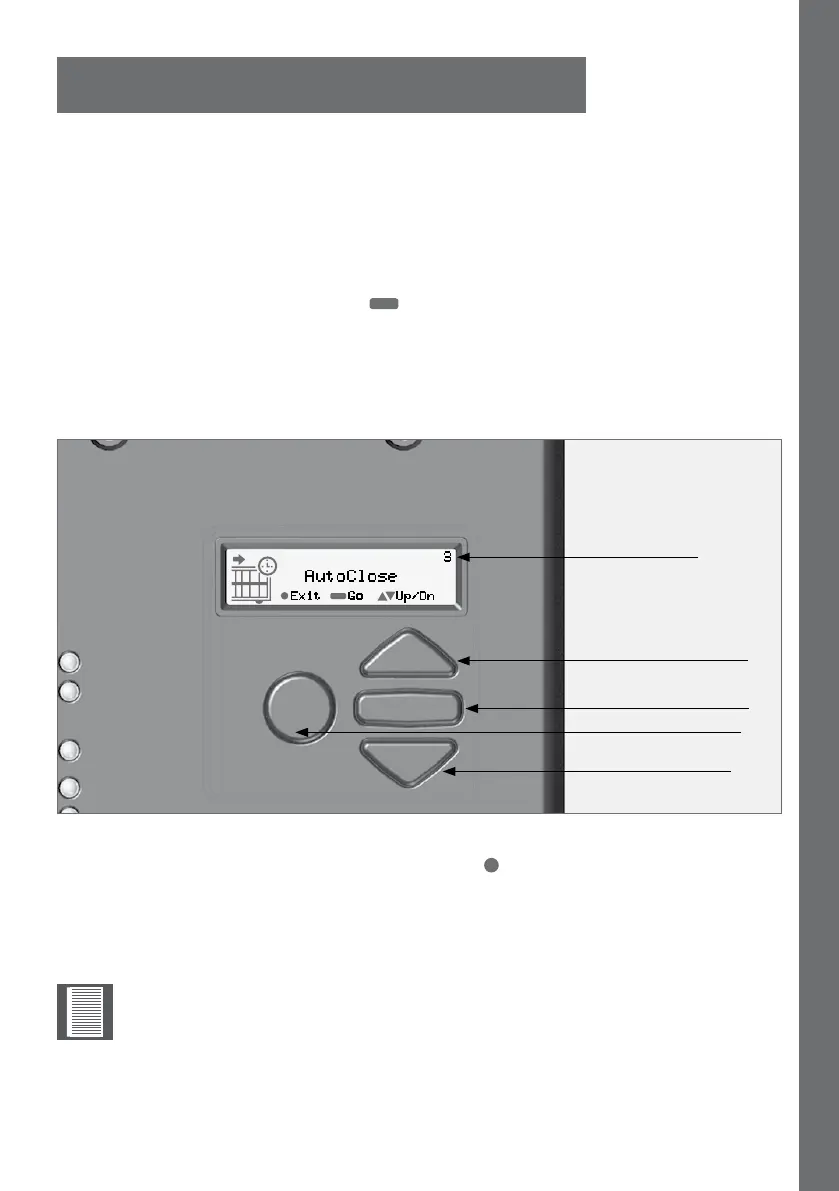
When setting up the system via the LCD display, all the steps that have to be followed
are clearly provided via the display. It is only necessary to note the following:
1. To get into Setup Mode, press the ( ) button for three seconds and follow the
instructions provided from there.
2. The buttons provided on the Controller for navigating the system are not marked
because at each step during the Setup, the function given to each button is provided
on the display.
FIGURE 25. VIEW OF CONTROLLER
AutoClose
3
Exit
Go
Up/Dn
Menu level
Up
Go
Exit
Down
3. When not in Setup Mode, i.e. Normal Mode, the ( ) button is used as a test button
for operating the system. The up/down buttons are not used unless the diagnostic
screens have been selected to appear in Normal Mode, in which case these buttons
allow switching from one screen to the next.
For each feature a Factory Default setting has been programmed into the
Controller.ReferredtoasanOperatingStandard,thesedefaultshavebeen
determinedtosuittherequirementsofthespecicregionwheretheinstallation
is being carried out. It is only necessary to change a feature where the default
does not suit the installation. When selecting any feature in the menu, details of
the current setting stored in the Controller are displayed.
Refertopage56to64fortheFactoryDefaultsScheduleforeachfeature.



 To Next Page