30
Programming (continued)
NOTE: Please obtain the latest Installation Manual by search the model number at liftmaster.com.
SELECT DOOR SETTINGS
SECTIONAL DOORS
STANDARD, HIGH LIFT AND VERTICAL
1. To select Door Hanging, Cable Drum (and Sprocket JHDC/ JDC) settings, navigate to the SYSTEM SETTINGS >
DOOR SETTINGS submenu.
2. Select The Drum Type. Correct Drum Types are required for the correct door prole to run the system.
a. Standard Lift choices: D400-96, D400-144, D5250-18, D525-216, D800-384**
b. Full Vertical choices: D850-132, D1100-216, D1350-336
c. High Lift choices: 48° HL, D400-54, D525-54, 60° HL: D575-120, 144° HL: D6375-164
3. Sprocket FOR JHDC / JDC (ONLY) If you have a dierent sprocket size, use Custom option to add your tooth
sprocket.
700lb operators - Standard Lift, High Lift and Full Vertical 16 tooth sprocket recommended
1200lb operators – Standard Lift, High Lift and Full Vertical 22 tooth sprocket recommended
2200lb operators – Standard Lift, High Lift and Full Vertical 32 tooth sprocket recommended (Vertical with D1350-
336 – 42 tooth sprocket recommended)
Any other tooth conguration, please use Custom Option and enter your sprocket info.
ROLLING DOOR
1. Select Rolling Door
2. Select Insulated or Non-Insulated Door Type
3. Select Height (increment of 2’)
a. 8’, 10’, 12’, 14’, 16’, 18’, up to 40’
4. Select Width (increment of 2’)
a. 8’, 10’, 12’, 14’, 16’, 18’, up to 40’
5. Select Sprocket (SKU dependent, please reference page 4)
a. Sprocket choices: 50, 60, 72, 82, Custom
IMPORTANT: Once you choose your drum, allow inverter parameter to update. Once the inverter is updated, you can
re-enter the menu to set limits and learn force.
SET LIMITS
IMPORTANT: When setting limit positions, it is important that the door runs in the direction of the intended limit.
Example: When setting the close limit, only use the CLOSE button. When setting the open limit, only use the OPEN
button. Using the opposite direction button will cause the limit positions to drift over time.
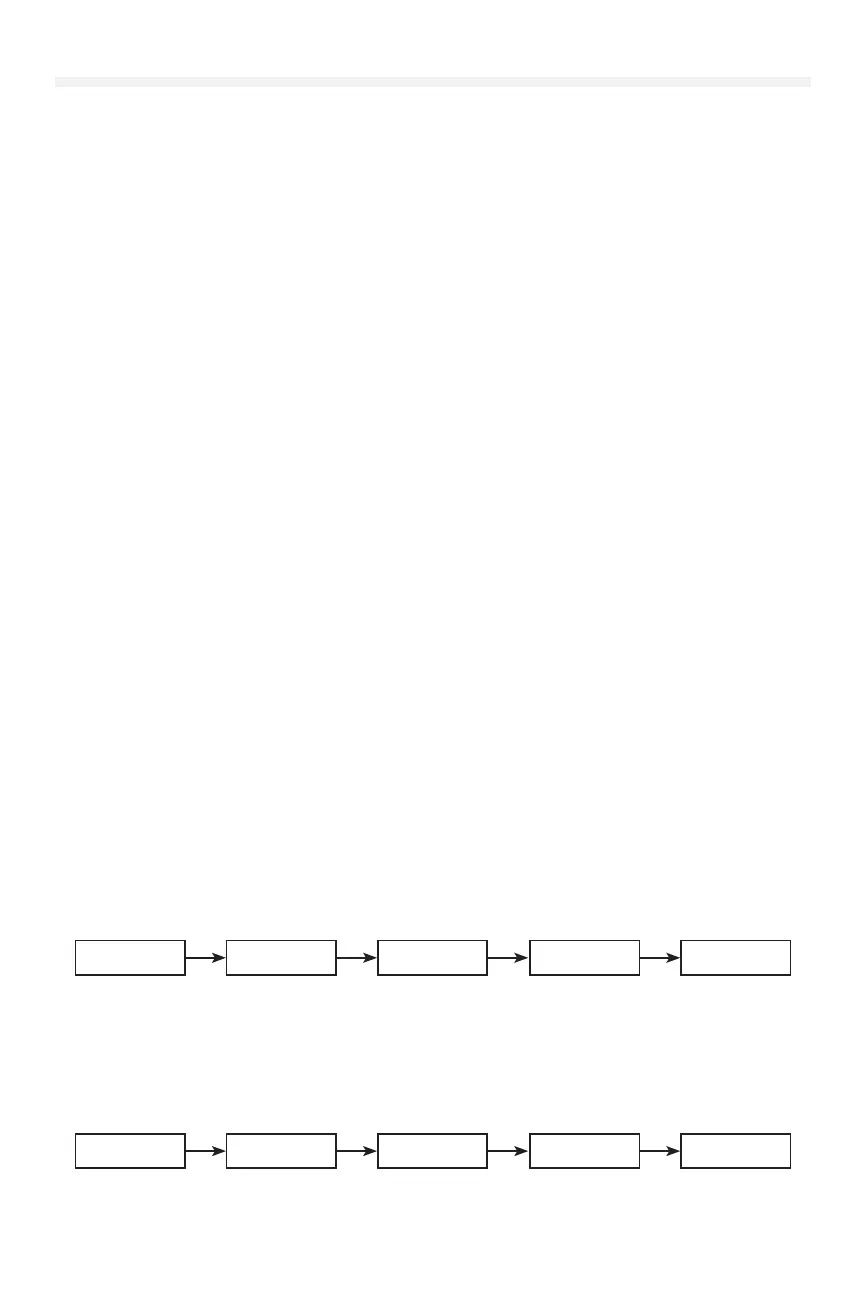
To set limits, navigate to the SYSTEM SETTING > DOOR POSITIONS submenu.
Door Position
Door Position
Close Limit
Door Position
Open Mid-Stop
Door Position
Open Limit
Door Position
Close Mid-Stop
MONITORED EYES/EDGE CONFIGURATION
If monitored entrapment protection devices are wired to the system during the initial power-up, they will be learned to
the system, and the operating mode will automatically switch to B2.
If no monitored sensor is attached, the system will default to C2 mode. To manually program an entrapment protection
device, navigate to the SYSTEM SETTINGS > MONITORED EYES/EDGES submenu, otherwise it will Auto-Learn the
monitored device.
Monitored
Eyes/Edges
Eye/Edge 1
XXXXX
Eye/Edge 2
XXXXX
Auto-Learn All
Eye/Edge 3
XXXXX





 To Next Page