26 78-15630-02
Preventing Others from Viewing or Joining a Shared-Line Call
If you use a shared line, you can use the privacy feature to prevent others who share this line from
viewing or joining your calls on this line.
Tips
• When your co-worker has the privacy feature enabled, your shared line appearance does not
indicate that the shared line is in use. For example, typically when a co-worker is using the shared
line, your phone displays the remote-in-use icon. However, when privacy is enabled, this icon does
not appear, and you not have any indication that the line is in use.
• If all other phones that share the same line have privacy enabled, you can still make new calls using
the shared line. However, you cannot join any in-progress calls using the shared line.
• The privacy feature applies to all shared lines on the phone. Consequently, if you have multiple
shared lines on your phone and privacy is enabled on your phone, no one who shares any line with
your phone will be able to view or join your calls on any of the shared lines.
If you want to... Then...
See if a co-worker has an active call
on the shared line
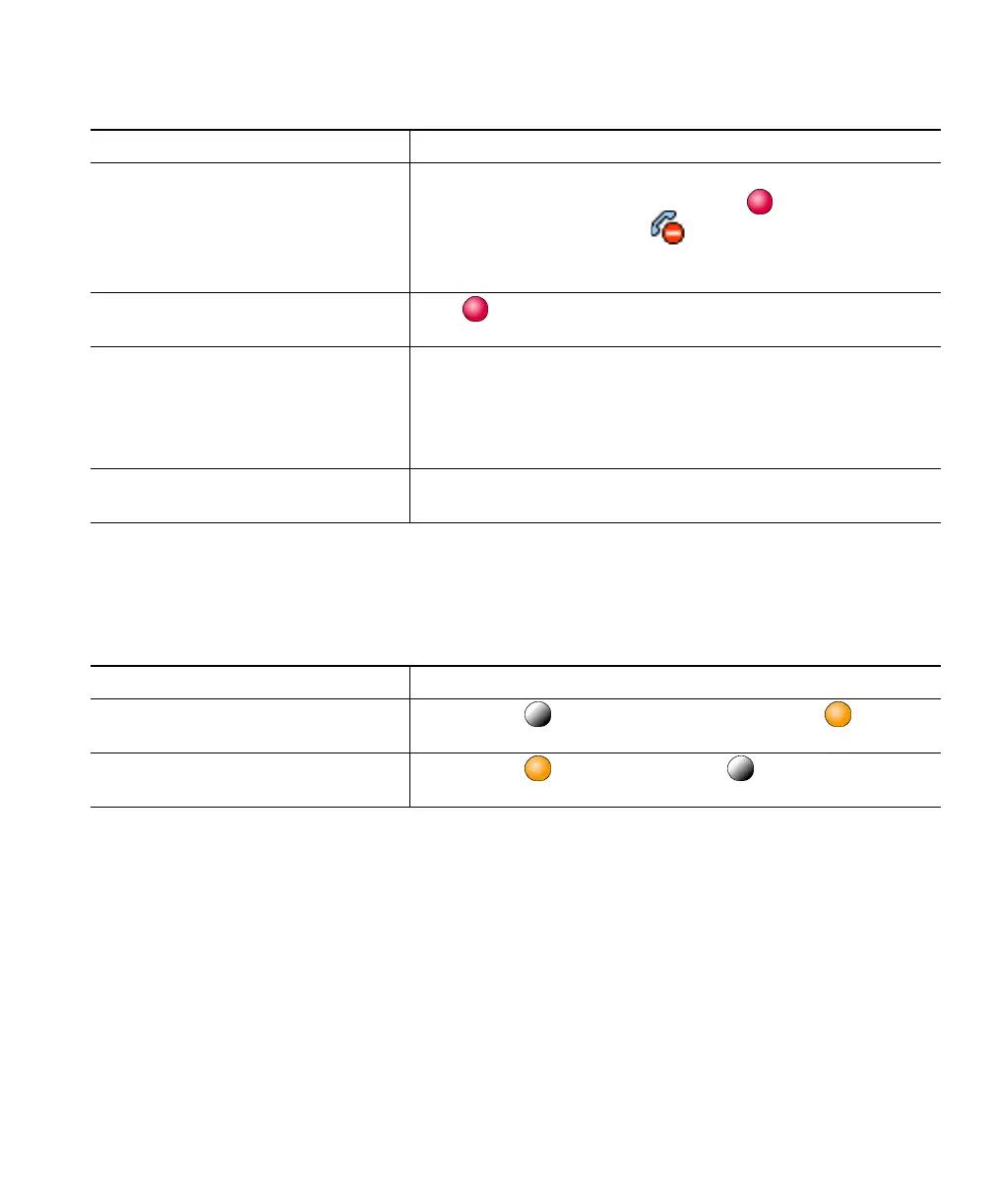
Look at shared line number. When the line is in use from
another phone, the button displays red and the
remote-in-use icon appears:
If your co-worker has privacy enabled, no information
displays for remote-in-use calls.
Show current calls on the shared line Press (shared line in-use button). All non-private calls
appear on the call activity area.
Add yourself to call in progress on a
shared line
Highlight a remote-in-use call on your touchscreen and press
Barge. (You might need to press the more softkey first.) You
will be disconnected from a call you have joined using Barge
if the target shared line’s call is put on hold, transferred, or
turned into a conference call.
Add yourself to a remote-in-use call
and establish a conference call
Highlight a remote-in-use call on your touchscreen and press
cBarge. (You might need to press the more softkey first.)
If you want to... Then...
Prevent others from viewing or
joining any calls on a shared line.
Press Private . The button illuminates orange when
privacy is enabled.
Allow others to view or join any
calls on a shared line.
Press Private . The button is unlit when privacy is
disabled.


 To Next Page