10 78-15630-02
Touchscreen Features
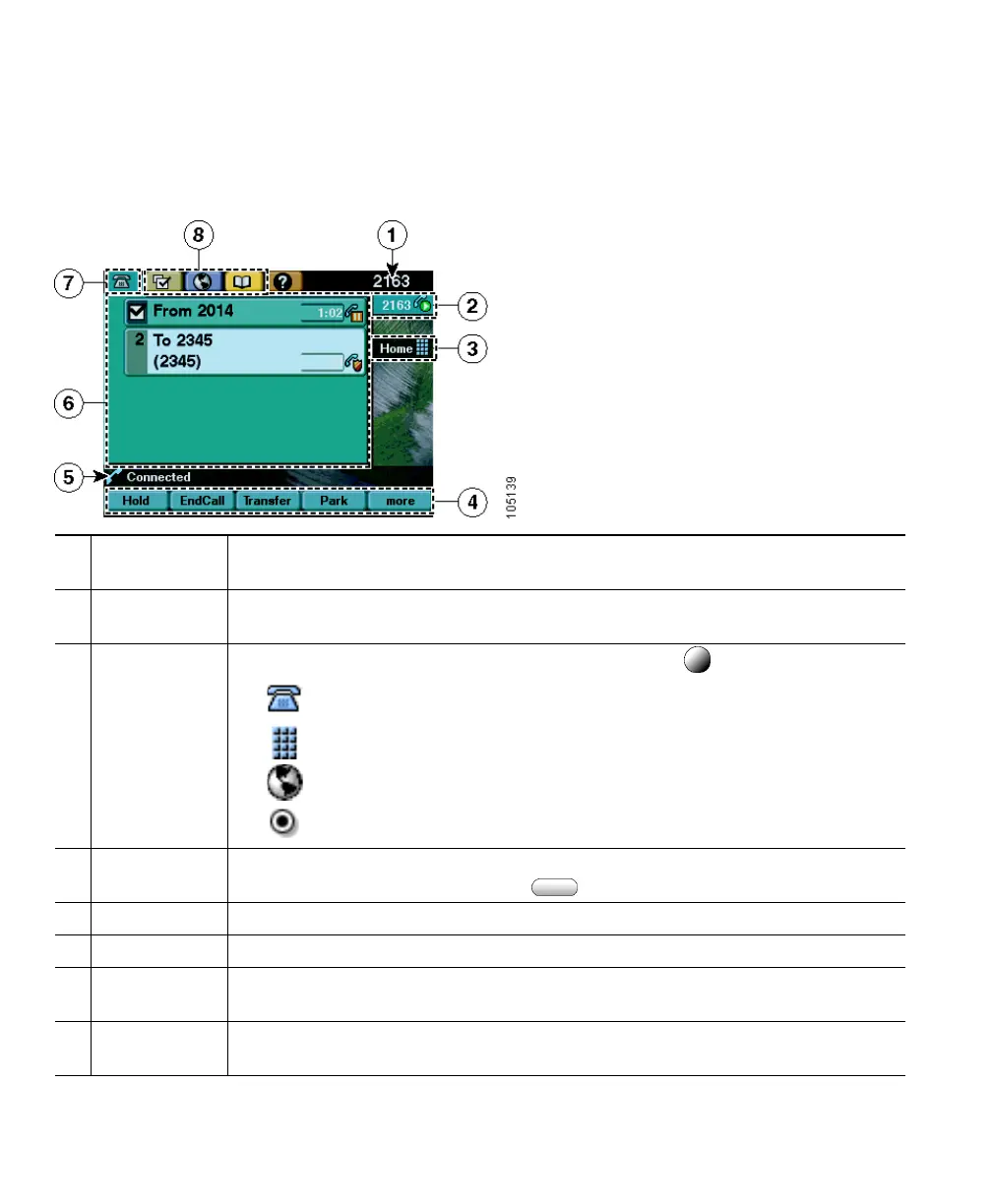
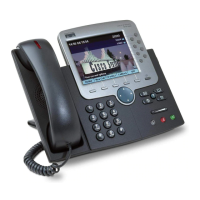
This is what your main touchscreen might look like with active calls and several feature menus open.
Press (or tap) with your fingertip to activate touch-sensitive items on your touchscreen.
1
Primary line Displays your primary phone number or office extension. If several tabs are
open, the time and date appear here also, alternating with the line number.
2
Line area and
call overview
Displays all configured lines or phone numbers assigned to the phone. Also
shows an overview of current calls on each line. The active call is highlighted.
3
Programmable
button labels
Displays configuration of each programmable button on your phone:
Phone lines, or extensions (line buttons)
Frequently-dialed phone numbers (speed dial buttons)
Web-based phone services (service buttons)
Specialized phone features, such as Privacy (feature buttons)
4
Softkey labels Each displays a softkey function. Activate a softkey by pressing either the
softkey label on the touchscreen or (the softkey button).
5
Status line Displays current audio mode icon, status information and prompts.
6
Call activity Displays your current calls per line, caller ID, call duration, and call state.
7
Phone tab Appears when there is call activity. Press this tab to return to the call activity
area from another screen.
8
Feature tabs Each indicates an open feature menu. Press a tabs to switch between open
menus. (To open a menu, press a feature button).


 To Next Page