Chapter 2 Switch Installation
Installing the Switch
2-20
Catalyst 2970 Switch Hardware Installation Guide
OL-6422-01
Wall-Mounting
To install the switch on a wall, follow the instructions in these procedures:
• Attaching the Brackets to the Switch for Wall-Mounting, page 2-20
• Attaching the RPS Connector Cover, page 2-20
• Mounting the Switch on a Wall, page 2-21
Attaching the Brackets to the Switch for Wall-Mounting
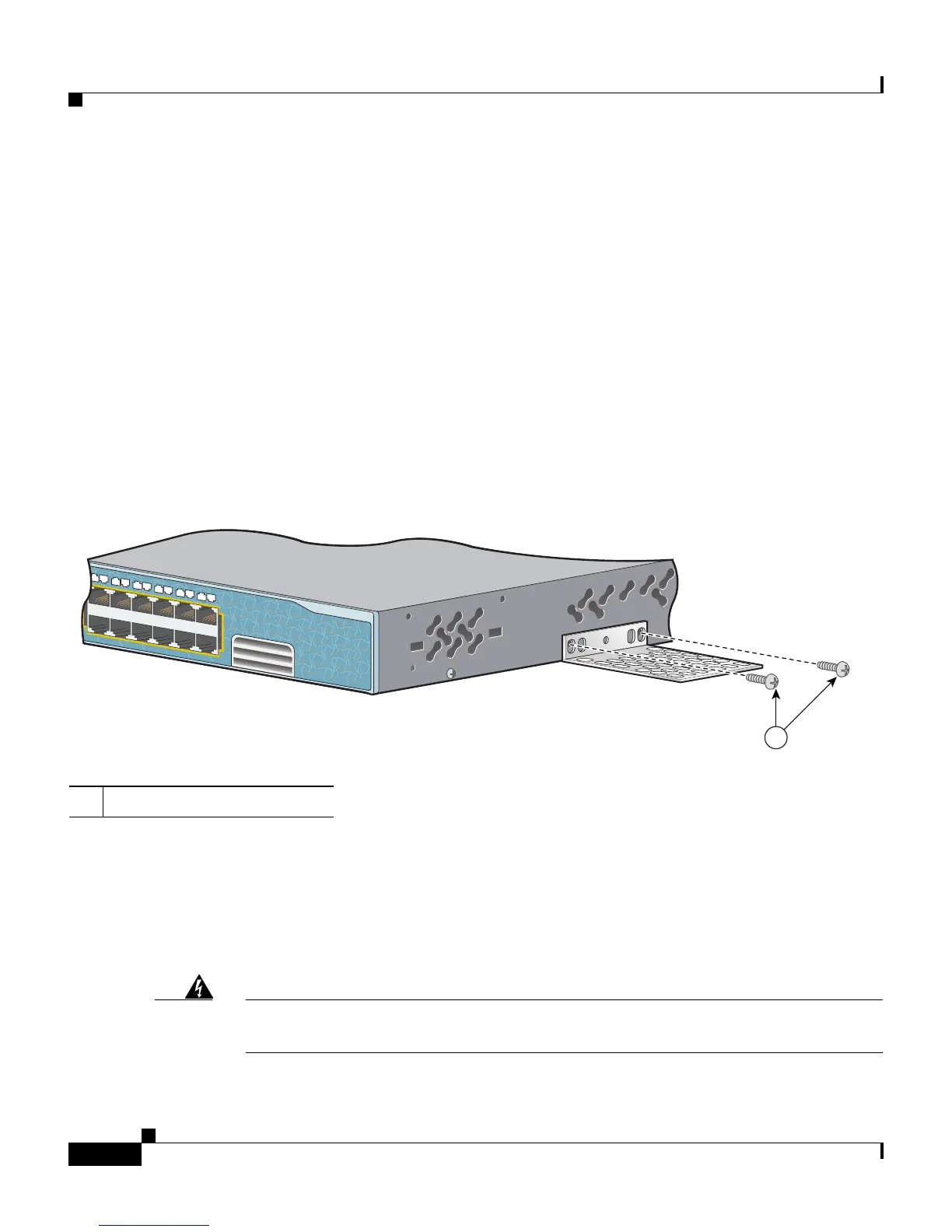
Figure 2-17 shows how to attach a 19-inch bracket to one side of the switch.
Follow the same steps to attach the second bracket to the opposite side.
Figure 2-17 Attaching the 19-inch Brackets for Wall-Mounting
Attaching the RPS Connector Cover
If you are not using an RPS with your switch, use the two Phillips pan-head
screws to attach the RPS connector cover to the back of the switch, as shown in
Figure 2-18.
Warning
If an RPS is not connected to the switch, install an RPS connector cover on the
back of the switch.
1 Phillips truss-head screws
Catalyst 2970
S
ERIES
13X
14X
23X
24X
13
14
15
16
17
18
19
20
21
22
23
24
1
87636



 To Next Page