© 1999-2017 Citrix Systems, Inc. All rights reserved. p.307https://docs.citrix.com
Done
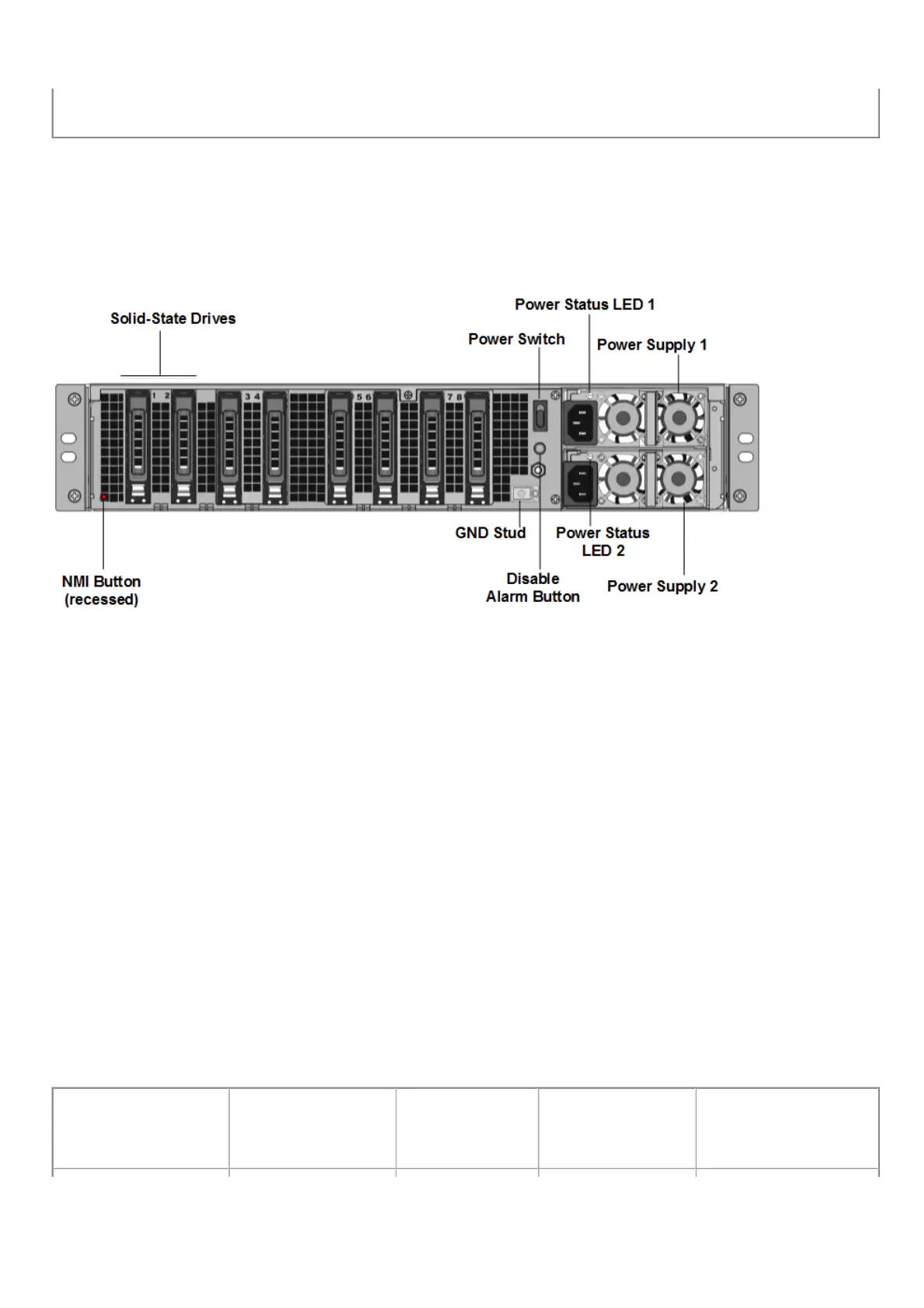
To upgrade the appliance
1. Power off the NetScaler appliance.
2. Locate two solid-state drives (SSDs) on the back of the appliance in slot #1 and slot #2, as shown in the following
figure:
3. Verify that the replacement solid-state drives (SSDs) are the ones required for your NetScaler model. The conversion
requires minimum of four SSDs. The Citrix label is on the top of one of the solid-state drives, which is pre-populated with a
new version of BIOS and a recent build of the required NetScaler SDX Management Service. This SSD must be installed in
slot # 1.
4. Remove the SSDs by pushing the safety latch of the drive cover down while pulling the drive handle.
5. On the new Citrix Certified SSD drive, open the drive handle completely to the left, and then insert the new drive into
the slot #1 as far as possible.
6. To seat the drive, close the handle flush with the rear side of the appliance so that the drive locks securely into the
slot.
Important: The orientation of the SSD is important. When you insert the drive, make sure that the Citrix product label is at
the side.
7. Insert a second Citrix certified SSD, which matches the capacity of the SSD in slot #1, in slot # 2.
Note: If the license of your appliance is 25100 40G and 25160 40G, insert additional blank Citrix certified SSDs in slots #3,
#4, #5, and #6.
NetScaler SDX Model Included Virtual
Instances
Platform
Maximum
SSDs included on
base model
Extra SSDs for max
instances



 To Next Page