35
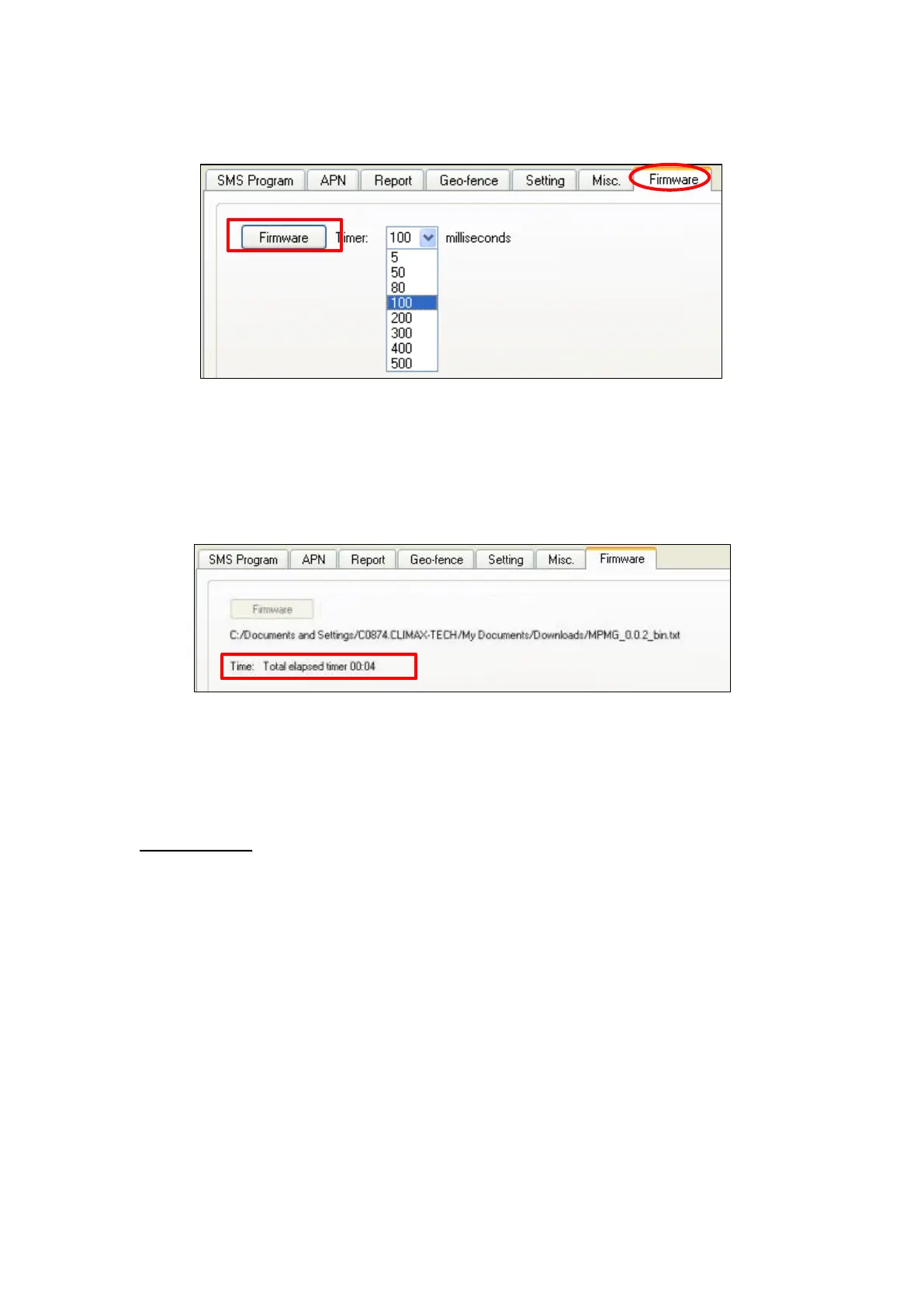
milliseconds.
Step 3. Select the provided firmware in your computer. A small window will
pop-up with the message “Read file ! OK!”. Click on the “OK” button
and the update process will start.
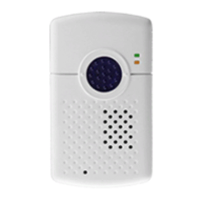
Total elapsed time will be displayed to show how long the updating
process has elapsed.
Step 3. When updating process is completed, a message “Firmware
update success!” will be displayed in a pop-up window.
Step 4. Click on “OK” and the programming tool will read the
settings of Mobile Lite again.
During updating process, please DO NOT disconnect Mobile Lite from the
computer nor clicking on the “Close” button of the programming tool.



 To Next Page