Chapter 1: Introduction to EXPLORER 710
98-140012-H Your EXPLORER 710 terminal 5
Display and keypad
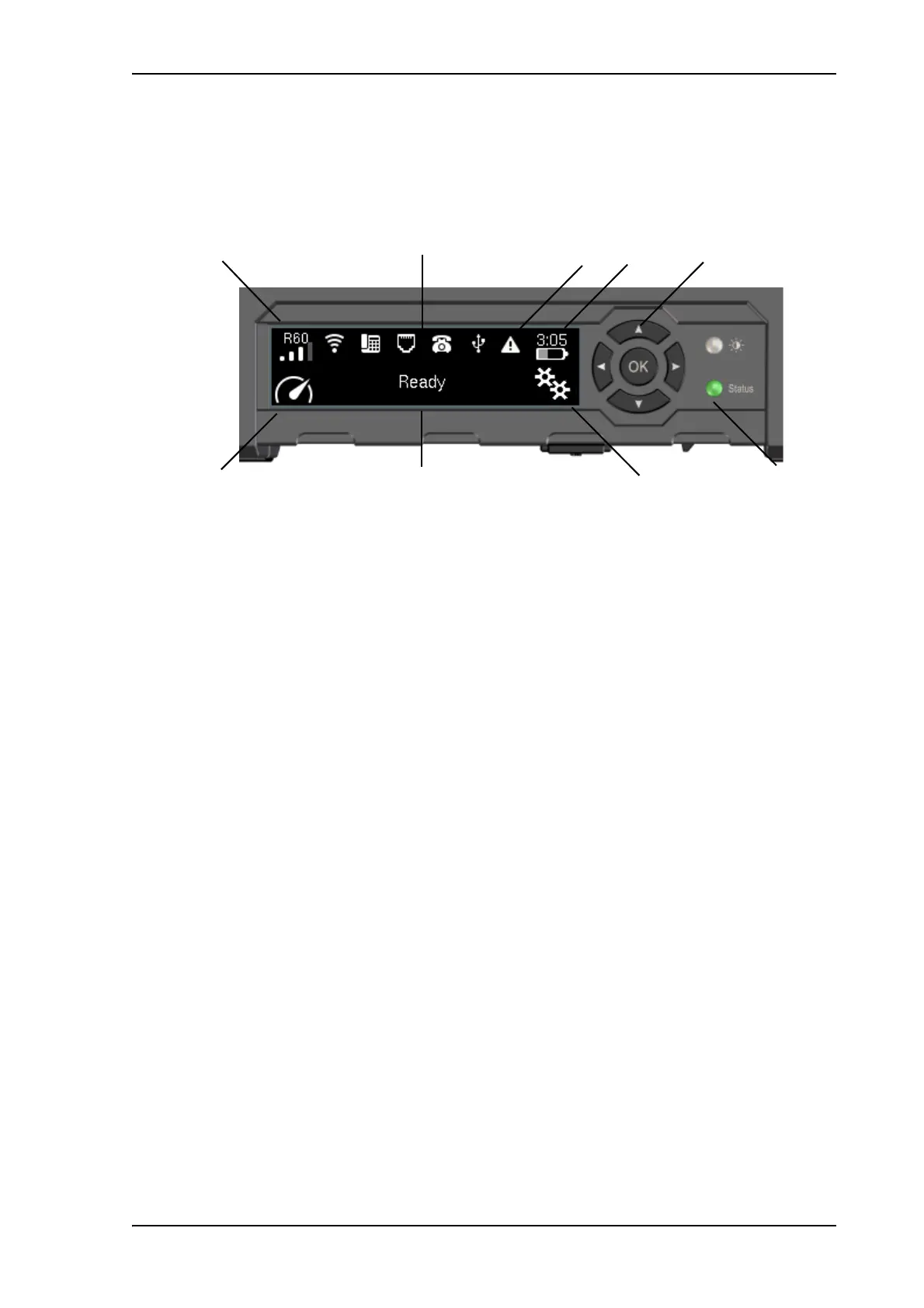
The EXPLORER 710 has a display and keypad providing quick access to important functions and
simple setup, and for displaying status.
1. Menu: Opens the display menu. For a menu overview, see next page.
2. Connect: Allows you to start a data connection. When a connection package is started, a
“1” is added to the icon.
3. Signal strength: Shows the signal strength of the satellite connection and whether the
connection is global beam (G), regional beam (R) or narrow beam (N). Press OK to see the
GNSS position.
4. Interfaces on/off: Allows you to switch the interfaces on or off. Disabled interfaces are
crossed out. The WLAN icon shows the number of WLAN-connected devices, if any.
5. Warning: Shows if there are alerts. Press OK to see the alerts.
6. Battery status: Shows remaining time for the internal battery and the external battery (if
connected).
7. Keypad for navigation: Allows you to move between the available options (arrow keys) and
select them (OK).
8. Status indicator: Shows status of the EXPLORER 710. For information on functions, see
Status indicator on page 125.
9. Status text: Shows the current status of the EXPLORER 710 and the network connection.
For example, the text may show the status during start-up (see The registration procedure
(BGAN) on page 19).
To navigate the display functions
•To highlight one of the icons, use the arrow buttons.
•To move around between the icons, use the arrow buttons.
•To select menu items, functions or values, press the OK key.



 To Next Page