57 | P a g e
There are 4 rows of operation keys in the interface, the first two rows are the file and view functions keys,
the third row are keys for adjusting letter arrangement, and the fourth row are keys for adjusting letter string. In
the middle of the interface is the letter pattern display area.
Generally, user should set the parameters, such as whole arrangement method, rotate angle and letter
interval of the letter string; then select certain letter to adjust the its arrangement parameters.
Letter pattern display window: the crosses in the center are the coordinates and the intersection represents
the origin (0, 0). The letter will be arranged around the origin automatically.
2. Keys for Adjusting Selected Letters
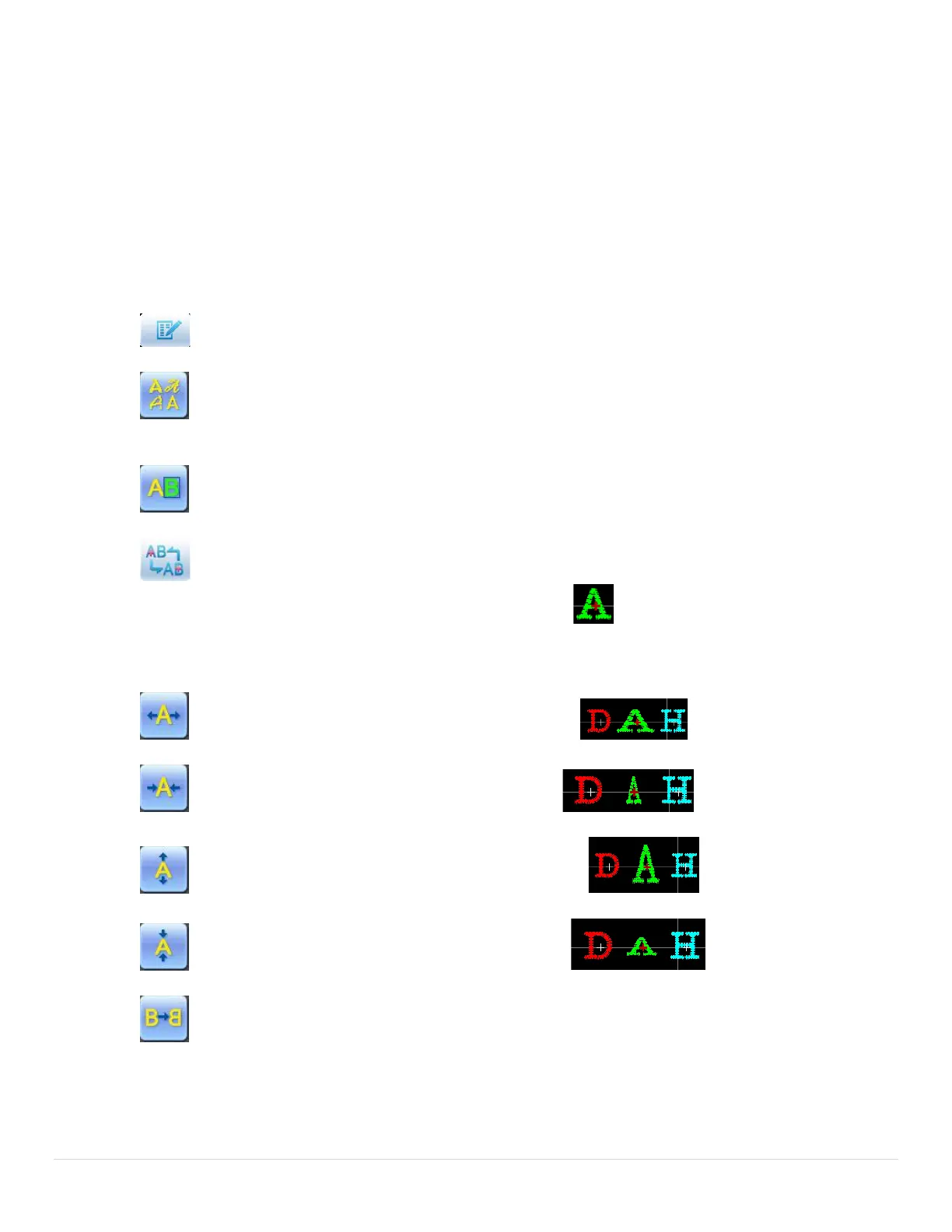
“Letter String”: edit letter string.
“Change Font”: change the font of selected letters. Press this key to display a dialog box,
where user can select a desired font and confirm it.
“Color-changing Shift”: set or cancel color-changing before the selected letter.
“Selection Shift”: shift among selected letters. A letter must be selected before any edit. If a
red “+” appears on a letter, it means the letter is selected, such as . The system will select all letters as
default. Press this key to select the first letter, and press it again to select the second one, and so on. After
selecting the last letter, press this key again to select all letters.
“Increase Width”: increase width of selected letter.
“Reduce Width”: reduce width of selected letter.
“Increase Height”: increase height of selected letter.
“Reduce Height”: reduce height of selected letter.
“Horizontal Overturn”: overturn the selected letter horizontally.


 To Next Page