40
Use this mode to update the MX134 system software.
Loading New Firmware
1. The latest MX134 firmware can be downloaded at https://www.cpsproducts.com/support/firmware-updates/.
2. Select the MX134 model and follow the instructions also available on this page.
MAINTENANCE (Cont’d)
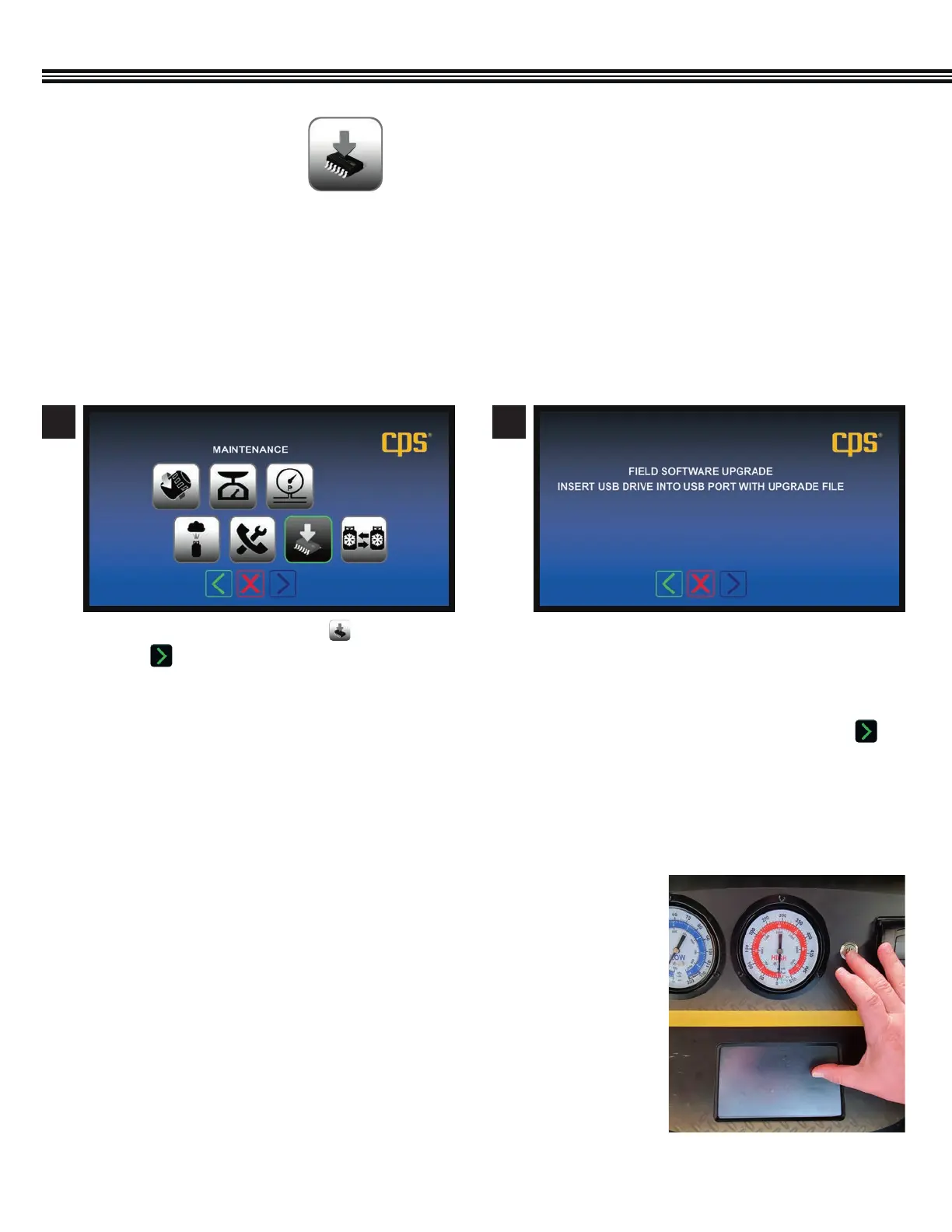
a. Touch the SOFTWARE UPGRADE key.
b. Touch to proceed to the next screen.
a. To upgrade the MX Series software in the field,
insert a USB drive (with an upgraded file) into USB
Port on the Control Panel.
b. Ensure power remains on during this operation.
c. After new software has been loaded, touch to
move to the next screen.
1 2
Software UpgradeMaintenance Menu
FIELD SOFTWARE UPGRADE
(Not All Screens Are Shown)
Under certain conditions, the touch screen may lose its calibration (i.e., touches
on the screen don’t result in the desired result). When touching a screen
function key, if it does not actuate the function, or engages an adjacent function,
the screen needs to be calibrated.
Touch Screen Calibration:
1. Turn the machine’s power off.
2. Then, while pressing and holding any spot on the touch screen turn the power
back on. A screen SET UP menu will be displayed.
3. Select Screen Calibration and follow the on-screen directions. (next page)
4. Calibration is then complete.
TOUCH SCREEN DISPLAY CALIBRATION


 To Next Page