Product Manual – DOC. 7844M CCS-UC-1: Crestron Mercury Tabletop Conference System • 31
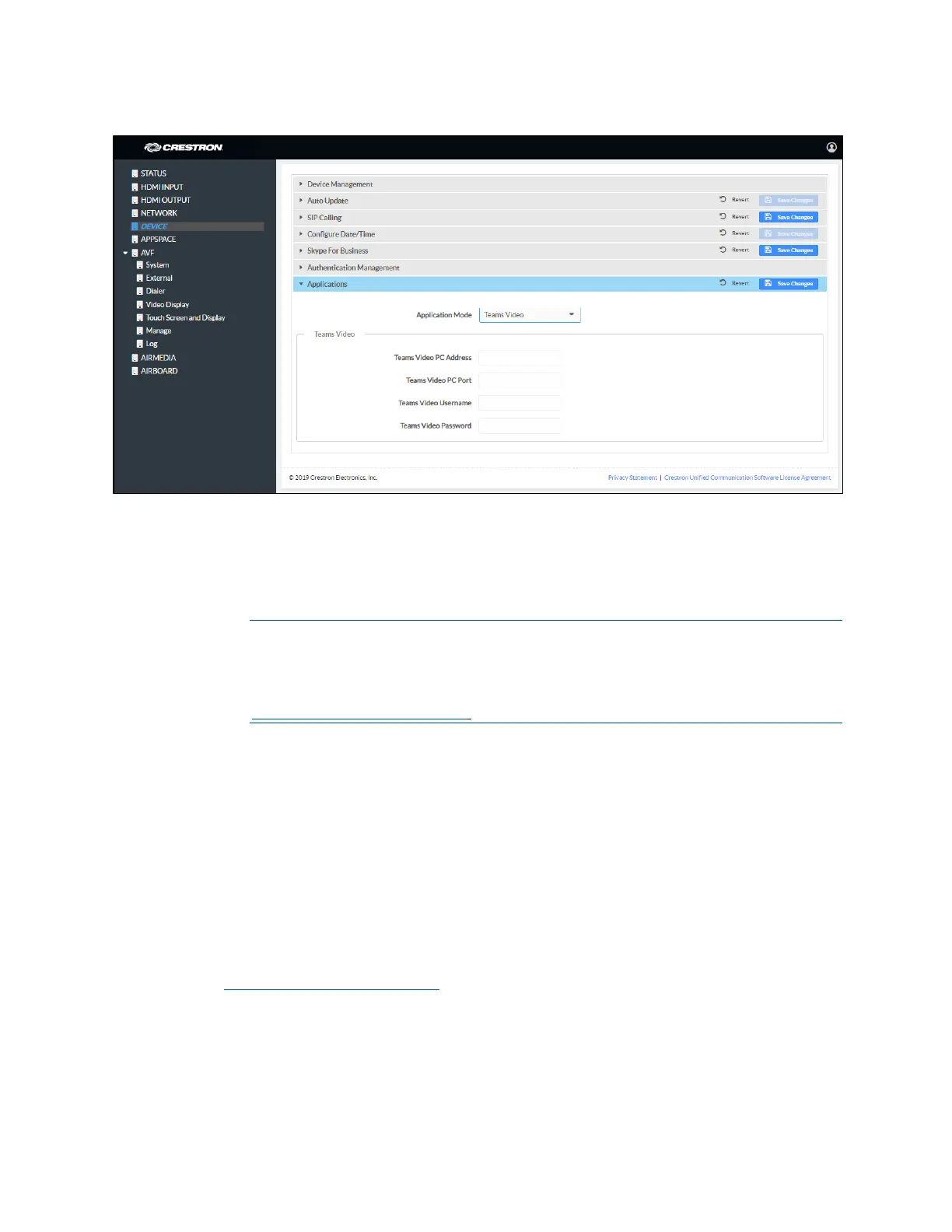
DEVICE Screen – Applications (Teams Video Settings Shown)
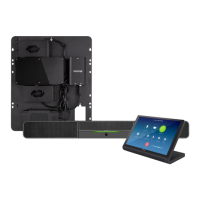
To configure the device for use with a Crestron Flex Microsoft Teams UC system,
enter the following information:
− Teams Video PC Address: Enter the IP address or host name of the
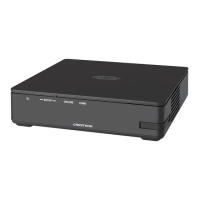
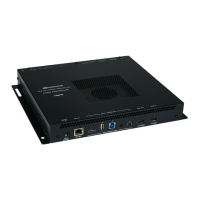
UC-ENGINE running Microsoft Teams software.
NOTE: The host name is printed on a label on the UC-ENGINE or
UC-ENGINE-SD (mounted on the UC-BRKT-100-ASSY or
UC-BRKT-100-SD-ASSY). For more information, refer to the UC-M150-T
Quick Start (Doc. 8366) or UC-M130-T Quick Start (Doc. 8464) at
www.crestron.com/manuals.
− Teams Video Port: By default, port number 49500 is used. If a different port
number has been configured on the PC running Microsoft Teams software,
enter it here.
− Teams Video Username: Enter the login username for the Microsoft Teams
software host PC. (The default username is “admin”.)
− Teams Video Password: Enter the login password for the Microsoft Teams
software host PC. (The default password is “sfb”.)
For more information on configuring a Crestron Mercury UC system with
Microsoft Teams software, refer to the UC Video Conference Systems for
Microsoft Teams Supplemental Guide (Doc. 8360) at
www.crestron.com/manuals
.
Click Save Changes when done or Revert to return to the previous setting. The device
will reboot.



 To Next Page
 Loading...