32 • CCS-UC-1: Crestron Mercury Tabletop Conference System Product Manual – DOC. 7844M
APPSPACE
The CCS-UC-1 can display content from an Appspace account when the device is not in
use (determined by the built-in occupancy sensor).
NOTES:
• An active Appspace account is required.
• Appspace video service is not supported.
• To use Appspace when the device is in Standby, the Power Settings must be set
to “
Occupancy Based With Signage” as described in “Power Settings” on page
35
.
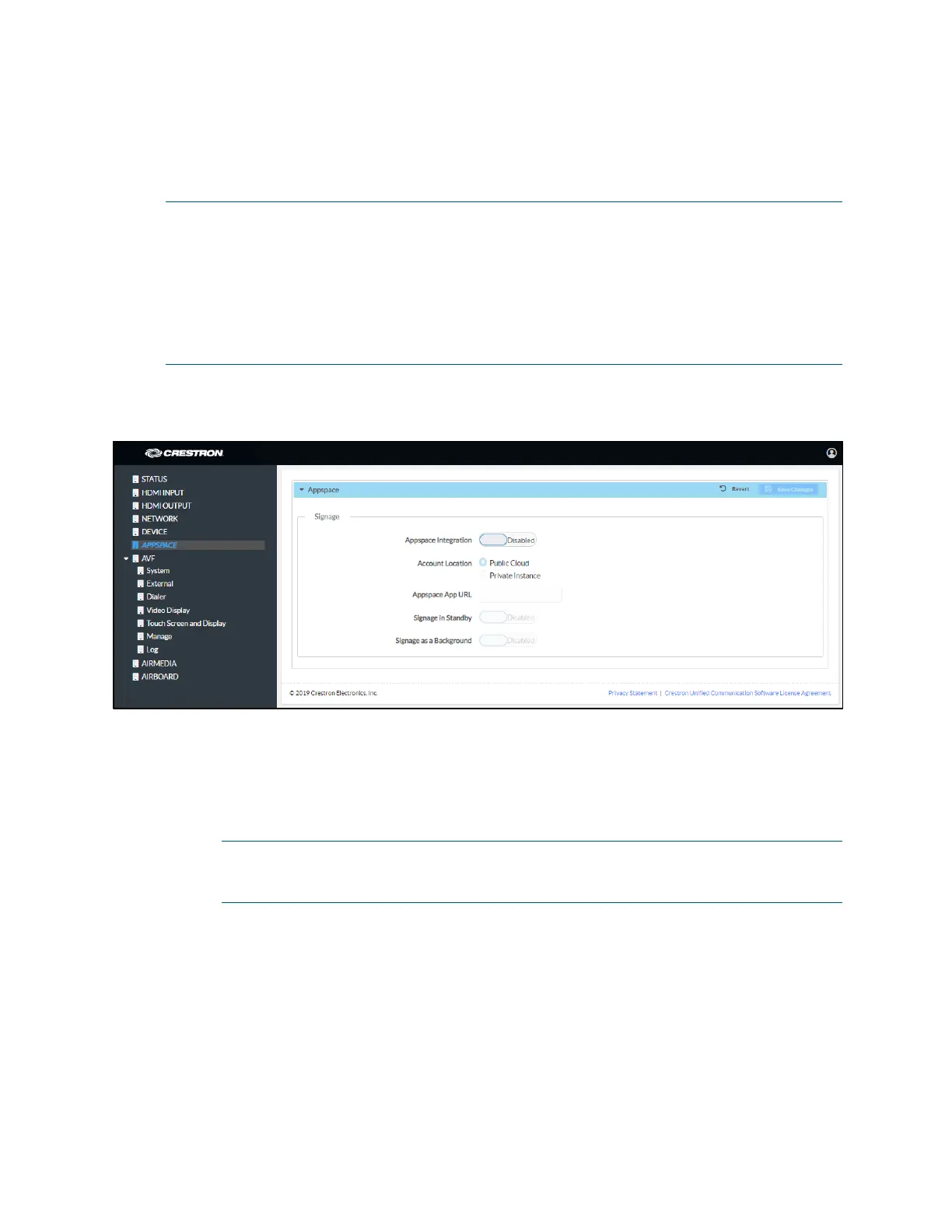
Click APPSPACE to configure the device’s operation with the Appspace platform.
APPSPACE Screen
To configure the device for use with Appspace:
1. Set Appspace Integration to Enabled to enable Appspace when the CCS-UC-1
goes to sleep based on occupancy (Standby). When enabled, the display on the
CCS-UC-1 turns off and the connected display will show Appspace content.
NOTE: To use Appspace when the device is in Standby, the Power Settings must
be set to “Occupancy Based With Signage” as described in “Power Settings” on
page 35
.
2. Choose the Account Location.
− Public Cloud: Select this option to use the Appspace public web app.
− Private Instance: Select this option to use a privately hosted instance of the
Appspace web app.
3. Enter the Appspace App URL. This is the URL where a privately hosted instance
of the Appspace web app can be found. Leave blank if the
Public Cloud account
location is selected.



 To Next Page
 Loading...